

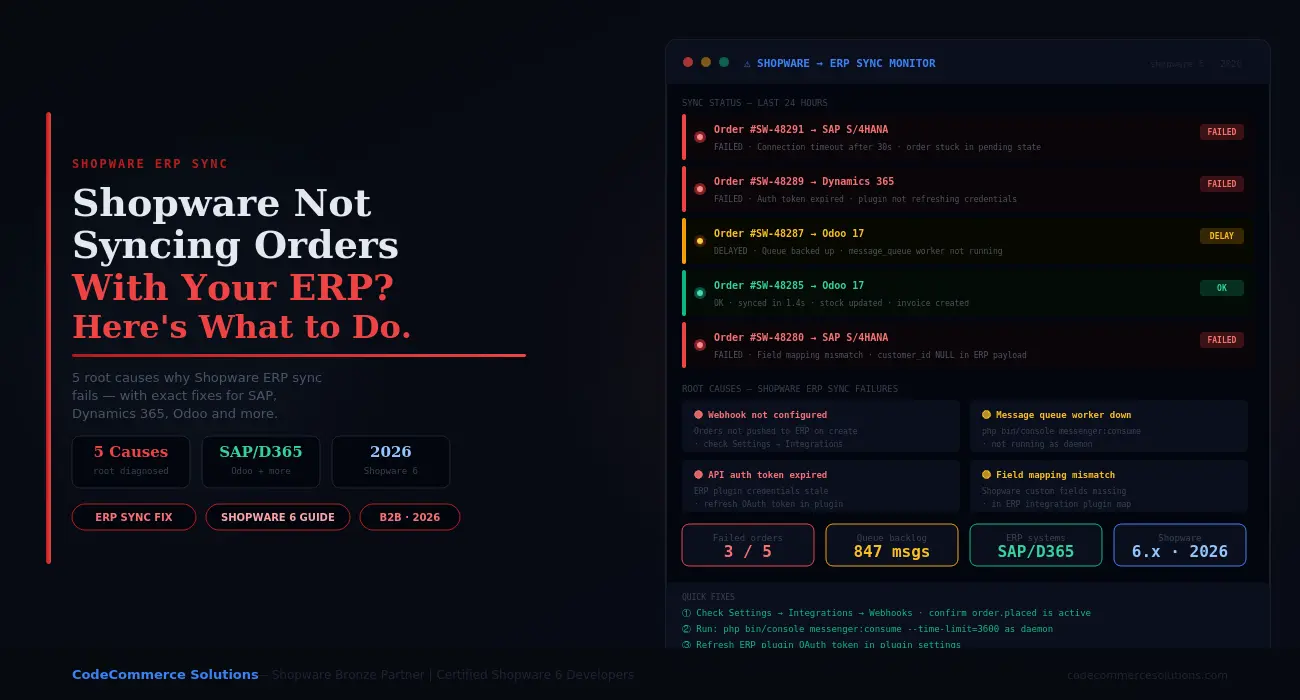
When Shopware ERP integration breaks, Shopware order sync stops completely. Orders arrive in Shopware but never reach your ERP. Stock is not updated. Invoices are not created. Your warehouse picks from the wrong numbers. Customers get the wrong delivery dates.
The problem feels urgent because it is. But most Shopware ERP sync failures come from one of five well-known causes. Each has a clear fix. You do not need to rebuild the integration from scratch.
This guide walks through each cause in order of how often we see it. Start at Cause 1 and work down. Most stores fix their sync issue at Cause 1 or 2.
Check This First
Go to your Shopware admin. Navigate toSettings → Integrations. Check that your ERP integration is still active. Also checkSettings → Webhooks. Confirm the order.placed webhook is enabled. Many sync failures start with a webhook that was turned off by mistake.
How Shopware ERP Integration Works.
Shopware 6 connects to ERP systems in two main ways. The first is through webhooks. When a customer places an order, Shopware sends an HTTP request to your ERP. The ERP receives the order data and creates a record.
The second way is through the message queue. Shopware puts an order event into its internal queue. A background worker picks up the event and sends it to the ERP. This method is more reliable under high traffic. It retries on its own when the ERP is slow to respond.
Both methods depend on several things working at once. Your webhook URL must be correct. The queue worker must be running. ERP API API keys must be valid. Field mapping must match what the ERP expects. When any one of these fails, Shopware order sync stops working.
Quick Diagnostic
Run php bin/console messenger:failed:show on your server. This lists every failed sync job in the dead letter queue. The error message tells you exactly what went wrong. It is the fastest way to find the root cause of a broken Shopware ERP sync.
Shopware ERP Integration Broken and Orders Piling Up?
CodeCommerce Solutions is a Shopware Bronze Partner. Our certified developers fix Shopware ERP integration issues fast. We cover SAP, Dynamics 365, Odoo, and custom ERP systems.
View Shopware Development Services → Hire a Shopware Developer
Cause 1: Webhook Not Configured or Disabled.
This is the most common cause. The Shopware ERP integration plugin registers a webhook when it is first installed. Over time, this webhook gets disabled. It can happen after a Shopware update, a plugin update, or a cache clear that resets plugin settings.
When the webhook is off, Shopware never pushes new orders to your ERP. Orders sit in Shopware with no errors logged. The ERP gets nothing. The problem is silent until someone notices missing orders in the ERP.
- ✦Go toSettings → Integrations → Webhooksin your Shopware admin. Look for a webhook with the event type
order.placed. Check that it is active and pointing to the correct ERP endpoint URL. - ✦Test the webhook manually. Click the test button next to the webhook. Check your ERP logs for an incoming request. If no request arrives, the endpoint URL is wrong or unreachable.
- ✦Also check for the
order.state_changedwebhook if your ERP tracks fulfilment status. Many Shopware ERP sync setups use both events to keep order status in sync end to end. - ✦If the webhook was just recreated, test it with a real test order. A test order costs nothing and confirms the full sync flow works end to end.
Cause 2: Shopware Message Queue Worker Not Running.
The Shopware message queue handles async tasks. This includes order sync events. Shopware puts each new order into the queue. A worker process picks it up and sends it to the ERP.
If the worker is not running, jobs pile up in the queue. Orders stay in Shopware. Nothing reaches the ERP. The queue backlog can grow to thousands of messages if the worker has been stopped for hours.
This is the second most common cause of broken Shopware order sync. Many setups run the worker once and forget to set it up as a persistent service. After a server restart, the worker does not come back.
ps aux | grep messenger:consume# See what is in the queue right now
php bin/console messenger:stats# See failed/dead jobs
php bin/console messenger:failed:show# Start the worker manually to clear the backlog
php bin/console messenger:consume –time-limit=3600
- ✦Set up the worker as a systemd service or use a tool like Supervisor or pm2. This keeps it running after server restarts. Without this, the Shopware message queue stops on every reboot.
- ✦Run
php bin/console messenger:failed:showto see all failed jobs. Then retry them withphp bin/console messenger:failed:retry. This sends the stuck orders to your ERP right away. - ✦Add queue tracking to your server alerts. Set a trigger at 100 messages. Catching a stopped worker early avoids large backlogs.
Developer Insight from CodeCommerce Solutions
A Shopware B2B client had 847 orders stuck in the queue. The worker had stopped 14 hours earlier after a server OS update. Running messenger:failed:retry sent all 847 orders to their ERP within 20 minutes. No manual re-entry was needed.
Need Your Shopware ERP Integration Fixed Fast?
Our certified Shopware 6 developers fix queue issues, webhook mismatches, and API auth problems. We also set up proper tracking so sync failures do not go unnoticed again.
Cause 3: ERP API Credentials Expired or Invalid.
ERP systems use OAuth tokens or API keys for access. These expire. When they do, Shopware API integration calls to the ERP return 401 or 403 errors. Shopware logs the error. Orders stop flowing to the ERP.
This happens most with SAP, Dynamics 365, and cloud-based ERP systems. They rotate credentials on a schedule. If the Shopware ERP integration plugin does not refresh the token, the next sync attempt fails.
- ✦Check your ERP integration plugin settings in the Shopware admin. Look for a token expiry date or a “refresh credentials” button. Refresh the token and run a test order to confirm sync is restored.
- ✦Check your Shopware logs for 401 or 403 errors from the ERP API endpoint. Go toSettings → Logsor check
/var/log/on the server. These errors confirm that credentials are the cause. - ✦For OAuth tokens, check the expiry period in your ERP admin. Set up built-in token renewal in the Shopware ERP integration plugin if supported. Most modern ERP plugins support refresh token rotation.
- ✦If credentials live outside the plugin, update both systems at once. Update the ERP and the Shopware API integration settings together. Mismatches between the two cause random failures.
Cause 4: Field Mapping Mismatch Between Shopware and ERP.
Shopware and your ERP store order data in different formats. The Shopware ERP integration plugin maps Shopware fields to ERP fields. If this mapping is wrong or incomplete, the ERP rejects the order payload.
This happens most after adding custom fields in Shopware. Custom product fields, delivery notes, and B2B customer codes are common examples. These new fields exist in Shopware but have no mapping in the ERP plugin. The ERP returns an error. The sync fails.
- ✦Check the error message in the dead letter queue with
php bin/console messenger:failed:show. The ERP usually returns a clear error like “required field customer_id is null”. This tells you exactly which field is missing from the payload. - ✦Open the Shopware ERP integration plugin field mapping screen. Match each required ERP field to the correct Shopware order field. Save the mapping and retry the failed jobs.
- ✦For custom Shopware fields, add them to the integration plugin map. If the plugin does not support custom field mapping, a developer can extend it. A custom subscriber adds the missing fields to the order payload before it is sent.
- ✦Test with one order after updating the mapping. Do not retry all failed orders at once. Fix the mapping first. Then retry in batches of 10 to confirm each one succeeds.
Developer Insight from CodeCommerce Solutions
A Shopware B2B store added a custom field for VAT numbers three months ago. Their SAP integration started failing the same day. The error was silent because admins had turned off email alerts. We mapped the VAT field to the SAP debitor number field. All 230 stuck orders reached SAP within five minutes after retrying the queue.
Cause 5: Shopware API Integration Plugin Out of Date.
Shopware updates change internal APIs. If your ERP plugin is several versions behind, it may call methods that no longer exist. Sync jobs fail with PHP errors. No orders reach the ERP.
This often happens after a big Shopware update. A store updates from Shopware 6.4 to 6.6. The ERP plugin was last updated for 6.4. It breaks silently. The queue fills up with errors.
- ✦Check your ERP plugin version inExtensions → My Extensions. Check the plugin vendor’s site for the latest release. Note the Shopware version it was tested against.
- ✦Update the plugin on a staging server first. Test a full order flow. Place a test order. Confirm it appears in the ERP. Update the order status. Confirm the ERP reflects the change.
- ✦If no update is available, check the plugin’s GitHub or support forum. Many ERP plugins are open source. A developer can patch the breaking change directly in the plugin code while waiting for an official release.
- ✦Consider replacing a stale ERP plugin with a custom Shopware API integration if the plugin is no longer maintained. A custom Shopware API integration built on the native Flow Builder is more stable long term. Third-party plugins often lag behind Shopware releases.
Shopware ERP Sync: Quick Diagnostic Checklist.
Work through this list in order. Each step checks one layer of the Shopware ERP integration stack.
- Go to Settings → Webhooks. Confirm
order.placedis active and the endpoint URL is reachable from your server. - Run
php bin/console messenger:stats. If the queue has messages that are not moving, your Shopware order sync is stalled. The worker is not running. - Run
php bin/console messenger:failed:show. Read the error message on the first failed job. This tells you the exact cause in most cases. - Check your Shopware logs for 401 or 403 errors. These point to expired ERP API credentials.
- Check the ERP plugin settings. Check the API key or OAuth token is still valid. Refresh it if needed.
- Place a test order. Watch the queue with
php bin/console messenger:stats. Confirm the order leaves the queue and appears in the ERP within 60 seconds. - Check the ERP plugin version. Compare it against your current Shopware version. Update if there is a newer release available.
- If orders are stuck in the dead letter queue, retry them after fixing the root cause:
php bin/console messenger:failed:retry.
Shopware ERP Integration: Common Errors and Fixes.
| Error / Symptom | Root Cause | Fix |
|---|---|---|
| Orders in Shopware, none in ERP. | Webhook disabled. | Enable order.placed webhook in Settings. |
| Queue backlog growing, nothing clearing. | Worker not running. | Start worker as a supervisor daemon. |
| Sync was working, now fails. | OAuth token expired. | Refresh token in ERP plugin settings. |
| Some orders sync, others fail. | Missing custom field in mapping. | Map the field in plugin or write a custom subscriber. |
| Sync broke after Shopware update. | Plugin incompatible with new version. | Update or patch the ERP plugin. |
| ERP returns 400 on every order. | Order payload format changed. | Check ERP API change log. Update the plugin. |
| Dead letter queue has 500+ messages. | Worker was stopped for hours. | Fix root cause first. Then retry with messenger:failed:retry. |
Shopware ERP Sync: Before and After Setup.
❌ Broken Sync
- Orders stuck in Shopware.
- ERP stock not updated.
- Invoices not created.
- Warehouse picking from wrong data.
- Manual re-entry by staff.
- Customers get wrong delivery dates.
- Errors silent — no alerts.
✅ Working Sync
- Orders reach ERP in under 60s.
- Stock updates on each order.
- Invoices auto-created in ERP.
- Warehouse always picks correctly.
- Zero manual re-entry needed.
- Delivery dates accurate.
- Queue tracked with alerts.
Why Choose CodeCommerce Solutions for Shopware ERP Integration.
Fixing a broken Shopware ERP integration needs access to three systems at once. You need Shopware server access, ERP admin access, and knowledge of the plugin code. Getting them all right at the same time is where many fixes go wrong.
CodeCommerce Solutions is a Shopware Bronze Partner. Our certified Shopware 6 developers fix Shopware ERP sync issues daily. Our team has worked with SAP, Dynamics 365, Odoo, and custom ERP systems. Server-level access is how we differ from most agencies — not just admin panel changes.
Queue tracking and webhook health checks are set up after every fix. This stops the same fault from coming back weeks later with no alert firing.
Official Documentation
For full details on Shopware webhooks and the message queue, see the Shopware message queue guide in the official docs. It covers queue workers, retry logic, and dead letter handling.
Fix Your Shopware ERP Integration Today.
Most Shopware ERP sync failures are fixable in under an hour. Start with the webhook check. Then look at the queue worker. Then check credentials. Work through the five causes in order and you will find the problem quickly.
Run php bin/console messenger:failed:show right now. The error message in the dead letter queue tells you more than anything else. Once the root cause is clear, the fix is usually straightforward.
Need a certified Shopware developer to fix your Shopware ERP integration quickly? CodeCommerce Solutions, a Shopware Bronze Partner, handles the full fix — from server access to queue retry to tracking setup.