

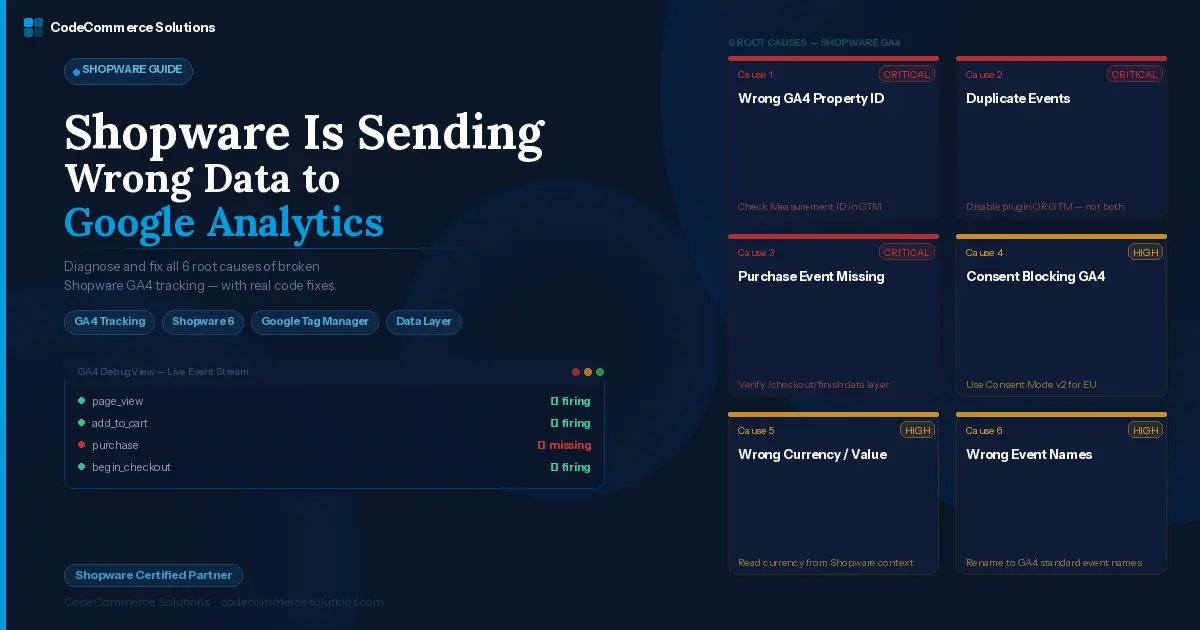
Wrong Shopware Google Analytics data costs real money. Bad Shopware GA4 tracking leads to bad budget decisions. You make budget decisions on bad numbers. Campaigns look better or worse than they are. Purchase data shows half the real revenue — or double.
Most Shopware Google Analytics issues come from one of six causes. Each one has a clear fix. Start with the GA4 DebugView tool. It shows you exactly what events are firing — and what is wrong with them.
Start Here: GA4 DebugView
Open your GA4 property. Go toConfigure → DebugView. Add ?gtm_debug=true to your Shopware store URL. Place a test order. Watch the events appear in real time. Each missing or doubled event shows you exactly which cause to fix first.
How Shopware Google Analytics Tracking Works.
Shopware 6 sends data to Google Analytics via a plugin or Google Tag Manager. Each approach uses a JavaScript data layer. The data layer holds event data — page views, add-to-cart, purchase — as a JavaScript array.
When a customer places an order, Shopware pushes a purchase event to this array. Your GA4 tag in GTM reads it. It sends the data to your GA4 property. So the flow is: Shopware → data layer → GTM → GA4.
Problems happen when any step in this chain breaks. The wrong property ID sends data nowhere. A duplicate tag sends it twice. A consent blocker stops it before it even starts. Each of these is a different fix.
Never Use Both a Plugin and GTM for the Same Events
If you use a Shopware GA4 tracking plugin AND a GTM container, you likely fire every event twice. This doubles your revenue and inflates all sale counts. Pick one method. Disable the other. This is the most common Shopware Google Analytics fix we make.
Shopware Google Analytics Data Is Wrong and Costing You Budget?
CodeCommerce Solutions is a Shopware Bronze Partner. Our certified developers audit your GA4 setup, fix duplicate events, and verify every purchase event sends the right data.
Cause 1: Wrong GA4 Property ID or Stream.
This is the most common Shopware GA4 tracking problem. The live store uses a staging or test GA4 Measurement ID. All real customer data goes to the wrong property. Your live GA4 dashboard shows nothing. Your staging property fills with real orders.
It happens after a site migration. The staging ID is copied to production and no one checks. Or the GA4 plugin has a test ID set from development.
- ✦Find your Measurement ID in GA4. Go toAdmin → Data Streams → your stream. Copy the Measurement ID. It starts with
G-. This is the ID your live Shopware store must use. - ✦Check the ID in Shopware. If you use a plugin, go to the plugin settings and compare the ID. If you use GTM, open your GTM workspace. Find the GA4 Configuration tag. Check the Measurement ID field.
- ✦Test the fix. Open GA4 DebugView. Visit your live store. A page view event should appear within 5 seconds. If it does, the property ID is now correct. Place a test order to confirm the purchase event also fires.
Developer Insight from CodeCommerce Solutions
A Shopware B2C store ran for three months with a staging GA4 ID in production. All purchase data went to the staging property. Their live GA4 showed zero revenue. Updating one field in the GTM tag fixed it. We then used the GA4 Data Import feature to backfill the correct data from Shopware’s order export.
Cause 2: Duplicate Events — Plugin and GTM Both Active.
Shopware GA4 tracking plugins push events to the data layer on their own. GTM also reads the data layer and sends events to GA4. If both are active for the same events, every purchase, page view, and add-to-cart fires twice. Your Shopware analytics data shows double revenue and double sales.
This Shopware GA4 tracking issue is hard to spot in GA4 itself. The numbers just look high. But DebugView shows the same event twice within milliseconds. That is the tell.
- ✦Open GA4 DebugView. Add an item to your cart. Look at the event stream. If you see
add_to_cartappear twice in quick succession, you have duplicate tracking. The same applies topurchaseevents on the thank-you page. - ✦Decide which method you want to keep — plugin or GTM. If you keep the plugin, disable the GA4 Configuration tag in GTM or remove it from the GTM container. If you keep GTM, disable the GA4 events in the plugin settings.
- ✦Do not just “pause” one method. Delete or fully disable it. Paused GTM tags can be re-published by accident. Paused plugin settings can reset after a plugin update. Make a clean choice and remove the other fully.
- ✦After fixing, check GA4 DebugView again. Each event should now appear exactly once. Also check GA4 Realtime reports the next day. Revenue should drop to roughly half of what it showed before. That is the correct number.
Cause 3: Purchase Event Missing or Not Wired.
This Shopware Google Analytics fix is one of the most requested. GA4 shows page views and add-to-cart events. But the purchase event never fires. Revenue in GA4 stays at zero. The orders exist in Shopware. They just never reach GA4.
The purchase event must fire on the order confirm page. In Shopware, this is the page after checkout.order.placed. If your GTM tag fires on the wrong page, the data layer is empty. The order data has not loaded yet.
// Open DevTools → Console → run this on /checkout/finish
console.log(window.dataLayer);// Look for a purchase event in the array
// It should contain: event: ‘purchase’, value, currency, items
window.dataLayer.filter(e => e.event === ‘purchase’)
- ✦Go to your Shopware store. Place a test order. After checkout, land on the thank-you page. Open Chrome DevTools. Go to the Console tab. Run
window.dataLayer.filter(e => e.event === 'purchase'). If the result is an empty array, the purchase event is not in the data layer. - ✦If using a plugin, check the plugin settings. Look for an option labelled “send purchase event on order confirm” or “fire on /checkout/finish”. Make sure it is enabled. Some plugins default to sending on order creation — not on the confirm page.
- ✦If using GTM, check the trigger for your purchase tag. It should fire on a page view where the URL contains
/checkout/finish. A trigger that fires on all pages or on a custom event may never match the correct page. - ✦Also check for a dataLayer clear event. Some plugins push
{ event: 'gtm.dom' }before the purchase event. This can wipe the ecommerce object from the data layer. Add an explicitdataLayer.push({ ecommerce: null })before your purchase push to reset it cleanly.
GA4 Data Still Wrong After Trying These Fixes?
Our Shopware Bronze Partner team audits your full tracking setup — plugin, GTM, data layer, and GA4 property. We find the exact cause and fix it with verified before-and-after DebugView screenshots.
Cause 4: Cookie Consent Blocking GA4 Before Opt-In.
Cookie consent tools block GA4 until a user accepts. This is correct for GDPR. But many setups go too far. They block GA4 entirely — even for users who accept. The tag never loads. So even willing users are not tracked.
The result: your Shopware analytics data shows far fewer sessions than your server logs. The gap is your consent block rate. Sessions, revenue, and sales all appear lower than reality.
- ✦Check the consent trigger in GTM. Open GTM. Find your GA4 Configuration tag. Look at the firing trigger. It should fire on “Consent Initialisation” or after the user accepts analytics cookies. A trigger that fires on “All Pages” may be blocked by your consent tool before it runs.
- ✦Use GTM’s built-in consent mode. Set
analytics_storageas a required consent type. GTM then handles the blocking on its own. Your Shopware GTM setup does not need a custom consent trigger — the consent mode handles it. - ✦Test consent behaviour. Open your store in a private window. Dismiss the consent banner without accepting. Open GA4 DebugView. No events should appear. Then reload, accept all cookies, and browse. Events should now appear. If they do not appear after acceptance, the consent trigger is blocking everything.
- ✦Consider GA4 Consent Mode v2. Since March 2024, Google requires Consent Mode v2 for EU users. Without it, GA4 cannot model sales for users who decline. This is separate from whether your tag fires — it affects how GA4 fills in the data gaps.
Cause 5: Wrong Currency or Value in Data Layer.
Shopware supports multiple currencies. But the data layer often sends the wrong one. The currency field in the purchase event may be missing or hardcoded to a default. GA4 then shows zero revenue for orders in other currencies — or combines them wrongly.
This Shopware analytics data problem is common in multi-currency stores. The setup works for the default currency. But orders in EUR, GBP, or USD all appear with a wrong or missing value.
dataLayer.push({
event: ‘purchase’,
ecommerce: { value: order.amountTotal, currency: ‘EUR’ }
});// ✅ Correct — reads currency from Shopware context
dataLayer.push({
event: ‘purchase’,
ecommerce: {
value: order.amountTotal,
currency: shopwareContext.currency.isoCode
}
});
- ✦Open the browser DevTools console on the thank-you page. Run
window.dataLayer.filter(e => e.event === 'purchase'). Check thecurrencyfield. It should match the currency the customer used — not a hardcoded value. - ✦Check the
valuefield too. It should be a number — not a string. Some plugins pushvalue: "49.99"as a string. GA4 ignores string values. Revenue appears as zero. The fix is to wrap the value inparseFloat()before pushing to the data layer. - ✦If using a Shopware GTM plugin, update it to the latest version. Most GA4 data layer plugins added proper currency mapping in late 2023. An older plugin version may not read
shopwareContext.currency.isoCodecorrectly.
Cause 6: GA4 E-commerce Events Not Mapped Correctly.
GA4 uses a fixed set of standard e-commerce event names. These are: view_item, add_to_cart, begin_checkout, purchase, and a few others. If your Shopware GTM or plugin sends events with different names, GA4 does not recognise them as e-commerce events. They appear as custom events with no revenue data.
Some older plugins used UA event names. For example, transaction is a UA name. In GA4 it must be purchase.
| Old UA event name | Correct GA4 name | When to fire it |
|---|---|---|
transaction |
purchase |
Order confirm page. |
productClick |
select_item |
User clicks a product. |
addToCart |
add_to_cart |
Item added to cart. |
checkout |
begin_checkout |
Checkout page loads. |
productDetail |
view_item |
Product detail page loads. |
- ✦Open GA4. Go toReports → Engagement → Events. Look for any event names that do not match the standard GA4 list above. Each custom name is a custom event. GA4 does not link it to e-commerce reports.
- ✦Update your Shopware GTM data layer to use the correct GA4 event names. If you use a plugin, check the plugin changelog. Most updated their event names in 2022 or 2023. Install the latest version and test each event in DebugView.
- ✦Check the
itemsarray on each event. GA4 requires anitemsarray on purchase events. Each item must haveitem_id,item_name,price, andquantity. Missing fields cause GA4 to show partial or no product data in reports.
Developer Insight from CodeCommerce Solutions
A Shopware store migrated from UA to GA4 but kept the old GTM tags. Their plugin still sent transaction events. GA4 received them as custom events with no revenue. We updated the data layer to use purchase with the correct items array. Revenue appeared in GA4 within 24 hours.
Shopware Google Analytics: Quick Diagnostic Reference.
| Symptom | Root Cause | Fix |
|---|---|---|
| GA4 shows zero data on live store. | Wrong property ID. | Check GA4 Measurement ID in plugin or GTM. |
| Revenue doubled in GA4. | Plugin and GTM both active. | Disable one tracking method fully. |
| GA4 shows page views but zero purchases. | Purchase event not firing on finish page. | Check data layer on /checkout/finish. |
| Sessions far below server log count. | Consent tool blocking GA4 too too hard. | Fix consent trigger or use Consent Mode v2. |
| Revenue shows as zero or wrong currency. | Hardcoded currency or string value. | Read currency from Shopware context on its own. |
| E-commerce reports show no product data. | Old UA event names or missing items array. | Update to GA4 standard event names and add items array. |
| Events appear in custom events, not e-commerce. | Non-standard event names used. | Rename to standard GA4 e-commerce events. |
Shopware Google Analytics: Fix Checklist.
- Open GA4 DebugView. Browse your live store. Confirm events appear in real time.
- Check the GA4 Measurement ID in your plugin or GTM. Compare it to your GA4 property.
- Place a test order. Run
window.dataLayer.filter(e => e.event === 'purchase')on the thank-you page. Confirm the event exists and has the right value, currency, and items. - Add an item to cart. Watch DebugView. If the same event appears twice, you have duplicate tracking. Disable one source.
- Open your store in a private window. Accept cookies. Confirm GA4 events fire. Decline cookies. Confirm they stop.
- Go to GA4 → Reports → Engagement → Events. Check that all event names match the standard GA4 e-commerce list.
- Check the
itemsarray on the purchase event. Each item needsitem_id,item_name,price, andquantity. - For multi-currency stores, test the purchase event with each currency. Confirm the
currencyfield changes correctly.
Why Choose CodeCommerce Solutions.
Bad Shopware Google Analytics data leads to bad decisions. You cut a campaign that was actually working. You scale one that was not. Fixing the tracking is not optional — it is as important as the store itself.
CodeCommerce Solutions is a Shopware Bronze Partner. Our certified Shopware 6 developers debug GA4 setups at the data layer level. We read the raw window.dataLayer output. GTM tags, plugin settings, and consent behaviour are all checked together. Every fix comes with verified DebugView screenshots before and after.
We also audit Shopware GTM setups as part of any Shopware project. Tracking problems found early cost far less to fix than tracking problems found six months later.
Official Documentation
For a step-by-step walkthrough of GA4 DebugView, see the GA4 DebugView guide from Google. It covers how to activate debug mode, read the event stream, and spot missing or broken events.
Fix Your Shopware Google Analytics Data Today.
Start with the GA4 DebugView. Open it. Place a test order. Look at what fires. Wrong or missing events tell you exactly which cause to fix. Most Shopware Google Analytics fix tasks take under two hours once the cause is clear.
Check for duplicates first. Then verify the property ID. These two fixes solve more than half of all Shopware analytics data problems we see.
Need a certified Shopware developer to audit and fix your GA4 setup? CodeCommerce Solutions, a Shopware Bronze Partner, handles the full debug — data layer, GTM, consent, and GA4 property.