

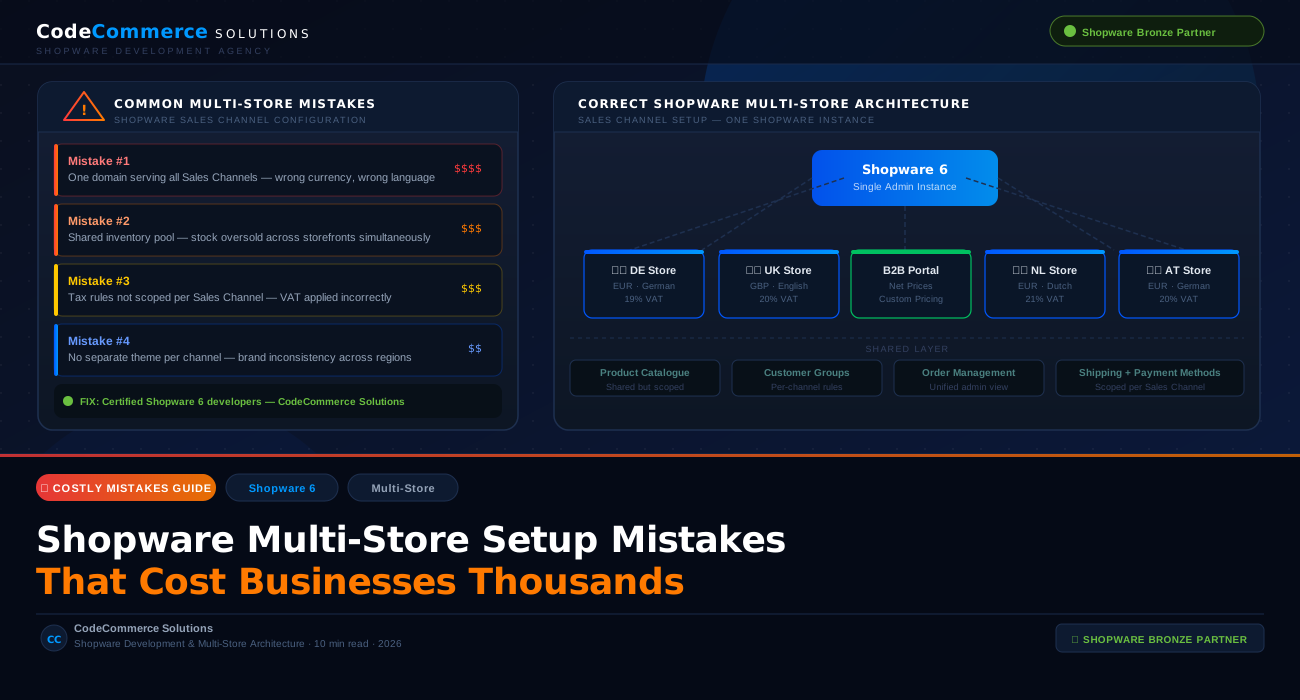
Running multiple storefronts from a single Shopware instance is one of the platform’s most powerful capabilities. A well-configured Shopware multi-store setup lets you serve different regions, languages, currencies, and customer groups from one admin panel, with one product catalogue and one codebase to maintain.
But when it goes wrong, it goes expensively wrong. We are talking about oversold inventory, incorrect tax billing, broken checkout flows in specific regions, and SEO cannibalization across storefronts — problems that take weeks to untangle and directly impact revenue.
This guide covers the most common Shopware multi-store setup mistakes we see when businesses come to us after something has already broken or when they want to do it right before it does.
In Shopware 6, multi-store is handled through Sales Channels— not separate installations. One Shopware instance can run multiple storefronts, each with its own domain, language, currency, payment methods, shipping rules, and theme. This architecture is powerful, but it has to be configured deliberately at every layer.
Why Shopware Multi-Store Setup Goes Wrong
Most multi-store mistakes do not happen because of bad intentions. They happen because merchants and even some agencies treat Shopware Sales Channel configuration as a simple checklist rather than an architectural decision. They copy settings between channels, assume shared defaults work across all storefronts, and skip the edge cases — until a customer pays in the wrong currency, receives the wrong VAT invoice, or cannot complete checkout at all.
The issues compound quickly when you add more Sales Channels on top of a flawed base configuration. What starts as a minor currency rounding issue becomes a full VAT compliance problem. What starts as a shared shipping rule becomes a checkout that silently fails for customers in specific countries.
Below are the specific mistakes we see most often in Shopware multi-store setup projects.
Get It Architected Correctly From Day One
CodeCommerce Solutions has configured Shopware multi-store setups for B2B and B2C businesses across Europe and beyond. As a Shopware Bronze Partner with certified Shopware 6 developers, we design Sales Channel architectures that scale without breaking.
The Most Expensive Shopware Multi-Store Setup Mistakes
Using One Domain for Multiple Sales Channels
Some businesses set up multiple Sales Channels in Shopware but point them all at the same domain, differentiating between storefronts using URL paths or query parameters. This creates serious problems across SEO, language detection, currency display, and checkout.
Shopware’s Sales Channel architecture is built around domain-level routing. When each Sales Channel has its own domain (or subdomain), Shopware correctly scopes the language, currency, payment methods, shipping rules, and theme to that channel. When multiple channels share a domain, Shopware cannot reliably determine which channel context to use, leading to customers seeing the wrong currency, being served content in the wrong language, or landing in the wrong checkout flow entirely.
From an SEO perspective, this also creates duplicate content issues across storefronts, which can drag down organic rankings for all of them.
Assign a dedicated domain or subdomain to every Sales Channel in Shopware. In the Sales Channel settings under Domains, add the exact domain, language, currency, and snippet set for that channel. Never share a domain root between two active Sales Channels serving different regions or audiences.
Shared Inventory Without Stock Visibility Rules
By default in Shopware 6, stock is managed at the product level and is shared across all Sales Channels. This means if you have 10 units of a product and a customer on your German storefront orders 8 while a customer on your UK storefront orders 6, Shopware may allow both orders to complete — leaving you with an oversold product and two unhappy customers to manage manually.
This is one of the most financially damaging Shopware multi-store setup mistakes because it is silent. The store keeps taking orders. You do not find out until fulfilment, by which point you have to cancel orders, process refunds, and handle customer service complaints — all of which cost time and damage repeat purchase rates.
Use Shopware’s clearance sale stock options carefully, and consider custom stock management via plugins or ERP integration if you need per-channel inventory isolation. For businesses with warehouse locations dedicated to specific regions, map inventory to those locations using Shopware’s stock location features or a connected ERP system. Always configure stock alerts and review your Overselling settings under each product’s stock tab.
Not Scoping Tax Rules Per Sales Channel
Tax configuration in Shopware is more layered than most merchants expect. You have tax rates at the system level, tax rules at the customer group level, and tax mappings at the product level — and all of this needs to be correctly scoped when you operate across multiple countries.
A common Shopware multi-store setup mistake is applying a single global tax rule across all Sales Channels. Your German storefront charges 19% VAT. Your Dutch storefront should charge 21%. Your UK storefront post-Brexit has entirely different rules. If these are not configured separately per Sales Channel and per customer country, you will either undercharge tax — creating a liability — or overcharge — creating customer complaints and refund requests.
For B2B multi-store setups, this gets even more complex. B2B customers in the EU purchasing cross-border may be entitled to zero-rated VAT on intra-community transactions, which requires both the correct customer group settings and verified VAT ID collection at checkout.
Configure tax rules under Settings → Tax for every country you sell into. Use Shopware’s tax provider system or a certified tax plugin for complex multi-country scenarios. For B2B storefronts, set up separate customer groups with net pricing enabled, and ensure VAT ID validation is active at checkout registration.
Applying the Same Theme Across All Storefronts
Shopware 6 allows you to assign different themes to different Sales Channels — but many multi-store setups skip this and run all storefronts from a single theme configuration. The result is storefronts that look identical regardless of the brand, region, or audience they serve.
This matters more than it seems. If you operate a B2B portal and a B2C storefront from the same Shopware instance, the user experience requirements are fundamentally different. A B2B buyer needs quick reorder flows, net pricing display, account-level order history, and quote request capabilities. A B2C buyer needs promotional banners, wish lists, and a simplified checkout. Serving both audiences the same theme is a conversion killer on both channels.
For multi-region setups, theme differences also matter for localisation — from font choices that support specific character sets to layout patterns that regional audiences expect.
In the Sales Channel settings, assign a separate Theme to each channel. You can base these on the same parent theme for maintainability, but configure distinct colour schemes, logo sets, header layouts, and content blocks per channel. For B2B portals, consider a purpose-built Shopware B2B theme rather than customising a B2C theme.
Payment and Shipping Methods Not Scoped to the Right Channels
One of the most technically damaging Shopware multi-store setup mistakes is misconfigured payment and shipping scoping. Every payment method and every shipping rule in Shopware can be enabled or disabled per Sales Channel — but the default when you install a new payment plugin is often to enable it globally.
This means a payment method intended only for your German market (like SEPA Direct Debit via a DACH-specific provider) may appear at checkout in your UK or US storefronts — where it either fails at the payment provider level or confuses customers with irrelevant options. The same applies to shipping: a DHL shipping rule configured for German postal codes should not be offered as an option in a UK checkout.
From our experience configuring Shopware multi-store setups, payment scoping errors are often the last thing checked and the first thing customers encounter when it goes wrong.
After installing any payment or shipping plugin, immediately go to the Sales Channel settings and explicitly enable it only on the intended channels. Review the Availability Rules for each shipping method — use Shopware’s Rule Builder to restrict shipping options by country, customer group, and cart value per channel.
Incorrect Language and Snippet Configuration
Shopware handles multi-language storefronts through a combination of language assignment at the Sales Channel level, snippet sets for UI text, and translated product content at the product level. Businesses often get the Sales Channel language correct but forget to translate the product data and snippet sets — leaving checkout buttons, error messages, and category names in the default language on a storefront that is supposed to be in Dutch, French, or Polish.
From an SEO standpoint, running a multi-language Shopware store without correct hreflang implementation is a significant missed opportunity. Without proper hreflang tags, Google cannot correctly associate your German storefront pages with German-speaking audiences, meaning you lose regional organic traffic that the multi-store setup was designed to capture.
For each Sales Channel, assign the correct language and create a dedicated snippet set with translated UI strings. Translate all product descriptions, meta titles, and meta descriptions at the product level using Shopware’s language inheritance system. For SEO, implement hreflang tags either via your SEO plugin or custom theme configuration, pointing each language variant correctly to its counterpart URLs.
No Staging Environment for Multi-Store Changes
When you run multiple storefronts from one Shopware instance, a configuration change in the admin panel can affect all of them simultaneously. A shipping rule edit, a plugin update, a category restructure — any of these can break not just one storefront but every Sales Channel simultaneously.
Businesses running Shopware multi-store setups without a staging environment are taking on enormous operational risk every time they make a change. We have seen multi-store merchants apply a plugin update that broke checkout across all four of their storefronts at once during peak trading hours — a scenario that is completely preventable.
Maintain a staging environment that mirrors your production Shopware instance, including all Sales Channels. Test every plugin update, theme change, and configuration edit on staging before deploying to production. Use a deployment pipeline (Git-based CI/CD) to manage changes systematically rather than editing live configuration directly.
A pattern we see repeatedly: businesses launch their first Sales Channel correctly, then add a second or third channel months later by duplicating settings from the first. The duplicate inherits all the correct settings — but also inherits the shortcuts and workarounds that were fine for one region but break things in another. Every new Sales Channel deserves its own deliberate configuration review, not just a copy of an existing one.
Your Multi-Store Setup Is Leaking Revenue — Let’s Fix It
If any of the mistakes above sound familiar, CodeCommerce Solutions can audit your Shopware multi-store configuration, identify where things are breaking, and rebuild the architecture properly. Our certified Shopware 6 developers have set up multi-store environments for B2B and B2C businesses across Europe.
What a Correct Shopware Multi-Store Architecture Looks Like
To give you a concrete reference, here is what a properly structured Shopware multi-store setup looks like for a mid-sized business operating across three European markets with both B2B and B2C channels.
| Sales Channel | Domain | Language | Currency | Tax Rule | Theme |
|---|---|---|---|---|---|
| DE B2C Store | shop.de | German | EUR | 19% German VAT | B2C Theme DE |
| AT B2C Store | shop.at | German (AT) | EUR | 20% Austrian VAT | B2C Theme AT |
| NL B2C Store | shop.nl | Dutch | EUR | 21% Dutch VAT | B2C Theme NL |
| EU B2B Portal | b2b.shop.com | English | EUR / GBP | Net (0% with VAT ID) | B2B Theme |
Notice that even the two German-language stores (DE and AT) have separate domains, separate themes, and separate tax rules. They share a product catalogue and a single admin panel, but every customer-facing element is scoped to that specific channel.
Expert Tips for a Stable Shopware Multi-Store Setup
- Use the Rule Builder aggressively. Shopware’s Rule Builder is your primary tool for scoping almost everything — shipping, payments, promotions, and prices — to specific Sales Channels, customer groups, and countries. If you are not using it extensively in a multi-store setup, you are probably relying on global defaults that will cause problems.
- Map currencies correctly and set rounding rules. Each Sales Channel should have its currency set at the channel level, not just at the product level. Set clear rounding rules for each currency. Inconsistent rounding across channels creates small discrepancies that add up across thousands of orders and complicate reconciliation.
- Audit your SEO plugin configuration per channel. Most Shopware SEO plugins apply settings globally by default. Check that your meta title templates, canonical URL patterns, and sitemap generation are scoped per Sales Channel to avoid duplicate content penalties across your storefronts.
- Test checkout end-to-end on every channel after any update. After a Shopware core update, plugin update, or configuration change, test a full guest checkout and a logged-in checkout on every active Sales Channel. A change in one area of the system can have knock-on effects on checkout across all channels.
- Create separate admin user roles for channel-specific access. If you have regional teams managing individual storefronts, use Shopware’s ACL system to restrict their admin access to their Sales Channel only. This prevents accidental changes to settings that affect other channels.
- Document your Sales Channel configuration. Maintain a simple document listing every Sales Channel, its domain, language, currency, payment methods, shipping rules, and theme. When something breaks, this is the first reference you reach for. Without it, debugging multi-store issues takes far longer than it should.
A note from our developers: The most underused feature in Shopware multi-store setup is the Dynamic Product Groups scoped per Sales Channel. Instead of manually assigning products to each storefront, dynamic groups let you define rules — by category, manufacturer, tag, stock level, or custom field — and Shopware automatically includes the right products in each channel. Used correctly, this eliminates hours of manual product management when you add a new channel.
Why CodeCommerce Solutions for Shopware Multi-Store Development
Shopware multi-store setup is not a feature you toggle on. It is an architectural decision that affects every layer of your store — from the database and caching layer through to the customer’s checkout experience in three different countries. Getting it right requires deep Shopware 6 expertise, not just familiarity with the admin panel.
CodeCommerce Solutions is a Shopware Bronze Partner with a team of certified Shopware 6 developers who have built and audited multi-store architectures for businesses ranging from single-market expansions to full multi-region B2B and B2C platforms.
- Full Sales Channel architecture design for new multi-store projects.
- Audits of existing Shopware multi-store configurations to identify and fix problems.
- Tax rule and VAT configuration for multi-country selling, including B2B VAT ID validation.
- Custom Shopware plugin development for channel-specific features not available out of the box.
- ERP and inventory system integration for accurate per-channel stock management.
- Ongoing Shopware maintenance and support retainers for multi-store operators.
Conclusion
Shopware multi-store setup is one of the most powerful capabilities the platform offers — and one of the most consequential to get wrong. The mistakes covered in this guide are not theoretical. They are patterns we see regularly when businesses approach us after their multi-store configuration has already caused financial or operational damage.
The good news is that every mistake here is preventable, and most are fixable without a full rebuild — as long as you catch them early. Whether you are planning a Shopware multi-store setup from scratch or troubleshooting an existing configuration, the right approach is always to treat Sales Channel architecture as a deliberate technical decision, not an afterthought.
If your Shopware multi-store setup is costing you more than it should — in developer time, in lost conversions, or in operational overhead — it is worth getting an expert review before the problems compound further.
Build Your Shopware Multi-Store Setup the Right Way
CodeCommerce Solutions — a certified Shopware development agency and Shopware Bronze Partner — can help you design, build, and maintain a multi-store architecture that scales without breaking. Talk to our certified Shopware 6 developers today.