

Page speed is not just a user experience metric. It directly affects conversion rates, bounce rates, and organic search rankings. For Shopware stores handling real traffic volumes, the built-in PHP-based HTTP cache can only go so far. Enabling Varnish cache in Shopware is the step that takes response times from several hundred milliseconds down to single-digit milliseconds for cached pages — without touching a single line of your theme or application code.
This guide covers the complete setup: how Varnish cache works with Shopware 6, the exact configuration steps, the Nginx proxy setup, the Shopware-specific VCL file, ESI configuration, cache invalidation, and the common mistakes to avoid. Whether you are setting this up for the first time or troubleshooting a broken Varnish configuration, this is the reference you need.
This guide assumes you have a Shopware 6 installation on a Linux server (Ubuntu 20.04 / 22.04 recommended) with root SSH access, Nginx as your web server, and PHP-FPM already running. Varnish version 6.x or 7.x is supported. You will need to be comfortable editing server configuration files and running CLI commands.
What Varnish Cache Does for Shopware
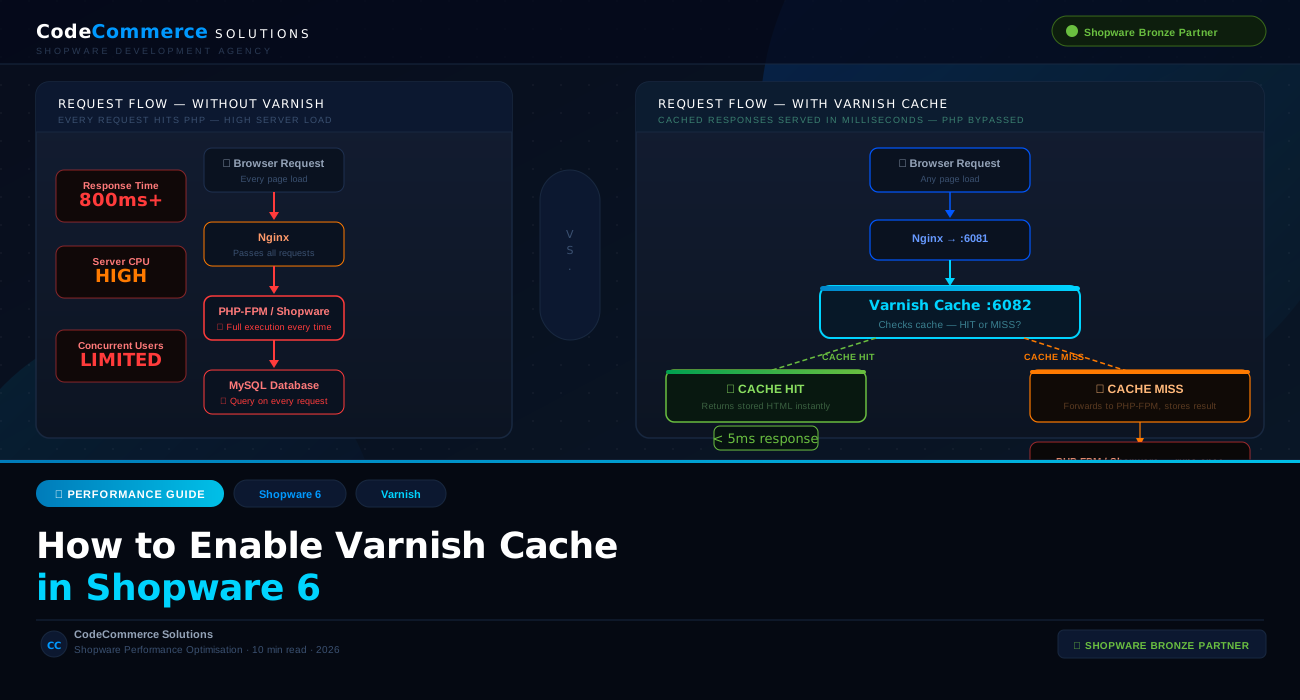
Without Varnish cache, every request to your Shopware store goes through the full PHP execution stack — Nginx receives the request, passes it to PHP-FPM, which boots the Shopware application, queries MySQL, renders the template, and returns a response. On a moderately configured server, that process takes anywhere from 200ms to over a second per request.
Varnish sits in front of Nginx as a reverse proxy. When a page is requested for the first time, Varnish forwards it to Shopware, receives the rendered response, stores it, and delivers it to the browser. The next time the same page is requested, Varnish serves the stored response directly — PHP never runs, MySQL never queries. Response times drop to under 5 milliseconds.
Cache HIT response time — Varnish serves stored HTML directly to the browser
Reduction in PHP-FPM load for stores with Varnish cache properly configured
Increase in concurrent user capacity without scaling server hardware
Shopware 6 has native support for Varnish cache through its HTTP cache layer and ESI (Edge Side Includes) support. This means Shopware can tell Varnish exactly which pages to cache, for how long, and when to invalidate specific cache entries when content changes — without requiring any third-party plugins.
Want Varnish Cache Configured by Certified Shopware Developers?
Setting up Varnish cache for Shopware correctly requires server-level configuration, VCL tuning, and Shopware environment setup. CodeCommerce Solutions, a Shopware Bronze Partner, handles complete performance setups for Shopware stores — including Varnish, Redis, and CDN configuration.
How Varnish Fits Into the Shopware Server Architecture
Understanding the port routing before you touch any configuration file saves a lot of troubleshooting time. The standard Varnish cache Shopware setup works as follows:
- Port 80 / 443 (public) — Nginx listens here and handles SSL termination. It forwards requests to Varnish on port 6081.
- Port 6081 — Varnish listens here. It checks its cache. On a HIT, it responds immediately. On a MISS, it forwards the request to Shopware on port 6082.
- Port 6082 — Nginx (backend) listens here and passes requests to PHP-FPM, which runs the Shopware application.
- Port 6060 — Varnish admin port, used for cache purging and management from the CLI.
This two-Nginx setup (one for SSL termination, one as the Shopware backend) is the standard and most reliable configuration for Varnish cache Shopware setups. Some simpler guides skip the SSL-terminating Nginx, but this creates problems with Shopware’s URL generation for HTTPS stores.
Step-by-Step: How to Enable Varnish Cache in Shopware 6
Install Varnish on Your Server
Install Varnish 7.x from the official Varnish repository. Using the OS default package often installs an outdated version that lacks features Shopware relies on.
# Add the Varnish 7 package repository
curl -s https://packagecloud.io/install/repositories/varnishcache/varnish72/script.deb.sh | sudo bash

# Install Varnish
sudo apt-get install varnish

# Verify installation
varnishd -V
Reconfigure Nginx to Listen on Port 6082
Your Nginx server block that serves the Shopware application needs to move off port 80 and onto port 6082. This frees port 6081 for Varnish and makes Nginx the backend that Varnish forwards misses to.
server {
    listen 6082;
    server_name yourstore.com;
    root  /var/www/shopware/public;
    index index.php;

    # Required: tell Shopware the real scheme is HTTPS
    set $realScheme https;

    location / {
        try_files $uri $uri/ /index.php$is_args$args;
    }

    location ~ \.php$ {
        include         snippets/fastcgi-php.conf;
        fastcgi_pass    unix:/run/php/php8.2-fpm.sock;
        fastcgi_param   HTTPS on;
        fastcgi_param   HTTP_SCHEME https;
    }
}
Create the SSL-Terminating Nginx Frontend on Port 443
A separate Nginx server block handles HTTPS and forwards decrypted traffic to Varnish on port 6081. This ensures SSL works correctly while Varnish handles caching over plain HTTP internally.
server {
    listen 80;
    server_name yourstore.com;
    return 301 https://$host$request_uri;
}

server {
    listen 443 ssl http2;
    server_name yourstore.com;

    ssl_certificate     /etc/letsencrypt/live/yourstore.com/fullchain.pem;
    ssl_certificate_key /etc/letsencrypt/live/yourstore.com/privkey.pem;

    location / {
        proxy_pass         http://127.0.0.1:6081;
        proxy_set_header   Host              $host;
        proxy_set_header   X-Real-IP         $remote_addr;
        proxy_set_header   X-Forwarded-For   $proxy_add_x_forwarded_for;
        proxy_set_header   X-Forwarded-Proto https;
        proxy_read_timeout 120s;
        proxy_buffer_size  128k;
        proxy_buffers      4 256k;
    }
}
Configure Varnish to Listen on Port 6081
Edit the Varnish systemd service file to set the correct ports and allocate sufficient memory for the cache. Adjust malloc,256m based on your available server RAM — 256MB is a reasonable starting point for most Shopware stores.
ExecStart=/usr/sbin/varnishd \
    -a 0.0.0.0:6081 \
    -f /etc/varnish/default.vcl \
    -s malloc,256m \
    -T 127.0.0.1:6060 \
    -p default_ttl=3600 \
    -p default_grace=3600
Install the Shopware VCL Configuration
Shopware provides an official VCL (Varnish Configuration Language) file specifically written for Shopware 6. This is the most important step. The default Varnish VCL knows nothing about Shopware’s cache headers, ESI tags, or cookie handling rules. The Shopware VCL tells Varnish exactly what to cache, what to bypass, and how to handle Shopware’s cache invalidation requests.
Download or copy the official Shopware VCL from the Shopware developer documentation and place it at /etc/varnish/default.vcl. Below is a summary of the key sections and what they do.
# Varnish VCL for Shopware 6
vcl 4.1;

# Define the Shopware backend (Nginx on port 6082)
backend default {
    .host = "127.0.0.1";
    .port = "6082";
    .first_byte_timeout     = 300s;
    .connect_timeout        = 5s;
    .between_bytes_timeout  = 2s;
}

sub vcl_recv {
    # Handle Shopware cache PURGE requests from the application
    if (req.method == "PURGE") {
        if (!client.ip ~ purge) { return (synth(405, "Not allowed")); }
        return (purge);
    }

    # Enable ESI processing for Shopware fragments
    set req.http.Surrogate-Capability = "key=ESI/1.0";

    # Do not cache admin panel, account, checkout pages
    if (req.url ~ "^/admin"
        || req.url ~ "^/checkout"
        || req.url ~ "^/account"
        || req.url ~ "^/store-api"
        || req.url ~ "^/api") {
        return (pass);
    }

    # Strip cookies from cacheable pages — essential for high hit rates
    if (req.http.Cookie) {
        set req.http.Cookie = regsuball(req.http.Cookie,
            "(?:^|;\s*)(session-\w+)=([^;]+)", "\1=\2");
        if (req.http.Cookie == "") { unset req.http.Cookie; }
    }
}

sub vcl_backend_response {
    # Enable ESI processing if Shopware sends ESI headers
    if (beresp.http.Surrogate-Control ~ "ESI/1.0") {
        unset beresp.http.Surrogate-Control;
        set beresp.do_esi = true;
    }

    # Cache static assets for 1 year
    if (bereq.url ~ "\.(css|js|png|jpg|gif|ico|woff2|svg)$") {
        set beresp.ttl = 365d;
        set beresp.http.Cache-Control = "public, max-age=31536000";
    }
}

sub vcl_deliver {
    # Debug header — shows HIT or MISS in response (remove in production)
    if (obj.hits > 0) {
        set resp.http.X-Cache = "HIT";
    } else {
        set resp.http.X-Cache = "MISS";
    }
}
The code above illustrates the key logic sections. Always use the complete, up-to-date VCL from the official Shopware documentation as your base file. Shopware updates the VCL with each major version, and using an outdated one can cause checkout cookie issues, broken ESI fragments, or incorrect cache invalidation.
Configure Shopware to Use the Reverse HTTP Cache
Shopware needs to be told that a reverse proxy (Varnish) is in front of it. This is done in two places: the .env file and the config/packages/shopware.yaml file. Without this step, Shopware will not send the correct cache headers and Varnish will not cache Shopware pages properly.
# Tell Shopware the trusted proxy IP (your Varnish/Nginx proxy)
TRUSTED_PROXIES=127.0.0.1
SHOPWARE_HTTP_CACHE_ENABLED=1
SHOPWARE_HTTP_DEFAULT_TTL=7200
shopware:
    http_cache:
        enabled: true
        default_ttl: 7200
        reverse_proxy:
            enabled: true
            use_varnish_xkey: true
            hosts:
                - "http://127.0.0.1:6081"
            max_parallel_invalidations: 3
Enable ESI (Edge Side Includes) in Shopware
ESI is essential for correctly caching pages that contain dynamic, user-specific content — such as the cart widget, the login status indicator, or the mini-basket. Without ESI, Varnish would either cache the page with a specific customer’s cart data (a serious problem) or bypass caching entirely for logged-in users.
ESI solves this by splitting the page into fragments. The main page HTML is cached globally. The cart widget and customer-specific fragments are requested separately via ESI tags and served dynamically. Shopware 6 has built-in ESI support — you just need to ensure it is enabled and that your VCL processes ESI tags.
framework:
    esi:
        enabled: true
    fragments:
        enabled: true
        hinclude_default_template: false
Restart Services and Verify the Setup
Reload your configuration, restart all services, and verify Varnish cache is working by checking the response headers of your store pages.
# Reload systemd and restart services
sudo systemctl daemon-reload
sudo systemctl restart varnish
sudo systemctl restart nginx
sudo systemctl restart php8.2-fpm

# Clear Shopware cache
php bin/console cache:clear

# Test — first request should return MISS, second should return HIT
curl -I https://yourstore.com | grep X-Cache
# Expected: X-Cache: MISS (first request)

curl -I https://yourstore.com | grep X-Cache
# Expected: X-Cache: HIT (second request)
You see X-Cache: HIT on the second request to any product or category page. Response times should drop to under 10ms. Check varnishstat or varnishlog from the CLI for live cache hit rate monitoring.
Having Trouble Getting Varnish Cache Working in Shopware?
Varnish cache configuration for Shopware involves multiple layers — server config, VCL rules, Shopware environment settings, and ESI setup. If your cache hit rates are low, cookies are breaking caching, or your checkout is behaving oddly after enabling Varnish, our certified Shopware 6 developers can diagnose and fix it.
Common Varnish Cache Shopware Mistakes to Avoid
Even with the correct configuration files in place, Varnish cache Shopware setups frequently underperform because of a small number of recurring mistakes. These are the ones our developers encounter most often when auditing Shopware performance setups.
Low Cache Hit Rate Due to Cookie Leakage
Varnish does not cache responses to requests that carry cookies — by default. If your VCL is not aggressively stripping non-essential cookies before the cache lookup, your hit rate will be near zero. The most common culprits are Google Analytics cookies (_ga, _gid), marketing cookies, and A/B testing tools that inject their own cookies into every request.
Your VCL should strip all cookies except Shopware’s own session cookie from cacheable pages. The Shopware official VCL handles this, but any custom plugins or tag managers that add new cookies need to be accounted for in the cookie stripping rules.
Forgetting to Exclude the Admin Panel
Every Shopware admin panel request must bypass Varnish entirely. If /admin gets cached, admin users will see stale data and CSRF tokens may break form submissions. Ensure your VCL has an explicit pass rule for any URL starting with /admin, /api, and /store-api.
Not Setting TRUSTED_PROXIES in Shopware
When Varnish forwards requests to Shopware, Shopware sees the proxy’s IP address rather than the real client IP. Without setting TRUSTED_PROXIES in .env, Shopware generates URLs using the wrong scheme or IP, which breaks HTTPS URL generation and can cause infinite redirect loops. Always set TRUSTED_PROXIES=127.0.0.1 when running Varnish on the same server.
Incorrectly Caching Checkout and Cart Pages
Checkout pages, cart pages, and account pages must never be cached by Varnish. If a customer’s order confirmation page or cart is cached and served to another user, it is both a serious data privacy issue and a customer experience failure. Double-check your VCL pass rules cover all of these URL patterns.
Not Reloading Varnish After VCL Changes
Editing the VCL file and restarting Varnish is not enough to apply changes in all configurations. You may need to explicitly reload the VCL using varnishadm. Always confirm VCL changes are active after editing by checking Varnish’s loaded configuration with varnishadm vcl.list.
From our Shopware developers: One pattern we see often is stores that enable Varnish cache, see a modest improvement, and conclude it is working correctly — when in reality their cache hit rate is under 20% because of cookie leakage. Run varnishstat | grep MAIN.cache_hit and compare against MAIN.cache_miss. A well-configured Varnish cache Shopware setup should achieve cache hit rates of 70% to 90% for typical storefront traffic, sometimes higher for product catalogue-heavy stores.
How to Monitor and Verify Your Varnish Cache Performance
| Command | What It Shows |
|---|---|
varnishstat |
Live stats: cache hit/miss ratio, request rate, backend connections |
varnishlog -i ReqURL |
Live log of all URLs hitting Varnish and their cache status |
varnishadm vcl.list |
Shows loaded VCL files and which is currently active |
curl -I https://yourstore.com |
Check response headers for X-Cache: HIT or MISS |
varnishadm ban 'req.url ~ "/"' |
Purge all cached URLs matching a pattern — useful after deployments |
Target a cache hit rate above 70% within the first hour of steady traffic. If your hit rate is below 40%, the most likely causes are cookie leakage, missing pass rules, or Shopware not sending the correct Cache-Control headers — which happens when the HTTP cache is not correctly enabled in shopware.yaml.
Expert Tips for Maximising Varnish Cache Performance in Shopware
- Combine Varnish with Redis for the Shopware app cache. Varnish handles the HTTP cache layer. Redis handles Shopware’s internal application cache (sessions, DAL cache, compiled container). Running both gives you the fastest possible response for both cached and uncached requests. Configure Redis in
.envwithSHOPWARE_CACHE_IDand the Redis connection string. - Increase Varnish’s malloc allocation for high-traffic stores. The default 256MB fills up quickly on stores with thousands of product pages. Monitor
MAIN.n_lru_nukedinvarnishstat— if you see this number climbing, Varnish is evicting cached objects before they expire and you need to increase the memory allocation. - Use xkey tags for surgical cache invalidation. Shopware 6 supports the Varnish xkey VMOD (enabled with
use_varnish_xkey: trueinshopware.yaml). This allows Shopware to invalidate only the specific cached pages that reference a product or category when its content changes — rather than flushing the entire cache. For stores with large catalogues, this dramatically improves cache efficiency. - Strip the
X-Cachedebug header before going to production. TheX-Cache: HITresponse header is useful during setup but should be removed from the VCL before launch. It exposes your caching infrastructure details to anyone inspecting response headers. - Test with logged-in and guest user sessions separately. ESI ensures the main page is cached globally, but test both a fresh guest session and a logged-in customer session to confirm the cart widget and login state are rendering correctly via ESI and not being served from the wrong cache context.
Why CodeCommerce Solutions for Shopware Performance Optimisation
Enabling Varnish cache in Shopware delivers real, measurable performance gains — but getting every layer of the configuration correct requires experience with both Varnish VCL and the Shopware application stack. A misconfigured Varnish setup can be worse than no caching at all: incorrect cookie handling can break checkout, wrong pass rules can leak customer data, and stale cache can show outdated product information.
CodeCommerce Solutions is a Shopware Bronze Partner with certified Shopware 6 developers who handle full performance stack setups — Varnish, Redis, CDN configuration, Core Web Vitals optimisation, and Shopware-specific caching strategy. We configure, test, and monitor Varnish deployments for Shopware stores, and we know exactly where each layer breaks and why.
- Full Varnish cache Shopware setup — VCL, Nginx proxy, Shopware env configuration.
- Redis integration for Shopware application and session cache.
- Performance audits for stores with low cache hit rates or high server load.
- CDN integration (Cloudflare, AWS CloudFront) layered on top of Varnish for global delivery.
- Core Web Vitals fixes to meet Google’s page experience standards.
- Ongoing Shopware maintenance and performance monitoring retainers.
Conclusion
Varnish cache is the single most impactful performance upgrade you can make to a Shopware 6 store without changing a line of application code. When correctly configured, it takes your storefront response time from hundreds of milliseconds down to under 5ms for cached pages, dramatically reduces server load, and gives your store the capacity to handle traffic spikes without hardware upgrades.
The setup involves several layers — Varnish installation, Nginx port configuration, the Shopware VCL, ESI setup, and the Shopware HTTP cache environment settings — but each step is well-defined and testable. The most common problems all come down to cookie handling and pass rules, and both are straightforward to diagnose with varnishstat and curl.
If you are running a Shopware store on a shared hosting plan without root server access, Varnish is not available to you and you will need to rely on Shopware’s built-in HTTP cache and a CDN instead. For VPS and dedicated server environments, Varnish cache for Shopware is worth every minute of setup time.
Get Your Shopware Store Running at Full Speed
Looking for certified Shopware developers to set up Varnish cache, Redis, CDN, or handle a full performance optimisation? CodeCommerce Solutions is a Shopware Bronze Partner with the technical depth to configure your entire Shopware performance stack — correctly, the first time.