

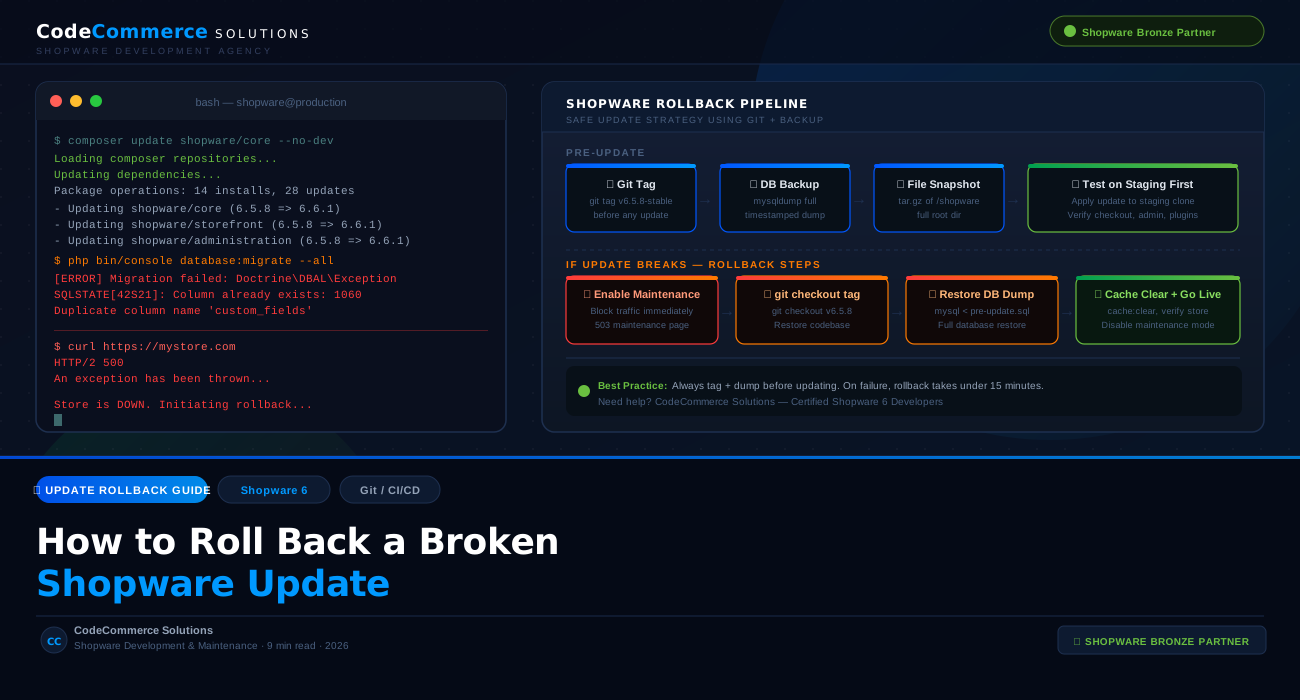
You applied a Shopware update. Now the store is throwing a 500 error, the admin panel is inaccessible, or checkout has silently stopped working for your customers. Every minute the store is broken costs you orders and trust. What you need right now is a clear, ordered plan to roll back the Shopware update and restore your store to a working state.
This guide covers exactly that. We walk through how to roll back a Shopware update using three different approaches — depending on what you have available — and explain the preparation steps that make future rollbacks fast and reliable.
Enable a maintenance page immediately. If your store is showing a raw 500 error or PHP exception to customers, that is worse than a clean maintenance message. Block public traffic first, then work on the rollback. You can enable Shopware’s maintenance mode from the admin panel under Sales Channels → Maintenance Mode, or via CLI if admin is inaccessible.
Why Shopware Updates Break Stores
A broken Shopware update is almost never random. The failures follow predictable patterns, and knowing which one you are dealing with helps you choose the right rollback approach faster.
| Failure Type | What You See | Root Cause |
|---|---|---|
| Database migration failure | 500 error, blank admin, CLI migration exception | Incompatible schema change, existing column conflict |
| Plugin incompatibility | Storefront loads, specific features crash | Third-party plugin not compatible with new core version |
| Composer dependency conflict | Update fails mid-process, partial install | Package version mismatch in composer.json |
| Theme compilation failure | Blank storefront, broken CSS/JS | Theme assets not rebuilt after update |
| PHP version incompatibility | Fatal error on every page load | New Shopware version requires higher PHP version |
| Environment config mismatch | Services fail, cache won’t clear | New .env variables required but not set |
In most cases, rolling back a Shopware update involves restoring both the codebase and the database. These two must always be restored together and must match — a code rollback without a database rollback can leave your store in an inconsistent state that is harder to recover from than the original broken update.
Get Your Store Restored by Certified Shopware Developers
If your Shopware update has broken your store and you need it back online fast, CodeCommerce Solutions provides emergency Shopware support. We are a Shopware Bronze Partner with certified Shopware 6 developers who handle update failures and rollbacks regularly.
Three Ways to Roll Back a Shopware Update
The method you use to roll back a Shopware update depends on what you have available before the update was applied. Here are all three approaches, ordered from most reliable to least.
Method 1: Roll Back Using Git Tag + Database Dump
This is the fastest and cleanest way to roll back a Shopware update, and it is only available if you were running your Shopware installation from a Git repository and took a tagged snapshot before the update. This is the approach we recommend to every client.
The process restores both the codebase and the database to their pre-update state in a controlled, reversible way.
Enable maintenance mode and block traffic
Stop customers from hitting a broken store while you work. If admin is inaccessible, create a maintenance HTML file at the web root or configure your Nginx/Apache to serve a static page temporarily.
Check out the last stable Git tag
Navigate to your Shopware root directory and check out the tag you created before the update. Replace v6.5.8-stable with your actual tag name.
# Check available tags
git tag --sort=-creatordate | head -10

# Check out the last stable tag
git checkout v6.5.8-stable

# Reinstall composer dependencies for this version
composer install --no-dev --optimize-autoloader
Restore the pre-update database dump
Drop the current database and restore the dump you took before the update. This is a destructive operation — any orders placed during and after the broken update will be lost, which is why acting quickly matters.
# Drop and recreate the database
mysql -u root -p -e "DROP DATABASE shopware; CREATE DATABASE shopware;"

# Restore the pre-update dump
mysql -u shopware_user -p shopware < /backups/shopware-pre-update-2026-03-01.sql
Clear the cache and rebuild theme assets
After restoring both the code and database, clear all caches and recompile the theme assets to make sure everything aligns with the restored version.
# Clear Shopware application cache
php bin/console cache:clear

# Rebuild storefront theme assets
php bin/console theme:compile

# Warm up the cache
php bin/console cache:warmup
Test and disable maintenance mode
Test a full guest checkout and admin login on the restored version. Once you confirm the store is operating correctly, disable maintenance mode and bring the store back online.
Method 2: Roll Back Using a Full Server Backup
If you do not have a Git repository but your hosting provider takes automated server snapshots, you can roll back a Shopware update by restoring the entire server snapshot to a point before the update was applied. This is slightly less surgical than a Git-based rollback but achieves the same result.
Most managed hosting providers — including Hetzner Cloud, IONOS, Plesk-managed servers, and Cloudways — offer one-click snapshot restoration from their control panel. The key consideration is timing: the snapshot must have been taken before the update started, and any orders placed after that snapshot point will not be present after restoration.
Note the exact update timestamp
Identify when the update was started. Check your server access logs or Shopware deployment logs to pinpoint the exact time. You need a snapshot taken before this timestamp.
Restore the snapshot from your hosting panel
Log into your hosting control panel, locate the server snapshots section, and initiate a restore to the most recent snapshot taken before the update. This process takes between 5 and 30 minutes depending on your provider and disk size.
Verify store functionality after restore
Once the restore is complete, verify the store is back on the previous Shopware version. Check /admin, test checkout, and confirm all plugins are active. Clear the cache as a final step.
After a snapshot restoration, export a list of any orders placed between the snapshot time and the restoration time. These orders will not appear in the restored database and need to be manually reconciled or re-entered.
Method 3: Manual File Restore + Partial Database Rollback
This method applies when you have a pre-update file archive (tar.gz of the Shopware directory) but no full database backup — only the current broken database. It is more complex because the database has already been partially migrated by the failed update, and you need to reverse those changes.
This is the path we take when a client contacts us after a failed Shopware update with no clean database backup. It is recoverable in most cases but requires direct database intervention.
Restore the file archive
Extract your pre-update file archive back to the Shopware root directory, overwriting the updated files.
# Extract the pre-update archive
tar -xzf /backups/shopware-files-pre-update.tar.gz -C /var/www/shopware/

# Reinstall vendor dependencies
composer install --no-dev --optimize-autoloader
Identify and reverse failed migrations
Check the migration table in your Shopware database to see which migrations were applied during the broken update. You need to reverse any that ran after your last known good state.
# List recently applied migrations
mysql -u shopware_user -p shopware -e \
  "SELECT class, creation_timestamp FROM migration \
   ORDER BY creation_timestamp DESC LIMIT 20;"

# Remove migrations that ran during the broken update
mysql -u shopware_user -p shopware -e \
  "DELETE FROM migration WHERE creation_timestamp > 'YYYY-MM-DD HH:MM:SS';"
Manually reversing database migrations carries risk. Some migrations add columns or alter tables — deleting the migration record without reversing the schema change can leave the database in an inconsistent state. If you are not comfortable working directly with Shopware’s migration table and schema, this is the point to contact a certified Shopware developer.
Clear cache and verify
Once the file restore and migration rollback are complete, clear all caches, recompile the theme, and test all critical store functions before removing the maintenance page.
Need a Shopware Developer to Handle the Rollback?
If you are in the middle of a broken update with no clean backup and a store that is down, this is when you need an experienced Shopware developer — not a checklist. CodeCommerce Solutions, a Shopware Bronze Partner, handles emergency rollbacks and post-update recovery for Shopware stores of all sizes.
The Right Way: Git-Based CI/CD Pipeline for Safer Shopware Updates
Rolling back a Shopware update should take under 15 minutes when you have the right infrastructure in place. The stores that take hours to recover are almost always the ones where updates were applied directly to the production server with no version control and no automated backups.
A Git-based deployment pipeline for Shopware is not complex to set up, and it completely changes how update failures are handled. Here is the architecture we recommend and implement for our clients.
The Basic Pipeline Structure
1. Development branch
Test the Shopware update locally or in a Docker environment first. Confirm composer installs cleanly.
2. Create a Git tag on production before updating
git tag v6.5.8-stable-$(date +%Y%m%d) — timestamped tags make rollback targets unambiguous.
3. Take a database dump
mysqldump -u root -p shopware | gzip > /backups/shopware-$(date +%Y%m%d-%H%M).sql.gz
4. Apply the update to staging first
Clone production to a staging URL, apply the update there, and run a full checkout test before touching production.
5. Deploy to production via pipeline
Use GitHub Actions, Bitbucket Pipelines, or GitLab CI to run composer install, migrations, and cache:clear in a repeatable, logged sequence.
6. If production breaks — rollback in under 15 minutes
Check out the stable tag, restore the DB dump, clear cache. Tested, documented, repeatable.
The critical element is the pre-update tag and database dump as a pair. The tag without the dump leaves you with mismatched code and schema. The dump without the tag leaves you with the right data but the wrong codebase. Both must be taken within seconds of each other, before any update command is run.
Developer insight from CodeCommerce Solutions: We script the pre-update safety steps into a single shell script that our clients run before every Shopware update. It creates a timestamped Git tag, dumps the database with a matching timestamp, verifies the dump file size is non-zero, and logs everything with a timestamp. The whole script takes 90 seconds to run. That 90-second investment has saved multiple clients from hours of recovery work.
Expert Tips to Make Shopware Updates Safer Going Forward
- Read the Shopware release notes before updating. Every major Shopware 6 release includes a migration guide and breaking change notes. Five minutes reading the release notes can save hours of post-update recovery. Pay particular attention to PHP version requirements, deprecated features, and breaking API changes.
- Keep your Shopware plugins updated before updating core. Outdated plugins are the most common reason a Shopware update causes storefront failures. Before updating core, check all installed plugins have a version that supports the target Shopware version. Check the Shopware Store plugin compatibility filter or the plugin vendor’s changelog.
- Never run composer update on a live production server without a backup. Always take a full database dump and a Git snapshot first. This is non-negotiable regardless of how minor the update seems.
- Test the update on a staging clone before applying to production. A staging environment should be a near-identical copy of production — same PHP version, same plugins, same database. If it breaks on staging, it will break on production.
- Use zero-downtime deployment patterns where possible. For high-traffic Shopware stores, look into atomic deployment patterns — deploying the new version to a parallel directory and switching the symlink once the update is verified. This reduces the risk window to seconds rather than minutes.
- Monitor your store for 24 hours after every update. Some update failures are not immediate. A plugin conflict may only surface when a specific customer group triggers a particular flow. Use uptime monitoring and check your Shopware logs actively for 24 hours after any core update.
Why Choose CodeCommerce Solutions for Shopware Maintenance
Keeping a Shopware store updated, secure, and stable requires more than running composer update on a schedule. It requires understanding how each version change interacts with your specific plugin set, theme, custom code, and server environment.
CodeCommerce Solutions is a Shopware Bronze Partner with certified Shopware 6 developers who manage updates, rollbacks, and maintenance for Shopware stores in production environments. We implement Git-based deployment pipelines, automated backup systems, and staging workflows that turn a potentially dangerous update process into a controlled, reversible operation.
- Pre-update safety setup: Git tagging, automated DB dumps, staging environment clone.
- Shopware core and plugin update management with compatibility testing.
- Emergency rollback and store recovery for failed updates.
- CI/CD pipeline setup using GitHub Actions, Bitbucket Pipelines, or GitLab CI for Shopware.
- Ongoing Shopware maintenance retainers for businesses that cannot afford update-related downtime.
Conclusion
Rolling back a broken Shopware update is fully achievable when you have the right pieces in place — a Git tag and a database dump taken before the update. With those two items, recovering your store takes under 15 minutes. Without them, recovery becomes an hours-long database forensics exercise.
The most important takeaway from this guide is not how to roll back a Shopware update — it is how to prepare so that a rollback, if needed, is fast, clean, and low-risk. That preparation takes minutes before each update. The absence of that preparation can cost hours of downtime and lost revenue after one.
If you are currently dealing with a broken Shopware update, work through the methods above in order. Start with Method 1 if you have a Git tag. Use Method 2 if you have a server snapshot. Escalate to a certified Shopware developer for Method 3 or if recovery is not progressing.
Get Expert Shopware Support From Certified Developers
Looking for certified Shopware developers to manage updates, set up safe deployment pipelines, or recover a broken store? CodeCommerce Solutions is a Shopware Bronze Partner with the technical depth to keep your Shopware store updated, stable, and always recoverable.