

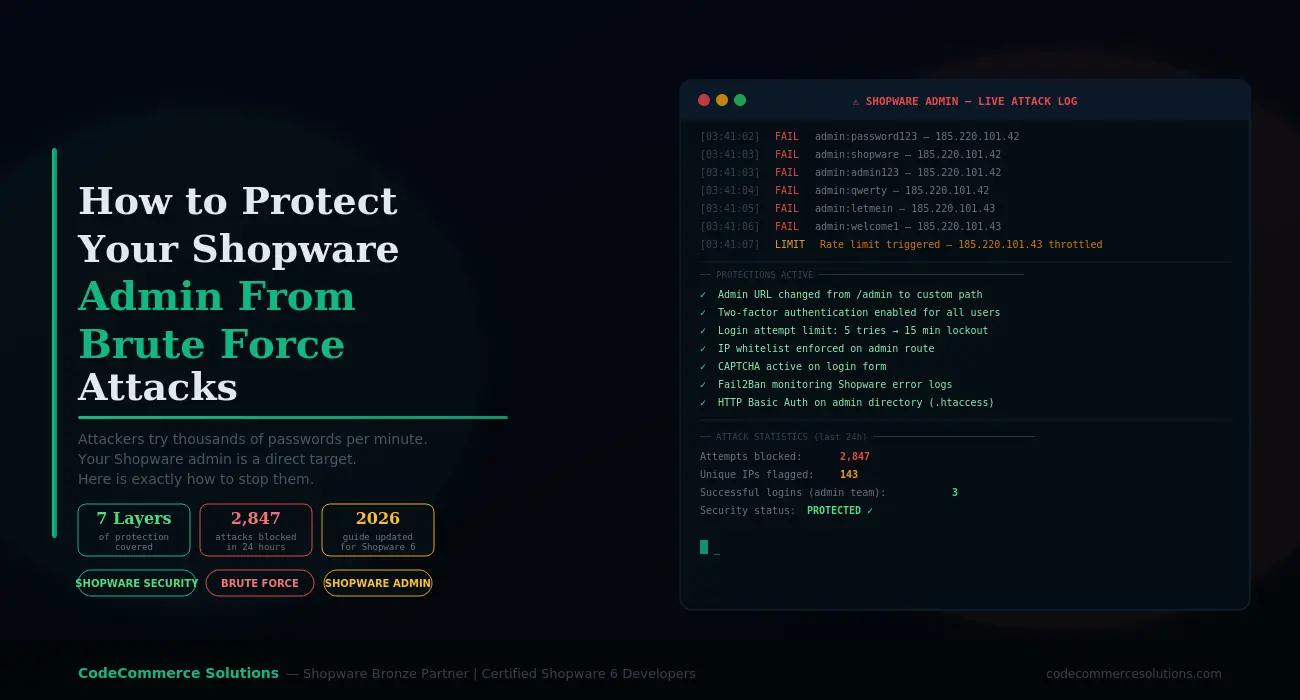
Brute force attacks on Shopware admin panels happen constantly. Automated bots scan the internet for exposed login pages. Once they find one, they try thousands of password combinations — around the clock, without stopping.
Most Shopware stores ship with the admin panel at a predictable URL. Moreover, the default credentials are widely known online. As a result, every unconfigured Shopware admin becomes a target from the moment it goes live.
A successful brute force attack gives an attacker full admin access. In that case, the person can steal customer data, inject malicious code into your storefront, or lock you out entirely. The damage typically takes weeks to fully clean up.
Fortunately, Shopware admin brute force protection is achievable for every store owner. This guide covers seven layers of Shopware login protection. Each layer adds a barrier. Together, they make your admin panel extremely difficult to compromise.
Automated scanners probe every public-facing Shopware installation continuously. Specifically, they look for the default /admin path and try common passwords. Shopware login protection is not optional — it is essential from day one. If your store has no measures in place, it is already a target. Most attacks happen silently, so you will not know unless you actively check your access logs.
Why Shopware Admin Brute Force Protection Matters
Shopware 6 stores customer names, email addresses, order history, and payment details. Your admin panel is the key to all of that data. Furthermore, an attacker who gains access does not just view it — they fully control it.
Beyond data theft, a compromised Shopware admin is also a GDPR data breach. Under Article 33, you must report it to your data protection authority within 72 hours. Consequently, the legal and reputational consequences are serious.
Shopware admin brute force protection is not a luxury. It is a basic requirement. Most successful attacks target stores with default settings, weak passwords, and no rate limiting. None of those problems are difficult to fix.
So let us go through each layer of Shopware admin security step by step. We start with the quickest win: changing your Shopware admin URL.
What Makes a Shopware Admin Vulnerable
Before implementing fixes, it helps to understand what attackers actually exploit. Below are the most common vulnerabilities found across Shopware stores.
| Vulnerability | Risk Level | How Common |
|---|---|---|
| Admin URL is at the default /admin path | Critical | Found on most unconfigured stores |
| No login attempt limit configured | Critical | Default Shopware setup has no throttling |
| Admin accounts use weak passwords | Critical | Very common, especially on staging environments |
| Two-factor authentication is disabled | High | Off by default in Shopware 6 |
| No IP restriction on the admin route | High | Default setup — admin is publicly accessible |
| No server-level login monitoring active | High | Requires manual setup — usually skipped |
| Shopware version is outdated | Medium | Common on stores without a maintenance plan |
Want a Security Audit of Your Shopware Admin?
Our certified Shopware 6 developers review your admin security setup. We find every vulnerability and implement all seven protection layers correctly.
The 7 Layers of Shopware Admin Brute Force Protection
Each layer below works independently. However, combining all seven gives you the strongest possible defence. Start with the easy ones today. Then work through the more advanced steps with your development team or a Shopware specialist.
By default, every Shopware 6 store has its admin panel at /admin. Every automated scanner knows this path. Changing your Shopware admin URL to something unpredictable removes your store from the majority of automated scans immediately.
This is not purely about hiding the URL. Rather, it eliminates the lowest-effort attacks before they ever reach your login form. Combined with other layers, it is highly effective as a first line of Shopware login protection.
How to change your Shopware admin URL: Open the .env file in your Shopware project root. Add or update the variable shown below.
# In your Shopware root .env file

# Replace the value with any custom path you choose
SHOPWARE_ADMIN_PATH=your-custom-admin-path
# After saving, clear your Shopware cache:

php bin/console cache:clear
Important: Choose a path that is not obvious. Avoid words like “backend”, “manage”, or “dashboard”. Instead, use a random string of letters and numbers that only your team knows.
A brute force attack works by trying thousands of passwords in sequence. Therefore, login rate limiting is a direct countermeasure. After a set number of failed attempts, the attacking IP address is automatically blocked for a period of time.
Shopware 6 does not enable rate limiting by default. However, you can configure it through the shopware.yaml file. The example below is a practical starting configuration.
shopware:

  api:

    rate_limiter:

      login:

        enabled: true

        policy: 'time_backoff'

        reset: '24 hours'

        limits:

          - limit: 3

            interval: '10 seconds'

          - limit: 5

            interval: '60 seconds'

          - limit: 10

            interval: '15 minutes'
After saving, run php bin/console cache:clear to apply the changes. As a result, any IP that fails 10 login attempts within 15 minutes will be locked out automatically.
Shopware two-factor authentication means an attacker needs more than just a password to log in. Even if a password is guessed correctly, access is still denied without the second factor. This single layer makes stolen credentials significantly less useful.
Shopware 6 supports two-factor authentication natively. It uses a time-based one-time password app such as Google Authenticator or Authy. Enabling Shopware two-factor authentication takes under 15 minutes per user.
How to enable Shopware two-factor authentication:
- Log into your Shopware admin panel.
- Click your profile icon in the top right corner.
- Go to My profile and scroll to Two-factor authentication.
- Click Set up authenticator app and scan the QR code with your chosen app.
- Enter the six-digit code from the app to confirm setup.
Critical point: Enable 2FA for every admin user — not just the main account. A single unprotected account is enough for an attacker to gain full access to your store.
After enabling 2FA, Shopware provides backup recovery codes. Store them offline in a safe location. Without them, losing your authenticator app means needing developer intervention to regain access.
An IP allowlist means that only specific, approved IP addresses can reach the admin login page. Everyone else receives a 403 or 404 response before any login form appears. As a result, attackers cannot brute force a login page they cannot even see.
This is one of the most effective protections available. In fact, it stops the vast majority of automated attack traffic completely. Below are the configurations for both Apache and Nginx servers.
Apache — add this to your virtual host or .htaccess:
<Location /your-custom-admin-path>

    Order Deny,Allow

    Deny from all

    Allow from 192.168.1.100   # Office IP address

    Allow from 85.12.45.200    # Developer VPN IP

</Location>
Nginx — add this inside your server block:
location /your-custom-admin-path {

    allow 192.168.1.100;   # Office IP address

    allow 85.12.45.200;    # Developer VPN IP

    deny  all;

    try_files $uri $uri/ /index.php$is_args$args;

}
Note: If your team uses dynamic IP addresses, a business VPN is a better option. Get one with a fixed exit IP address. Then add that single IP to your allowlist instead.
Need Help Securing Your Shopware Admin Panel?
CodeCommerce Solutions is a Shopware Bronze Partner. Our certified Shopware 6 developers implement all seven protection layers and verify each one works correctly in your specific environment.
HTTP Basic Authentication adds a browser-level password prompt before a visitor even reaches the Shopware login form. Consequently, an attacker must now pass two separate login stages. Most automated brute force tools do not handle HTTP Basic Auth correctly, so they fail at this first gate.
This layer is especially useful on staging environments. Additionally, it provides a useful fallback if other layers are temporarily misconfigured during an update.
How to set it up on Apache:
# Step 1: Create the password file

htpasswd -c /etc/apache2/.htpasswd shopware-admin
# Step 2: Add to your .htaccess or VirtualHost config

<Location /your-custom-admin-path>

    AuthType Basic

    AuthName "Restricted Access"

    AuthUserFile /etc/apache2/.htpasswd

    Require valid-user

</Location>
Use a strong, unique password for this credential. It should be completely separate from your Shopware admin password. Store it in a team password manager rather than sharing it by email.
Fail2Ban Shopware integration is one of the most powerful server-level defences available. It monitors your log files in real time. When it detects too many failed login attempts from one IP, it blocks that address via a firewall rule. Because it operates at the server level, it works independently of Shopware itself.
This is important because application-level rate limiting can sometimes be bypassed. Fail2Ban Shopware setup provides a lower-level enforcement layer that is much harder to circumvent. It is the safety net beneath all your other protections.
Install Fail2Ban on Ubuntu or Debian:
sudo apt-get install fail2ban

sudo systemctl enable fail2ban

sudo systemctl start fail2ban
Next, create a Shopware-specific jail configuration:
[shopware-admin]

enabled  = true

port     = http,https

filter   = shopware-admin

logpath  = /var/www/your-store/var/log/shopware-*.log

maxretry = 5

bantime  = 3600

findtime = 600
Then create the matching Fail2Ban filter file:
[Definition]

failregex = .*"POST .*\/api\/oauth\/token.*" 401.*

ignoreregex =
After saving both files, restart the service with sudo systemctl restart fail2ban. Then verify your Fail2Ban Shopware jail is running with sudo fail2ban-client status shopware-admin. The jail should show as active with zero bans initially.
All the technical protections above are weakened by poor passwords. Brute force attacks succeed fastest against credentials found in common wordlists. Therefore, strong password hygiene is not optional — it is foundational.
Every Shopware admin account must use a strong, unique password. A strong password has at least 16 characters. It includes uppercase letters, lowercase letters, numbers, and symbols. It must never be reused from another service or system.
Review and update all admin accounts right now:
- Log into your Shopware admin panel.
- Go to Settings, then System, then Users and permissions.
- Review every user account. Remove any account that is no longer actively used.
- Update the password on every remaining account to a new, strong credential.
- Store every password in a team password manager such as 1Password or Bitwarden.
Also check this: Is your admin username still “admin”? If so, change it immediately. Attackers always try “admin” first. Using an email address or a custom username instead makes dictionary attacks significantly less effective.
Each team member should have their own Shopware admin account. Sharing a single login creates an unnecessary risk. With individual accounts, you can revoke access instantly when someone leaves the team. Moreover, you can track exactly which account made which change in the admin audit log.
Additional Shopware Admin Security Steps Worth Taking
Beyond the seven layers above, there are further steps that significantly strengthen your Shopware admin brute force protection. These are not always mandatory. However, they are worth implementing on any store that handles significant order volumes or sensitive customer data.
Keep Shopware and All Plugins Updated
Brute force is not the only attack vector against your Shopware admin. Attackers also exploit known vulnerabilities in outdated Shopware versions and plugins. Therefore, keeping your store updated is essential. Apply security patches within 48 hours of release. Similarly, update plugins promptly after each Shopware release. Never leave known vulnerabilities open — even temporarily.
Monitor Your Admin Access Logs Weekly
Check your access logs at least once a week. Shopware admin brute force protection starts with visibility. Specifically, look for repeated failed login attempts from the same IP address. Also check for login attempts at unusual hours, or access from geographic locations your team never operates from. Early detection means you can block an attack before it succeeds — rather than after.
Disable Inactive Admin Accounts Immediately
Former employees and old developer accounts are a common attack entry point. Consequently, you should review your Shopware admin users list every month. Disable or delete any account that is no longer in active use. Each inactive account represents a potential security gap that does not need to exist.
Add a Web Application Firewall
A web application firewall (WAF) sits in front of your Shopware store. It filters malicious traffic before it reaches your server. Many WAFs include built-in brute force protection rules. Services such as Cloudflare and Sucuri offer WAF features that integrate well with Shopware. As a bonus, they also provide DDoS protection for your storefront.
When reviewing Shopware stores, we regularly find admin panels with thousands of failed login attempts. The owner had no idea it was happening. Shopware admin brute force protection issues leave no visible trace on the storefront. Instead, evidence only appears in server access logs and Shopware’s own log files. So set up monitoring proactively — do not wait for something to break.
Why Choose CodeCommerce Solutions for Shopware Admin Security
Shopware admin brute force protection is a technical task. Changing a Shopware admin URL is simple. However, setting up Fail2Ban Shopware correctly requires server expertise. Configuring IP allowlists and rate limiting for your specific hosting environment also takes hands-on Shopware development experience.
As a Shopware Bronze Partner, CodeCommerce Solutions has a team of certified Shopware 6 developers. We implement all seven Shopware login protection layers. Furthermore, we test every change against your live environment to ensure nothing breaks. You receive a properly secured admin — not a patched one with untested settings.
We also offer ongoing Shopware maintenance. That includes regular security patch management, access log monitoring, and monthly admin user reviews. As a result, your Shopware admin security stays strong month after month — not just on setup day.
Is Your Shopware Admin Protected?
Shopware admin brute force protection is not a one-time task. It is an ongoing commitment. Automated bots probe every exposed Shopware login every single day. Most successful attacks target stores with default settings and weak passwords — problems that are entirely fixable.
The seven layers in this guide cover it all. First, change your Shopware admin URL. Then set login attempt limits. Enable Shopware two-factor authentication for every admin user. Restrict access by IP using an allowlist. Add HTTP Basic Auth as a second gate. Configure Fail2Ban Shopware at the server level. Finally, enforce strong passwords on every account. All seven together make your admin extremely difficult to breach.
Implement these Shopware login protection measures today. Do not wait for an attack to prompt action. If you need help with the technical setup, CodeCommerce Solutions is ready. We are a Shopware Bronze Partner with certified developers who secure Shopware stores every day.
Secure Your Shopware Admin Against Brute Force Attacks
CodeCommerce Solutions is a Shopware Bronze Partner with certified Shopware 6 developers. We implement all seven layers of Shopware admin security. Your admin panel will be properly secured — not just patched.