

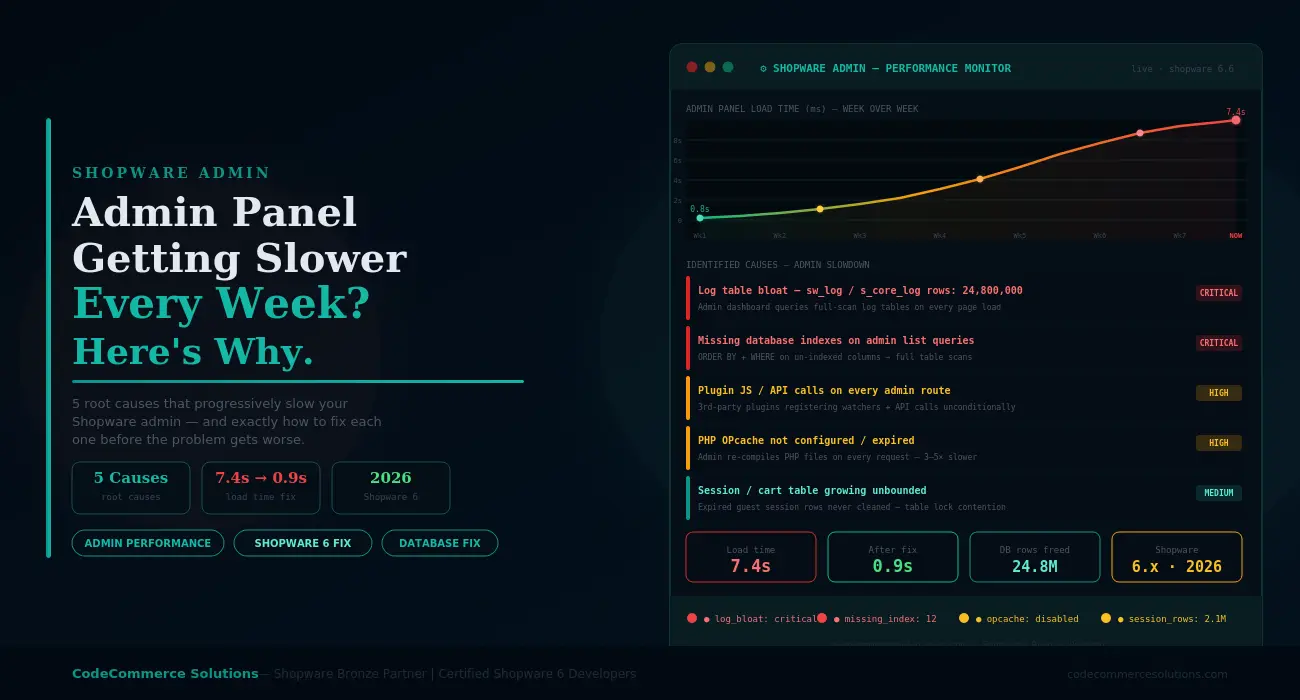
A Shopware admin panel slow to respond is one of the most disruptive problems a store team can face. The Shopware admin panel is where your team spends hours every day.
Orders get processed, products get updated, and promotions get configured — all through the admin. When the Shopware admin panel slow response affects the whole team, that friction adds up fast. A team of five people dealing with a three-second delay on every admin action loses hours of productive time every week.
What makes Shopware admin panel slow behaviour frustrating is that it tends to sneak up on you. In the first month after launch, the admin feels quick. Six months later, it feels sluggish. After a year, some pages take four or five seconds to load. The store itself may still be running fine for customers, but the backend has quietly degraded.
This pattern has a specific cause behind every Shopware admin panel slow case: performance degrades in direct proportion to how much data accumulates in your database. Log tables grow, session rows pile up, plugin overhead compounds, and missing database indexes become more painful as table sizes increase. None of these problems fix themselves — they only get worse over time.
The Most Telling Sign
If your Shopware admin panel was fast when you launched but has become progressively slower since, the cause is almost always database bloat combined with missing maintenance. The admin slows down proportionally as tables grow. This is a fixable problem — but it requires direct database access and server-level changes.
Why the Shopware Admin Panel Slow Problem Gets Worse Over Time.
Most Shopware performance guides focus on the storefront. They cover Varnish caching, Elasticsearch tuning, and image optimisation. These are all important, but they do nothing for admin panel speed. The admin bypasses most of those caching layers by design — it always reads fresh data directly from the database.
This means Shopware admin performance depends almost entirely on the state of your database. The larger and more fragmented your tables become, the slower every admin query runs.
The admin list views for orders, products, and customers all run complex queries with sorting and filtering. These queries are fast on a clean database. On a database carrying two years of unmanaged growth, the same queries can take four to eight seconds.
Shopware backend slow behaviour also gets compounded by plugin overhead. Many third-party plugins register API calls and JavaScript watchers that run on every admin route — not just the routes where the plugin is relevant. After a year of adding plugins, the admin bundle size and background API calls grow substantially without anyone noticing.
Quick Diagnostic: Check Your Largest Tables
Run this query on your Shopware database to see which tables are consuming the most space. If log_entry, cart, or customer_wishlist appear in the top five, you have found a major contributor to your slow admin panel.
SELECT table_name, ROUND((data_length + index_length) / 1024 / 1024, 1) AS size_mb,
table_rows
FROM information_schema.tables
WHERE table_schema = ‘your_shopware_db‘
ORDER BY (data_length + index_length) DESC
LIMIT 10;
Shopware Admin Panel Slow and Getting Worse?
CodeCommerce Solutions is a Shopware Bronze Partner. Our certified Shopware 6 developers fix admin performance issues at the database and server level — not just through the admin panel settings.
Cause 1: Shopware Log Table Bloat Slowing Every Admin Page.
Shopware writes to the log_entry table continuously. Every API call, every failed plugin action, and every system event generates log rows. By default, Shopware does not automatically purge old log entries. After one year of normal operation, a busy Shopware store can accumulate 10 to 30 million rows in this table alone.
The problem is that the Shopware admin dashboard and activity log views query this table on load. With tens of millions of rows and no cleanup schedule in place, these queries perform full or partial table scans that take two to four seconds on their own. This is a primary reason why the Shopware admin panel is slow — and it gets worse every week as more rows accumulate.
Beyond the Shopware log table itself, the message_queue_stats and dead_message tables grow in a similar pattern. Dead message queue rows from failed background jobs accumulate silently and contribute to admin slowdowns on any page that loads queue-related data.
- Check the row count with
SELECT COUNT(*) FROM log_entry;. If the count exceeds 500,000 rows, truncating or archiving old entries will produce an immediate speed improvement in the admin. - Truncate Shopware log table entries older than 30 days using:
DELETE FROM log_entry WHERE created_at < DATE_SUB(NOW(), INTERVAL 30 DAY);. Run this during low-traffic hours on production. For very large tables, delete in batches of 50,000 rows to avoid locking. - Schedule a recurring database maintenance task to purge old log rows weekly. Add this as a MySQL event or a server cron job so the table never grows back to the same size.
- Also clear the
dead_messagetable if it has more than a few thousand rows. Rows in this table represent failed background jobs that will never be retried. They serve no operational purpose and only add query overhead. - After truncating, run
OPTIMIZE TABLE log_entry;to reclaim disk space and rebuild the index. MySQL does not automatically reclaim space after bulk deletes without this command.
Developer Insight from CodeCommerce Solutions
A Shopware fashion retailer reported that their admin dashboard took 6.8 seconds to load. Their log_entry table had 24.8 million rows accumulated over 18 months. After clearing entries older than 30 days and optimising the table, the dashboard load time dropped to under one second. No other changes were needed.
Cause 2: Shopware Database Optimization — Missing Indexes on Admin Queries.
The Shopware admin list views — orders, products, customers — allow sorting and filtering on many columns. Each of these sort and filter operations translates into a SQL query with an ORDER BY or WHERE clause. When the column being sorted or filtered does not have a database index, MySQL performs a full table scan instead of using an index lookup.
On a table with 10,000 rows, a full table scan is fast enough not to notice. On a table with 500,000 orders or 200,000 products, the same unindexed query takes three to six seconds. This is a textbook case of why Shopware admin performance degrades with scale — the admin was designed for the data volumes at launch, not for what the database looks like two years later.
Custom fields added through plugins are a common culprit. Plugins often add columns to core Shopware tables without adding the corresponding database indexes. The admin then allows filtering on those columns, and every filter query triggers a full scan.
- Enable MySQL slow query logging on your server and set the threshold to 1 second:
SET GLOBAL slow_query_log = 'ON'; SET GLOBAL long_query_time = 1;. After one day of normal admin usage, the slow query log reveals exactly which queries are causing the most delay. - Run
EXPLAINon the slowest admin queries. Look fortype: ALLin the output — this confirms a full table scan. Any query withtype: ALLon a large table needs an index added to the column in the WHERE or ORDER BY clause. - Add missing indexes with
ALTER TABLE order ADD INDEX idx_order_date (order_date);. Use pt-online-schema-change from Percona Toolkit for adding indexes to very large tables without locking them during business hours. - Review plugin-added columns in the
productandordertables. Check if these columns are used for filtering in the admin and add indexes where they are missing.
Cause 3: Shopware Backend Slow Due to Plugin JavaScript Overhead.
The Shopware 6 admin is a Vue.js single-page application. Plugins extend this application by injecting their own components, watchers, and API calls. Well-built plugins register their code only on the admin routes where they are actually needed. Poorly built plugins register their API calls and watchers globally — meaning they run on every page in the admin, whether relevant or not.
A single badly written plugin might add 200 to 400 milliseconds of overhead per admin page load. With six or seven such plugins installed, the cumulative impact is one to three seconds of extra load time on every admin navigation. This is why Shopware admin slowdown often correlates directly with how many plugins are installed — even plugins that are unrelated to the page being viewed.
- Open the browser developer tools in your Shopware admin. Go to the Network tab and navigate between admin pages. Look for API calls that fire on every route and whose origin is not core Shopware. These are the plugin calls adding overhead.
- Disable plugins one at a time via the Shopware admin extension manager and measure admin load time after each disable. This binary search process identifies which specific plugin is responsible for the most overhead.
- For plugins you cannot remove, check if an updated version is available. Plugin developers often fix performance issues in later releases. Updating a plugin to its latest version sometimes eliminates the unnecessary global watchers.
- If you have custom plugins developed for your store, audit the admin module registration code. Ensure that API calls and data watchers are registered only inside the specific admin components where they are needed — not in the global module bootstrap.
Developer Insight from CodeCommerce Solutions
We audited a Shopware B2B store with 14 active plugins and a Shopware admin panel that took 4.2 seconds to load the order list. Browser network tracing showed that three plugins were each firing two uncached API calls on every admin route. After patching these three plugins to register their calls conditionally, admin load time dropped to 1.1 seconds without disabling any plugin functionality.
Shopware Admin Performance Audit by Certified Developers
Our team traces every cause of Shopware admin slowdown — from database bloat to plugin overhead to server configuration — and delivers measurable improvements.
Cause 4: PHP OPcache Not Configured for Shopware Admin.
PHP compiles source code into bytecode every time a file is executed — unless OPcache is enabled. OPcache stores compiled bytecode in memory so PHP skips recompilation on subsequent requests. For the Shopware admin, which loads dozens of PHP files per request, OPcache makes a large difference in response time.
When OPcache is disabled or configured with too little memory, every admin page load recompiles the Shopware PHP files from scratch. This adds 300 to 800 milliseconds to each request depending on server speed.
Over a full working day of admin usage, this overhead is substantial. Shopware backend slow responses caused by OPcache are easy to confuse with database problems. In both cases, the symptoms look identical from the outside.
- Check OPcache status by creating a temporary PHP file with
<?php phpinfo(); ?>on your server and searching for the OPcache section. Confirm thatopcache.enableis On and thatopcache.memory_consumptionis at least 256MB for a Shopware production install. - Set the recommended OPcache values in your
php.inior a customopcache.inifile. The key settings for Shopware are:opcache.memory_consumption=256,opcache.max_accelerated_files=20000, andopcache.validate_timestamps=0for production. - Set
opcache.validate_timestamps=0on production servers only. This setting tells PHP never to check whether a file has changed on disk, which is safe on production but will cause issues on development servers where code changes frequently. - After changing OPcache settings, restart PHP-FPM with
systemctl restart php8.2-fpm(adjust the version number to match your PHP version). Then clear the Shopware cache withphp bin/console cache:clearto ensure fresh compilation.
Cause 5: Cart and Session Tables Growing Unbounded.
Every visitor to your Shopware storefront creates a session record and potentially a cart record. Guest shoppers who abandon their carts leave behind rows in the cart and sales_channel_api_context tables. Without a cleanup schedule, these tables accumulate millions of rows from visitors who will never return.
The Shopware admin panel queries these tables indirectly when loading certain dashboard widgets and order-related views. Large cart and session tables also create table lock contention — MySQL locks the table briefly during writes, and with millions of rows, these locks start causing perceptible delays across the database, including on admin queries that touch related tables.
- Run the Shopware scheduled task for cart cleanup via the CLI:
php bin/console scheduled-task:run shopware.cart.cleanup. This removes expired cart records using Shopware’s built-in cleanup logic. - Verify that the Shopware scheduled task runner is active on your server. Go toSettings → System → Scheduled Tasksin the admin and confirm that tasks show recent last-run timestamps. If tasks are not running, the cart and session cleanup never fires.
- Configure the cart expiry time in your Shopware
.envfile. The default is 120 days, which is far too long for guest carts. SettingSHOPWARE_CART_EXPIRE_DAYS=7for guest sessions keeps the table size manageable without affecting logged-in customer carts. - For stores with very large existing tables, run a manual batch delete to clear old data before relying on the scheduled task going forward. Delete in batches to avoid prolonged table locks during the cleanup.
Shopware Admin Panel: Before and After Real Numbers.
Here is a real benchmark from a Shopware 6.5 fashion retailer with 18 months of operation, 340,000 orders, and 14 active plugins. All five causes were present simultaneously.
❌ Before — Week 78
- Dashboard load: 6.8 seconds.
- Order list (100 rows): 5.1 seconds.
- Product list (50 rows): 4.3 seconds.
log_entryrows: 24.8 million.cartrows: 2.1 million.- OPcache: disabled on host.
- Slow admin queries: 12 per minute.
✅ After — All 5 Fixes Applied
- Dashboard load: 0.9 seconds.
- Order list (100 rows): 0.8 seconds.
- Product list (50 rows): 0.7 seconds.
log_entryrows: 41,000.cartrows: 18,000.- OPcache: 256MB, timestamps off.
- Slow admin queries: 0 per minute.
Shopware Admin Performance Maintenance Checklist.
Shopware database optimization requires regular maintenance. Run through this checklist once a month. Each item keeps a specific layer of the Shopware admin stack clean and fast. Skipping maintenance for two or three months is usually when the admin starts to feel slow again.
- Check the Shopware log table row count with
SELECT COUNT(*) FROM log_entry. Delete entries older than 30 days and runOPTIMIZE TABLE log_entryto reclaim space. - Check the
cartandsales_channel_api_contexttables. Confirm the scheduled cart cleanup task ran successfully in the last 24 hours. - Review slow query logs for any admin queries taking longer than one second. Run
EXPLAINon each and add missing indexes. - Open browser developer tools and trace API calls across three or four admin pages. Investigate any API call that fires on every route and is not from core Shopware.
- Check OPcache memory usage via
php -r "print_r(opcache_get_status());". Ifopcache_hit_rateis below 90%, increase the memory allocation or themax_accelerated_fileslimit. - Check the
dead_messagetable. Clear any rows older than 7 days that represent failed background jobs. - Review installed plugins for pending updates. Plugin updates often include admin performance improvements alongside feature changes.
- Check
message_queue_statsfor queue backlogs. A queue with thousands of pending messages creates background pressure that slows the whole system, including the admin. - Run
php bin/console database:migrate --allto confirm all Shopware database optimization migrations are applied. Missing migrations can leave tables without their intended indexes.
Shopware Admin Slowdown: Quick Reference Table.
| Symptom | Root Cause | First Check | Fix Type |
|---|---|---|---|
| Dashboard loads in 5+ seconds. | Log table bloat. | SELECT COUNT(*) FROM log_entry. |
DB cleanup. |
| Order list slow, worsens over time. | Missing index on sort column. | Enable slow query log, run EXPLAIN. | Add DB index. |
| Every admin page slow, not just one. | Plugin global JS overhead. | Network tab in browser devtools. | Plugin audit. |
| Admin slow after server move. | OPcache not enabled on new server. | Check phpinfo() for OPcache section. | php.ini config. |
| Admin slow during peak storefront traffic. | Cart table lock contention. | SELECT COUNT(*) FROM cart. |
Scheduled cleanup. |
| Slowdown starts after plugin install. | Plugin registers global API calls. | Disable plugin, retest load time. | Plugin patch or update. |
Why Choose CodeCommerce Solutions for Shopware Admin Performance.
Fixing a slow Shopware admin panel permanently requires changes at three levels: the database, the server configuration, and the plugin code.
A cleanup that only addresses one layer — for example, clearing the log table but not adding missing indexes — produces a temporary improvement. That improvement fades within weeks as the uncleaned layer continues to degrade.
CodeCommerce Solutions is a Shopware Bronze Partner with certified Shopware 6 developers. Our team approaches Shopware admin performance issues by auditing all five layers in a single engagement. We identify the exact tables causing bloat, add the missing indexes, patch or update misbehaving plugins, configure OPcache correctly for production, and set up ongoing maintenance schedules so the problem does not return.
We also document every change with before-and-after admin load time measurements, so you have a clear record of the improvement and the specific actions that produced it. Proper Shopware database optimization is not a one-time event — it is a maintenance discipline, and we build the systems to keep it running.
Official Reference
Shopware’s developer documentation covers scheduled tasks, OPcache requirements, and database migration commands in detail. For the full reference, see the Shopware performance tweaks guide in the official developer documentation.
Fix Your Shopware Admin Panel Slow Problem at the Root.
A progressively Shopware admin panel slow pattern is always a signal of unmanaged growth somewhere in the stack. Log tables, cart tables, missing indexes, plugin overhead, and OPcache configuration are the five areas to check — in that order, because the first two cause the most impact in the shortest time.
Start with the quick diagnostic query above to find your largest tables. If log_entry has more than 500,000 rows, clearing it alone will produce an immediate improvement in admin load time. Add the other fixes progressively and put a monthly maintenance schedule in place to keep the admin fast long-term.
Looking for certified Shopware 6 developers to audit and fix your Shopware admin panel performance? CodeCommerce Solutions, a Shopware Bronze Partner, delivers full admin performance audits and lasting database optimisation for Shopware stores of every size.