

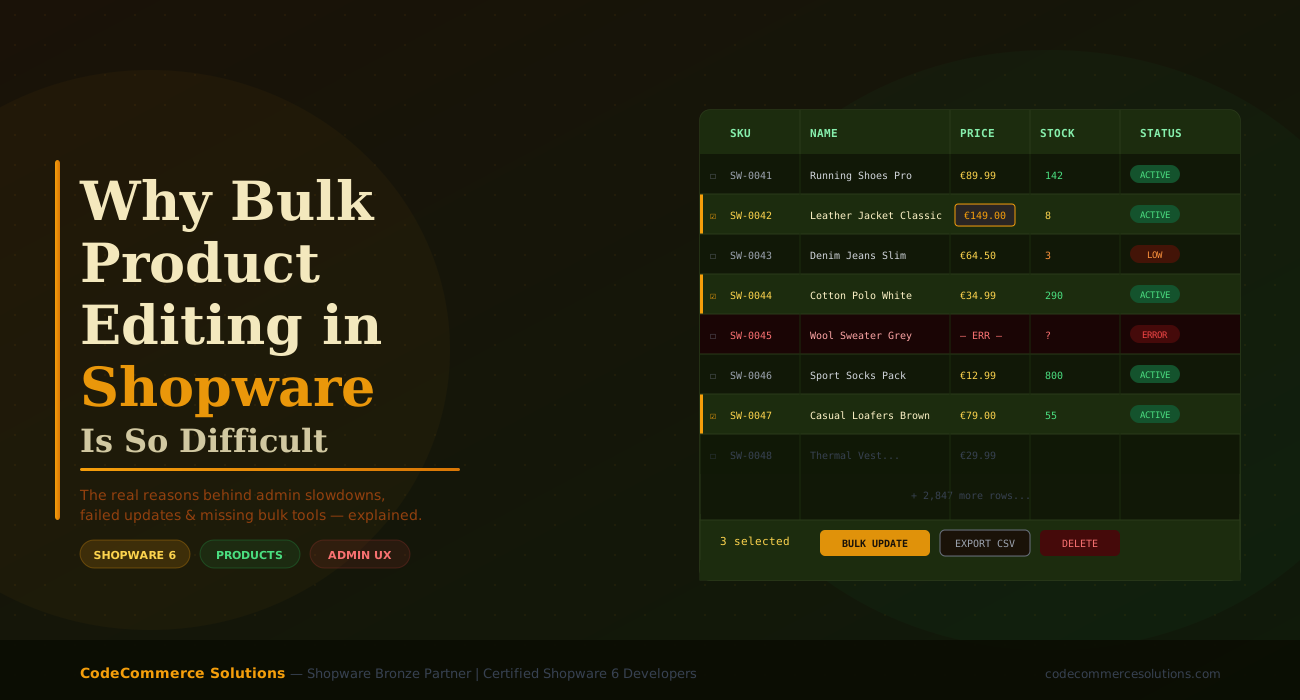
There’s a recurring frustration that store managers and eCommerce operations teams report almost universally when working with Shopware: editing products at scale is harder than it should be. Not impossible — but slow, error-prone, and far more manual than merchants expect when they first migrate or launch on the platform.
This isn’t a complaint without merit, and it’s not just inexperience with the admin. Shopware 6’s product editing limitations are structural — they stem from how the data model was designed, how the admin UI handles large datasets, and what the native bulk editing toolset actually covers. Understanding these constraints clearly is the first step to working around them effectively.
This article breaks down exactly why bulk editing is difficult in Shopware, which specific scenarios cause the most pain, and what your realistic options are — including when a custom development solution is worth investing in.
📌 Who this is for
eCommerce managers, operations leads, and CTOs running Shopware 6 stores with catalogues of 500+ products, or stores that regularly update pricing, categories, or attributes across large product sets.
What Shopware’s Native Bulk Editing Actually Does — and Doesn’t Do
To be fair to Shopware, the platform does include bulk editing functionality in the admin. From the product listing view, you can select multiple products and apply changes across them in a single action. The question is what those changes can actually be.
The native bulk edit in Shopware 6 allows you to update fields across a selection of products in one operation, but the range of fields covered is more limited than most merchants realise when they start using it. Out of the box, you can bulk update:
- Active/inactive status
- Sales channels assigned to products
- Tags
- Categories (add or remove)
- Visibility settings
- Basic pricing (list price and purchase price)
- Tax assignment
- Manufacturer
- Delivery time
That list looks reasonable until you hit the common scenarios that aren’t there: updating custom properties, editing variant-level attributes across a product group, modifying SEO metadata in bulk, adjusting product descriptions with a find-and-replace pattern, or applying percentage-based price changes across a filtered selection. These are everyday catalog management tasks — and Shopware’s native bulk edit doesn’t cover them.
⚠ Common Misconception
Many merchants assume the “bulk edit” button in the product listing view exposes all product fields. In practice, only a specific subset of fields is available. Custom properties, variant-level data, and SEO fields require either individual editing or an external tool.
Spending Hours on Manual Product Updates?
There’s a faster way. Our certified Shopware 6 developers build custom bulk editing tools, import workflows, and admin extensions tailored to how your catalog actually works — not just what the default admin provides.
The Five Friction Points That Make Bulk Editing So Painful
The Admin Slows Down With Large Selections
Selecting hundreds of products in the Shopware admin triggers significant frontend load. Filtering, checking, and confirming large batches can take minutes — not seconds — due to how the Vue.js admin layer handles large result sets in the DOM.
Variants Require Individual Attention
In Shopware 6, product variants are separate entities linked to a parent. Bulk operations applied at the product level often don’t propagate correctly to all variants — you have to handle variant-level data separately, which doubles or triples the workload for configurable products.
No Native Find-and-Replace in Descriptions
If you need to update a supplier reference, reword a product disclaimer, or add a new shipping note across 400 product descriptions, Shopware has no native find-and-replace for text fields. Every change has to be made field by field or handled via import.
The Import Tool Has a Learning Curve and Gaps
Shopware’s import/export module can handle bulk changes via CSV — but the column mapping, required fields, and ID handling are unforgiving. A single formatting error in a 2,000-row file can fail the entire import silently or partially, leaving your catalog in an inconsistent state.
Custom Properties Don’t Bulk Edit
If your products use Shopware’s custom properties and property groups for filtering — fabric type, material, country of origin — those fields are not exposed in the bulk editor. Updating them at scale requires the import tool or the API, neither of which is accessible to non-technical users.
Price Rules Are Complex to Update in Bulk
Shopware’s advanced pricing rules — customer-group-specific prices, quantity-based discounts, sales channel pricing — exist outside the main product price field. Bulk changes to these require the pricing rule system, which operates through a different admin area entirely.
How Shopware Compares to Other Platforms for Bulk Editing
Context matters here. Shopware isn’t uniquely bad at bulk editing — but it’s also not ahead of the curve. Here’s how it stacks up against the platforms merchants most commonly compare it to:
| Feature | Shopware 6 | WooCommerce | Magento 2 | Shopify |
|---|---|---|---|---|
| Native bulk status change | ✓ Yes | ✓ Yes | ✓ Yes | ✓ Yes |
| Bulk price update (flat value) | ✓ Yes | Partial | ✓ Yes | ✓ Yes |
| Bulk price update (% change) | ✗ No | ✗ No | ✓ Yes | Via export |
| Bulk custom property edit | ✗ No | Plugin | Partial | Via export |
| Bulk variant-level edit | ✗ No | ✗ No | Partial | Via export |
| Find & replace in description | ✗ No | ✗ No | ✗ No | ✗ No |
| CSV import for bulk updates | ✓ Yes | ✓ Yes | ✓ Yes | ✓ Yes |
| API for bulk update automation | ✓ Yes | ✓ Yes | ✓ Yes | ✓ Yes |
The honest picture: no major eCommerce platform solves bulk editing perfectly out of the box. Shopware’s limitations are real but not unusual — the difference is that Shopware’s extensibility means these gaps can be properly closed with the right development work, which other platforms don’t always allow as cleanly.
What Actually Works for Bulk Editing in Shopware
Option 1: Use the Import/Export Module Properly
Shopware’s built-in import/export tool is more powerful than most users realise — the problem is that most users never fully learn it. When set up correctly, with a mapped profile that matches your catalog structure, it can handle bulk updates to almost any product field, including properties, variants, media assignments, and custom fields.
The key discipline is treating every bulk import as a structured operation: export first, modify in the CSV, validate the structure, import to a staging environment, verify the results, then deploy to production. Shortcuts in this workflow are how merchants end up with corrupted product data.
# Shopware CLI — useful for import/export operations
# Export products to CSV for bulk editing
bin/console import-export:import-file \
–profile=“Default product” \
–file=products_bulk_update.csv
# Check import logs for errors
bin/console import-export:process-log \
–logId={log-id-from-import}
Option 2: Use the Shopware API for Automated Updates
Shopware 6’s REST API supports bulk write operations through its sync endpoint. This is the most powerful option for teams that can script their updates — you can send a single API request that updates hundreds of products simultaneously, with full control over which fields change and which don’t.
# Shopware 6 Sync API — bulk product price update example

POST /api/_action/sync
{
“write-product“: {
“entity“: “product”,
“action“: “upsert”,
“payload“: [
{ “id“: “product-uuid-1”, “price“: [{ “currencyId“: “…”, “gross“: 99.99, “net“: 84.03, “linked“: true }] },
{ “id“: “product-uuid-2”, “price“: [{ “currencyId“: “…”, “gross“: 149.00, “net“: 125.21, “linked“: true }] }
]
}
}
This approach works well for recurring operations — seasonal price updates, promotional resets, stock level corrections — where the pattern is consistent enough to script once and run repeatedly.
Option 3: Third-Party Bulk Editing Plugins
The Shopware Store has several plugins that extend the admin’s bulk editing capabilities significantly. The better ones add inline grid editing (edit product fields directly in the product list view, spreadsheet-style), percentage-based price changes across selections, and custom field support in the bulk editor. Plugin quality varies considerably — always test in staging and verify compatibility with your Shopware version before deploying.
Option 4: A Custom Admin Extension
For stores with specific, recurring bulk editing workflows — seasonal pricing updates, multi-warehouse stock management, channel-specific content changes — a custom Shopware admin module built around your exact use case is often the most cost-effective long-term solution. This is particularly true for B2B stores where customer-group-specific pricing changes happen regularly, or for retailers with frequent inventory adjustments from ERP systems.
Need a Better Bulk Editing Workflow for Your Shopware Store?
Whether you need help setting up import profiles correctly, automating price updates via the API, or building a custom admin tool for your operations team — our Shopware developers have solved this across stores of every size.
Practical Tips for Shopware Merchants Right Now
- Map your bulk editing needs before choosing a workflow. Not all bulk operations need the same tool. Status changes and category updates are fine natively. Price changes at scale need the import tool or API. Custom properties always need import or API.
- Always export before importing. Never run a bulk import as your first operation on a product set. Export the current state, make changes in the CSV, then import. This gives you a rollback file if something goes wrong.
- Test your import profile with 10 rows before running 10,000. Shopware import profiles are strict about field formatting and ID handling. A small test run in staging costs 10 minutes and prevents hours of cleanup.
- Use product tags and categories as filters before bulk editing. The more precisely you can filter your selection before applying a bulk change, the less risk of unintentionally changing products you didn’t mean to touch.
- For variant-heavy catalogs, consider the API sync endpoint over manual imports. The Shopware sync API handles parent-child product relationships correctly in ways that CSV imports can sometimes mishandle, particularly for variant pricing and stock.
- Schedule large bulk operations outside peak hours. Mass product updates in Shopware invalidate the cache for affected pages. Running a 2,000-product update during peak traffic can cause performance issues on the storefront. Schedule heavy operations overnight.
Why Choose CodeCommerce Solutions for Shopware Catalog Work
Shopware’s data model and API are genuinely powerful — but using them effectively for catalog management at scale requires hands-on platform experience. The import/export system, sync API, and admin extension framework each have specific nuances that take time and real-world projects to understand properly.
As a Shopware Bronze Partner with a team of certified Shopware 6 developers, CodeCommerce Solutions has helped merchants across multiple industries build reliable, efficient product management workflows on Shopware. We’ve built custom import pipelines, admin extensions for bulk editing, ERP-to-Shopware sync tools, and API automation scripts for stores managing everything from a few hundred to tens of thousands of SKUs.
If your team is spending hours per week on manual product updates that should take minutes, that’s a solvable problem — and the solution is almost always a combination of better workflow design and targeted development work, not platform migration.
The Bottom Line
Bulk product editing in Shopware is difficult for specific, structural reasons — a native bulk editor with limited field coverage, a data model that separates variants from parents in ways that complicate mass operations, and an import tool that is powerful but unforgiving for non-technical users. These are real limitations, not user error.
The good news is that they’re all solvable. With the right combination of import workflows, API automation, and where necessary, custom admin tooling, Shopware can handle bulk product management at scale reliably and efficiently. The key is knowing which tool fits which problem — and having the development expertise to implement it properly.
If you’re running into catalog management bottlenecks on Shopware, the issue is almost never “Shopware can’t do this.” It’s almost always “we haven’t built the right workflow for how our catalog operates.”
Let’s Build a Smarter Product Management Workflow
CodeCommerce Solutions is a Shopware Bronze Partner with certified Shopware 6 developers ready to audit your current catalog processes and build the tools your operations team actually needs — so bulk updates stop being a problem and start being routine.