

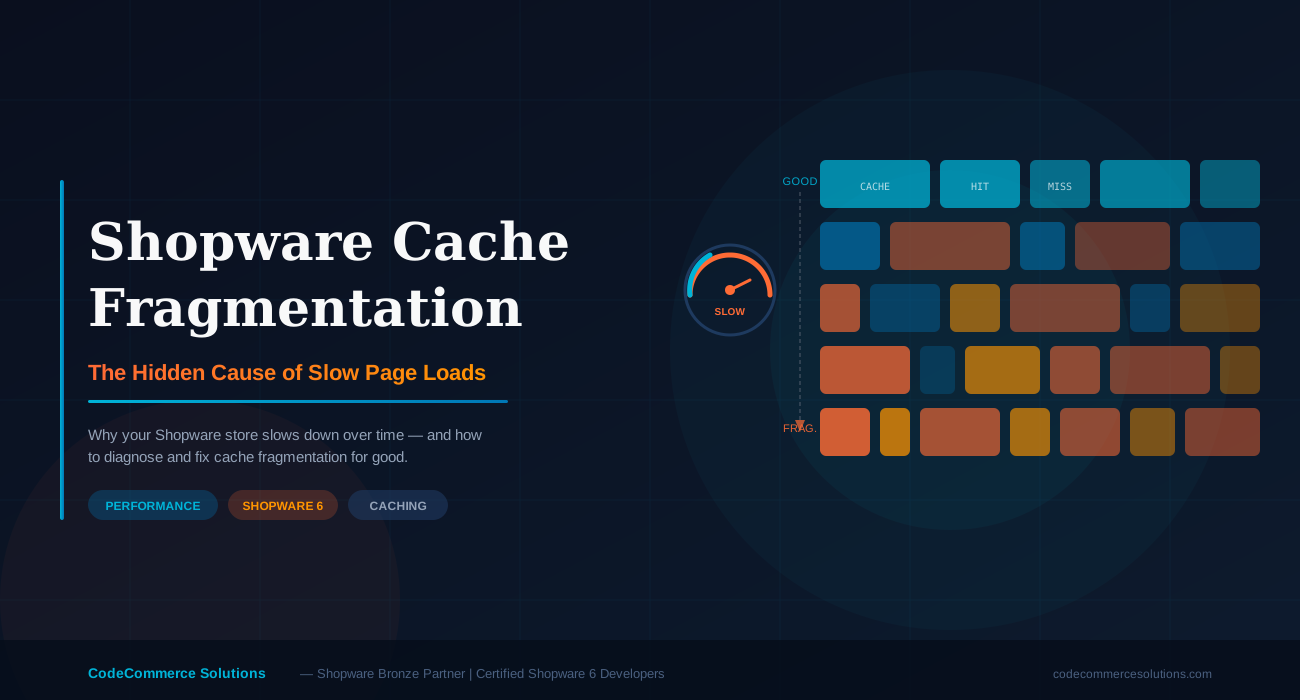
You launched your Shopware 6 store and everything felt sharp. Pages loaded fast, the admin responded instantly, and customers moved through checkout without friction. Then, weeks or months later, something changed. Load times crept up. Server response times got inconsistent. Your hosting provider said the server was fine. Your developer said caching was enabled. But the slowness remained.
The diagnosis that rarely comes up in these conversations? Shopware cache fragmentation.
Cache fragmentation is not a Shopware bug or a hosting failure. It’s a structural problem that develops over time — silently eroding your store’s performance until it becomes visible to customers, reflected in your bounce rates, and flagged in Core Web Vitals reports. This article breaks down exactly what it is, why it happens in Shopware specifically, and how to fix it properly.
⚠ Why This Matters
What Is Cache Fragmentation — and Why Shopware Is Particularly Vulnerable
Caching works by storing a pre-rendered version of a page so that future requests can be served instantly, without hitting the database or executing PHP. In an ideal world, one cached version serves thousands of visitors. In reality, Shopware’s caching layer gets split into many small, fragmented versions of the same page — none of which get reused as efficiently as they should.
This happens because Shopware’s HTTP cache creates a separate cached variant for each unique combination of request conditions. The most common culprits include:
- Currency variations — A visitor switching from EUR to GBP creates an entirely new cache entry for every page they visit.
- Language/sales channel context — Multi-language stores multiply cache entries per URL.
- Customer group context — Logged-in users, guest users, and B2B customers with custom pricing each trigger separate cache variants.
- Cookie and session differences — Different cookie states cause the cache to treat the same visitor as a different request.
- Active promotions and dynamic pricing rules — Discount rules that change prices per user or per session effectively disable caching for those pages.
- Partially dynamic content not excluded from cache — Cart widgets, wishlist counts, and account-specific banners that aren’t properly excluded pull dynamic content into cached responses, forcing them to be invalidated far too frequently.
The result is a cache that grows large, fills up faster, and hits far fewer cache entries than expected. Instead of serving cached responses, Shopware falls back to PHP rendering — repeatedly — for what should have been straightforward page loads.
Is Your Shopware Store Slower Than It Should Be?
Cache issues are one of the most misdiagnosed performance problems in Shopware. Our certified Shopware 6 developers can audit your cache configuration and identify exactly what’s causing the slowdown.
How to Diagnose Cache Fragmentation in Your Shopware Store
Before you can fix cache fragmentation, you need to confirm it’s actually the problem. Here’s how to tell.
Check Your Cache Hit Rate
Shopware uses Symfony’s HTTP cache by default, with optional Varnish support on production. A healthy Shopware store should have a cache hit rate above 70–80% for public (non-logged-in) traffic. If your hit rate is below 50%, fragmentation is almost certainly a factor.
To check your current hit rate with Varnish, run:
# Check Varnish cache stats

varnishstat -1 -f MAIN.cache_hit -f MAIN.cache_miss
# Calculate hit rate
# hit_rate = cache_hit / (cache_hit + cache_miss) * 100
Without Varnish, you can inspect Shopware’s built-in cache by reviewing /var/cache/prod/ for file size growth and turnover rate. Rapid cache file growth with short TTLs is a reliable fragmentation signal.
Review Response Headers
Check what headers Shopware is sending back for product and category pages. A properly cached page should return X-Cache: HIT. If you’re consistently seeing X-Cache: MISS on pages that should be cacheable, fragmentation is pushing Shopware into PHP rendering for every request.
# Inspect cache headers using curl

curl -I https://your-shopware-store.com/your-category-page/ \

--header "Accept-Language: en-GB"
# Look for these in the response:
X-Cache: HIT or MISS
Cache-Control: public, s-maxage=7200
Surrogate-Key: (should be present for Shopware HTTP cache)
Check for Excessive Cache Invalidations
Every time a product, price, or category is updated in Shopware, the related cache entries are invalidated. In stores with frequent product imports, automated pricing updates, or active promotions, this can mean the cache is being rebuilt almost continuously — leaving nothing useful stored by the time the next real visitor arrives.
Review your Shopware logs (/var/log/prod.log) and look for high volumes of cache invalidation events. Patterns like bulk product imports running during peak traffic hours are a common and easily fixable cause.
The Root Causes — Ranked by How Often We See Them
| Cause | Impact | Frequency |
|---|---|---|
| Dynamic content not excluded from HTTP cache | High | Very Common |
| Multiple currencies / language variants per URL | High | Common (multi-market stores) |
| Customer-group-specific pricing active globally | High | Common (B2B stores) |
| Automated product imports during peak hours | Medium | Common |
| Misconfigured cache TTL (too short) | Medium | Moderate |
| Third-party plugin adding unique cache keys | Medium–High | Moderate |
| Session cookies leaking into cache keys | High | Less Common but severe |
How to Fix Shopware Cache Fragmentation
The fixes vary depending on your root cause, but these are the approaches that consistently work across the Shopware stores we’ve worked on at CodeCommerce Solutions.
1. Separate Dynamic Content With ESI (Edge Side Includes)
Edge Side Includes allow Shopware to cache the static parts of a page (the product information, description, media) while fetching dynamic elements (cart count, customer name, personalized recommendations) separately per request. This is the most impactful change for stores where logged-in or cart-aware users are causing cache fragmentation.
Shopware 6 supports ESI out of the box when Varnish is configured as your reverse proxy. Enable it in your config/packages/shopware.yaml:
shopware:

http_cache:

enabled: true

stale_while_revalidate: 300

stale_if_error: 3600

reverse_proxy:

enabled: true

use_varnish_xkey: true

redis_url: "redis://localhost:6379"
2. Normalize and Strip Unnecessary Cache-Varying Parameters
Review which request parameters are being used to generate cache keys. UTM tracking parameters, click IDs, and session tokens frequently end up as cache-differentiating variables when they should be stripped before the request reaches the cache layer. Configure your Varnish VCL or Shopware’s reverse proxy settings to normalize these parameters consistently.
3. Set Appropriate Cache TTLs for Different Content Types
Not all pages need the same cache lifetime. A homepage showing current promotions should have a shorter TTL than a static brand page. Shopware allows you to configure TTLs at the category and CMS page level. Taking the time to set these properly reduces unnecessary invalidations while keeping dynamic content fresh.
4. Schedule Heavy Operations Outside Peak Hours
If your store runs scheduled product imports, price updates, or inventory syncs, check when these jobs are executing. Running them during peak traffic windows creates a wave of cache invalidations at exactly the moment you need the most cache coverage. Shift bulk operations to low-traffic periods — typically late night or early morning.
5. Audit Plugins That Add Cache Context
Third-party Shopware plugins can add their own cache context variables, which increases cache fragmentation without you being aware of it. Review each installed plugin and check whether it declares custom cache tags or cache context providers. Plugins that add user-specific context to product pages — personalisation tools, A/B testing plugins, loyalty modules — are the most likely offenders.
Don’t Have Time to Debug This Yourself?
Cache configuration in Shopware is technical work. If you’ve tried the above steps and your store is still slow, our Shopware developers can take over — we’ll audit your full cache setup, identify the fragmentation points, and implement the right fixes for your store’s architecture.
Expert Tips to Keep Cache Fragmentation Under Control Long-Term
Set a baseline hit rate target after your initial fix. If it drops more than 10 percentage points without an obvious cause, a new plugin or content change is likely adding cache context.
Shopware’s file-based object cache fragments on high-concurrency servers. Redis handles concurrent cache reads and writes significantly better and reduces cache stampede risk.
Shopware updates and plugin changes frequently adjust cache behaviour. Always validate your cache hit rate in staging before deploying to production.
Active promotions often disable or fragment caching for affected pages. After a promotion ends, manually warm your cache to restore coverage quickly.
Why Choose CodeCommerce Solutions for Shopware Performance Work
Shopware cache configuration is not something that’s well-documented in surface-level tutorials. The interactions between the HTTP cache, ESI, Redis, Varnish, and Shopware’s internal cache context system require hands-on production experience to diagnose and fix correctly.
At CodeCommerce Solutions, we’re a Shopware Bronze Partner with a team of certified Shopware 6 developers who work exclusively on Shopware projects. We’ve diagnosed and resolved cache fragmentation for stores ranging from single-market SMBs to multi-language, multi-currency B2B operations across Europe. Our performance audits don’t just identify the problem — they come with a concrete remediation plan matched to your store’s specific architecture, traffic patterns, and plugin stack.
Whether you need a one-time cache audit, help setting up Varnish correctly, or ongoing Shopware performance support, we can help you move from sluggish to fast — and keep it there.
The Bottom Line
Cache fragmentation is one of the most under-diagnosed performance problems in Shopware 6. It doesn’t announce itself with error messages or obvious failures — it just quietly makes your store slower, page by page, visit by visit, until your bounce rates rise and your conversion rates fall.
The good news is that it’s fixable. With the right cache configuration, proper ESI setup, scheduled maintenance, and ongoing monitoring, most Shopware stores can recover and maintain high cache hit rates indefinitely. The key is diagnosing the actual cause first — not just clearing the cache and hoping it resolves itself.
If you’ve worked through this guide and your store still isn’t performing the way it should, the problem may be more specific to your configuration than a generic tutorial can address.
Get Expert Shopware Performance Support
CodeCommerce Solutions is a Shopware Bronze Partner with certified Shopware 6 developers ready to audit your cache setup, identify fragmentation issues, and implement lasting fixes — so your store runs the way it was designed to.