

One of the most important requirements for B2B and wholesale eCommerce businesses is showing different prices to different customers. A long-term wholesale buyer expects better rates than a first-time retail visitor. A VIP client has negotiated contract pricing. A reseller group operates under a completely different margin structure.
Shopware 6 handles all of this — but only when customer-specific pricing in Shopware is configured correctly from the start. Many merchants set it up in a way that appears correct on the surface but breaks down in real-world conditions: during cart calculations, at checkout, or when price rules start conflicting with each other. This guide covers the right approach, step by step.
How Shopware Handles Pricing Under the Hood
Before touching any settings, it is worth understanding how Shopware 6 actually evaluates prices. Shopware does not attach a fixed price to a customer record. Instead it uses three layers that work together.
Customer Groups define categories of buyers. Every customer belongs to a group, and each group carries a key property: gross or net price display. Price Rules (also called Advanced Pricing) define the conditions under which a specific price applies — based on customer group, cart value, quantity, date range, or a combination. Product Prices are the actual numbers, set per product with one entry per currency, customer group, or quantity bracket.
When a customer requests a product page or adds to cart, Shopware evaluates all matching price entries and picks the correct one by rule priority. This system is powerful but sensitive. A single misconfigured rule or overlapping condition is where most stores start showing the wrong price to the wrong customer — silently, and often for weeks before someone notices.
Step 1: Set Up Customer Groups Correctly
Customer groups are the foundation of all customer-specific pricing in Shopware. Every price rule you create later will reference at least one group, so getting this right first saves significant debugging time downstream.
The gross/net setting on a customer group is not cosmetic. It controls how Shopware calculates and displays prices throughout the entire storefront. Setting it incorrectly causes price display issues that are routinely misdiagnosed as theme or template bugs. Our team sees this in almost every store that started as B2C and later added wholesale accounts without revisiting its customer group configuration.
Customer Groups Misconfigured on Your Store?
CodeCommerce Solutions is a certified Shopware partner. Our developers audit your customer group and pricing setup, identify exactly what is wrong, and fix it cleanly — without disrupting your live store.
Step 2: Configure Product-Level Customer Pricing
With customer groups set up, you can now define what each group actually pays per product. Shopware Advanced Pricing supports both flat group prices and quantity-based price breaks, which are standard in wholesale and distribution.
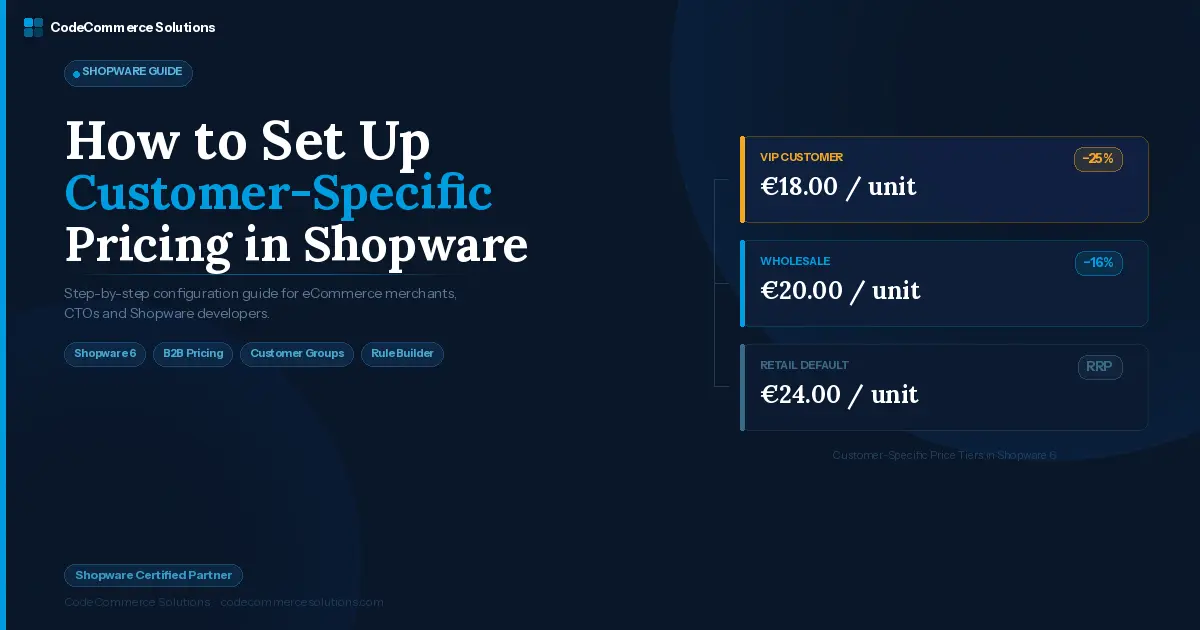
Here is how a typical product looks with multi-tier customer-specific pricing in Shopware:
| Customer Group | Min. Qty | Unit Price | Saving |
|---|---|---|---|
| Retail Default | 1+ | €24.00 | RRP |
| Wholesale | 1+ | €20.00 | −16% |
| Wholesale | 10+ | €18.50 | −22% |
| VIP Accounts | 1+ | €18.00 | −25% |
This product-by-product approach works for smaller catalogs. For stores with hundreds or thousands of products, manually entering prices per customer group becomes unmanageable. At that scale, a proper Shopware store development engagement — including import scripts, ERP synchronisation, or a dedicated pricing plugin — is the only realistic path.
Step 3: Use the Rule Builder for Dynamic Pricing Logic
For pricing scenarios that go beyond a flat group price, Shopware’s Rule Builder (under Settings > Rules) is where Shopware B2B pricing logic lives. It lets you build conditions that combine multiple factors to determine which price applies.
The official Shopware Rule Builder documentation covers the full list of available conditions. In practice, the most useful combinations for customer-specific pricing in Shopware are:
- Customer group membership combined with cart subtotal threshold
- Customer group combined with billing or shipping country (essential for EU B2B VAT)
- Quantity in cart combined with a customer tag or custom field value
- Date range conditions for time-limited contract pricing windows
A typical real-world example: apply a 10% discount to all wholesale customers who place orders above €500 and are shipping to Germany. No single setting in the Admin handles this combination. It requires a composite rule in the Rule Builder attached to a promotion or product group price — with a deliberate priority number so it does not conflict with your existing Shopware price rules.
When two overlapping Shopware price rules match the same customer and product, Shopware applies the first match by priority order. If priorities are not set deliberately, you get inconsistent pricing that is very difficult to trace. Always number your rules explicitly and document what each rule is supposed to do before it goes live. Our developers at CodeCommerce Solutions always build a rule map before any implementation begins.
Step 4: Handle Net vs Gross Pricing for B2B Customers
This is the most commercially damaging misconfiguration we encounter. In B2B eCommerce, buyers need to see prices excluding VAT. Shopware supports this through the customer group net pricing setting — but enabling that alone is not enough.
- The B2B customer group must have net price display explicitly enabled in the group settings — not just assumed from account type.
- Tax rules under Settings > Tax must reflect the correct rates per country and customer type. EU intra-community B2B transactions have different VAT treatment to domestic B2C sales.
- Shopware’s default tax configuration is built for domestic B2C. Cross-border B2B scenarios nearly always require manual tax rule configuration.
- For high-volume cross-border stores, a custom tax integration via a Shopware plugin (Avalara, TaxJar, or similar) is more reliable than managing country-by-country rules manually in the Admin.
The most common version of this issue: a store was originally built for German retail customers (gross pricing, 19% VAT). The owner added a wholesale customer group later but did not switch it to net pricing or reconfigure the tax rules. Wholesale buyers saw VAT-inclusive prices on product pages, their orders were calculated with VAT included, and their invoices showed the wrong amounts. By the time the client contacted us, three months of B2B orders had incorrect invoice totals. The fix itself takes under an hour. Correcting three months of invoices takes considerably longer.
B2B Customers Seeing Incorrect Prices on Your Shopware Store?
Our certified Shopware 6 developers have corrected this exact configuration on dozens of stores. We audit your customer groups, tax rules, and price display settings and fix them correctly the first time.
Step 5: Implement Contract-Level Pricing for Individual Customers
Standard Shopware price rules operate at the customer group level. Many B2B businesses negotiate individual prices per customer — not per group. Distribution, manufacturing, and professional services merchants deal with this constantly. The native Admin cannot handle it directly. You need a custom approach.
The most maintainable architecture for individual contract pricing uses Shopware custom fields combined with a subscriber that hooks into the price calculation lifecycle:
- Add a custom field to the customer record — a contract price list ID or a negotiated flat discount percentage.
- Write a Shopware event subscriber that listens to price calculation events during cart and checkout, reads the customer’s custom field, and applies the correct contract price.
- For larger catalogs, maintain a dedicated price matrix table in the database and query it during the price calculation lifecycle rather than encoding prices in custom fields directly.
- Surface the contract price on the product detail page — not only in the cart — so buyers see their correct price before they start a session.
This requires Shopware plugin development but gives you a clean, auditable contract pricing system that is entirely separate from the standard product price configuration. Separation matters: when a contract term changes, you update one record — not dozens of product price entries across a catalog of thousands of SKUs.
Step 6: Test Every Pricing Change Before Going Live
Pricing errors are among the most commercially damaging bugs a live eCommerce store can have. They affect revenue, customer trust, and operational accuracy simultaneously — and they are easy to miss in manual testing if you are not systematic about it. Use this checklist before every pricing change you push to production.
-
Log in with a test account in each customer group. Verify the correct price appears on product pages, in the cart, and on the order confirmation.
-
Test quantity price breaks by adding different quantities and confirming the price changes at the correct thresholds.
-
Complete a full test order and verify that the invoiced amount matches the displayed price at every step of checkout.
-
Log in with a B2B test account and confirm prices display excluding VAT, and that the order invoice reflects net amounts.
-
Confirm that active promotions do not stack unexpectedly with Shopware Advanced Pricing entries.
-
Verify pricing accuracy in any connected systems — ERP, accounting software, or marketplace feeds where Shopware pushes product data.
-
Test currency-specific pricing separately. Shopware does not auto-convert customer group prices across currencies. Each currency needs its own price entry.
Shopware Advanced Pricing has no built-in staging preview mode. All pricing changes should be deployed to a staging environment first and tested against the checklist above before going anywhere near production. If you do not have a staging environment set up, that is the first infrastructure problem to solve — before any pricing work begins. Skipping staging is how three-month invoice correction projects start.
Expert Tips From Our Shopware Development Team
A few observations from the CodeCommerce Solutions team based on repeated patterns across Shopware B2B and wholesale implementations:
Name your rules explicitly and version them. With dozens of active Shopware price rules in the Rule Builder, a name like “Rule 14” tells you nothing. Use a convention that includes the customer group, condition type, and date — for example Wholesale_CartOver500_DE_2026-01. When something breaks six months later, you will know which rule to look at.
Review your active rules quarterly. Outdated rules from limited-time promotions that were never deactivated are one of the most common sources of unexpected customer-specific pricing in Shopware. A quarterly rule audit takes 30 minutes and prevents hours of future debugging.
Do not use Shopware promotions for permanent B2B pricing logic. Promotions are designed for marketing windows with defined start and end dates. Using them to deliver permanent wholesale discounts works until it does not — typically when you scale the catalog or add a new sales channel and discover the promotion logic does not transfer cleanly.
Document your pricing architecture in a shared location. This rarely happens in practice. When a new developer or administrator needs to modify Shopware B2B pricing later, undocumented rule logic becomes a significant risk for errors. A shared document listing each active rule, its purpose, its priority, and its expected outcome is low effort to maintain and saves hours when something needs to change.
Before and After: What Correct Pricing Configuration Looks Like
The following comparison reflects a B2B wholesale Shopware 6 store that came to CodeCommerce Solutions with pricing issues affecting roughly 40% of its wholesale customer base. The entire resolution — from diagnosis to testing — took three working days.
❌ Before
- B2B customer group showing VAT-inclusive prices
- Wholesale price rules conflicting — no priorities set
- Quantity breaks not applying at checkout
- Tax rules defaulting to domestic B2C rates for EU buyers
- No staging environment — changes pushed direct to production
- Three months of incorrect B2B invoices
✓ After
- B2B group switched to net pricing — VAT removed from display
- All rules given explicit priority numbers and documented
- Quantity breaks tested and confirmed at correct thresholds
- EU intra-community B2B tax rules configured correctly
- Staging environment set up for all future pricing changes
- Pricing accurate for all customer groups across all currencies
Why Choose CodeCommerce Solutions
Setting up customer-specific pricing in Shopware correctly is not just clicking through Admin screens. It requires understanding how customer groups, Shopware price rules, the Rule Builder, tax configuration, and — when needed — custom plugin development all work together as a system. Getting one element wrong can break the whole pricing structure silently.
CodeCommerce Solutions is a certified Shopware partner. Our team of Shopware 6 certified developers has implemented Shopware B2B pricing for merchants across manufacturing, distribution, and wholesale retail. We work with businesses that need clean, maintainable pricing logic — not workarounds that create larger problems in six months.
Whether you need a full pricing audit on an existing store, a clean setup from scratch, or a custom Shopware plugin for contract-level pricing, we deliver it correctly and confirm it with real testing before it goes live.
Final Thoughts
Customer-specific pricing in Shopware is one of the platform’s most commercially important features and one of the most frequently misconfigured. The root cause is almost always the same: customer groups set up without understanding the gross/net implications, price rules added without priority numbers, and no staging environment to catch errors before they reach production.
Fix the customer group configuration first. Get the net/gross setting right. Then build your Shopware price rules with explicit priorities and document each one. Test on staging before every change. For contract-level pricing that goes beyond what the Admin UI can handle, bring in a Shopware developer who can build the subscriber logic cleanly.
Need Expert Shopware Pricing Support?
CodeCommerce Solutions is a certified Shopware partner with a team of Shopware 6 developers. We audit, implement, and test customer-specific pricing setups — B2B, wholesale, contract-level, and everything in between.