

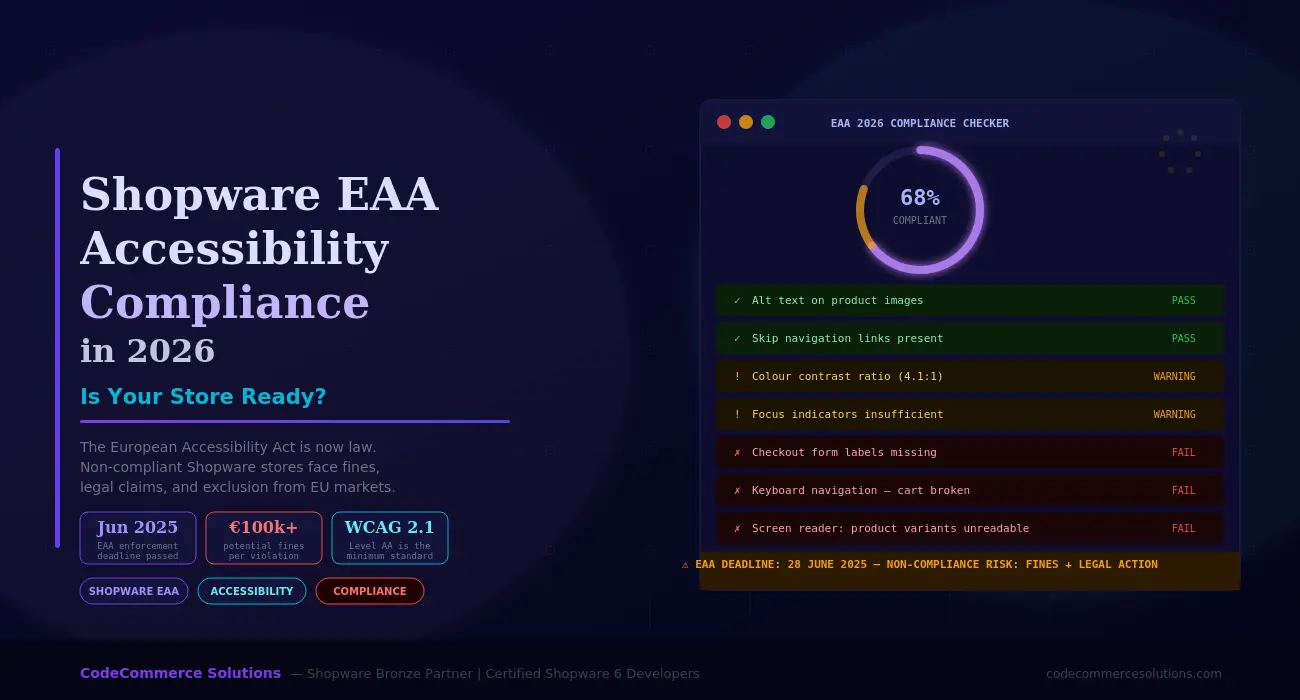
The European Accessibility Act (EAA) became enforceable on 28 June 2025. It is now a legal requirement — not a suggestion. If your Shopware store sells to EU customers, it must meet digital accessibility standards. This rule applies regardless of where your business is registered.
Many Shopware store owners are aware of the EAA. However, most have not yet audited or fixed their store. That is a growing legal risk.
This guide explains exactly what Shopware EAA accessibility compliance means for your store. First, we cover what the law requires. Then, we look at the most common failures. After that, we walk through how to audit your store and fix the issues. By the end, you will have a clear action plan.
The EAA Deadline Has Already Passed
The European Accessibility Act (Directive 2019/882) required enforcement from 28 June 2025. If your store is not audited, it has active compliance exposure today. Any EU user can file a formal complaint — and each member state has its own enforcement authority.
What Does Shopware EAA Accessibility Compliance Mean?
The EAA does not invent new technical rules. Instead, it points to an existing global standard: WCAG 2.1 Level AA. WCAG stands for Web Content Accessibility Guidelines. It is the most widely used benchmark for digital accessibility worldwide.
So in practice, achieving Shopware EAA accessibility compliance means your store must pass WCAG 2.1 AA. This applies to every customer-facing area. That includes your storefront, product pages, category pages, search, cart, checkout, account area, and CMS content pages.
WCAG 2.1 is built on four core principles. Every accessibility rule falls under one of these four areas. Developers often refer to them as POUR:
Principle 1: Perceivable
All content must be presentable in ways users can perceive. This covers image alt text, video captions, colour contrast ratios, and text alternatives for non-text content.
Principle 2: Operable
All functionality must work with a keyboard alone. Users must be able to navigate menus, add items to cart, and complete checkout — without ever touching a mouse.
Principle 3: Understandable
Content and forms must be easy to understand. This means clear field labels, helpful error messages, consistent navigation, and correct language settings in your HTML.
Principle 4: Robust
Your store must work reliably with assistive technologies like screen readers. This requires proper semantic HTML and correct ARIA attributes across all dynamic components.
Shopware’s Default Theme Is Not Fully Compliant
Shopware 6’s Storefront theme has improved in recent versions. But it does not pass a full WCAG 2.1 AA audit without additional work. Custom themes and third-party plugins make things worse. Do not assume your store is compliant without running an actual audit first.
Not Sure If Your Shopware Store Is EAA Compliant?
Our certified Shopware 6 developers run full EAA accessibility audits. We test your storefront and checkout against WCAG 2.1 AA and give you a clear, prioritised fix plan.
The Most Common Shopware EAA Compliance Failures
After auditing several Shopware stores, we see the same issues coming up every time. Here is a breakdown of the most common failures. Each one includes the WCAG rule it violates and where it typically appears on a Shopware store.
| Issue | WCAG Rule | Severity | Where It Appears |
|---|---|---|---|
| Text colour contrast too low | 1.4.3 | Critical | Buttons, price labels, placeholder text, nav links |
| Checkout form fields have no labels | 1.3.1 / 3.3.2 | Critical | Address fields, payment inputs, coupon code boxes |
| Keyboard gets trapped in cart or modal | 2.1.2 | Critical | Side cart drawer, cookie consent banner, image lightbox |
| Product images missing alt text | 1.1.1 | High | Product listings, variant swatches, promotional banners |
| Focus indicator not visible | 2.4.7 | High | Menus, CTA buttons, filter checkboxes |
| Variant names not read by screen readers | 4.1.2 | High | Size selectors, colour swatches, quantity inputs |
| Error messages not linked to form fields | 3.3.1 | High | Registration form, checkout validation messages |
| No skip navigation link on any page | 2.4.1 | Medium | All pages — forces keyboard users to tab through full header every time |
| HTML language attribute is missing | 3.1.1 | Medium | Multi-language stores where the lang tag is wrong or absent |
| Auto-playing video with no controls | 1.4.2 | Medium | Hero banner videos, promotional content blocks |
How to Audit Your Shopware Store for EAA Compliance
A proper Shopware accessibility audit has two parts. You start with automated tools for a quick overview. Then you do manual testing to find the issues that tools cannot catch on their own.
Part 1 — Start With Automated Testing Tools
These four tools are free. They give you a solid starting point and help you find your worst failures fast. Run them on your product page, category page, and checkout — not just your homepage.
- axe DevTools — a browser extension that audits any live page and flags WCAG violations with severity ratings and fix guidance
- Google Lighthouse — built into Chrome DevTools. It gives your page an accessibility score and lists specific failures to address
- WAVE — places error icons directly on your page. It is especially useful for showing non-technical stakeholders where problems exist
- Colour Contrast Analyser — tests specific colour pairs against the WCAG minimum ratio of 4.5:1 for normal text and 3:1 for large text
That said, automated tools only catch around 30 to 40 percent of real issues. Manual testing is essential for the rest.
Part 2 — Manual Testing Across Three Key Areas
Focus your manual testing on three areas. These are keyboard navigation, screen reader behaviour, and visual checks. Together, they cover the failures that automated tools miss every time.
Area 1 — Keyboard Navigation
Use only your Tab, Enter, Escape, and Arrow keys. Do not touch the mouse at all during this test.
Test 1: Full journey from homepage to checkout. Tab through every page. Every button, link, and input must be reachable. If you get stuck at any point, that is a critical EAA failure. Fix it immediately.
Test 2: Focus indicator visibility. At every step, you must see which element is in focus. A glowing border or outline should appear clearly. Removing CSS outlines is one of the most common EAA violations in Shopware themes.
Test 3: Modals and cart drawers. Open the cart drawer. Then open the cookie consent banner. Press Escape to close each one. Focus must return to the button that opened it. The keyboard must never get trapped inside.
Test 4: Checkout form completion. Fill in every field using only the keyboard. Tab between inputs, use Enter to submit, and use arrow keys inside dropdowns. Partial keyboard support is not enough. The full checkout must work without a mouse.
Area 2 — Screen Reader Testing
Use NVDA on Windows or VoiceOver on Mac and iOS. These are free tools. Run each test with your monitor off if possible — that is how visually impaired users experience your store.
Test 1: Product image descriptions. Navigate to a product page. The screen reader must announce a real description for each image. It must not read “image” or a filename like “product_04.jpg”. Set correct alt text inside the Shopware media library for every image.
Test 2: Variant selectors. Click a size or colour option. The screen reader must announce which option is now selected. Most Shopware swatch components fail this by default. It is one of the most common high-severity gaps we find in audits.
Test 3: Form validation errors. Submit a checkout form with a field left empty. The screen reader must immediately read out the error message. If the user has to hunt for it manually, the form fails WCAG 3.3.1. Error messages must link directly to their fields in the HTML.
Test 4: Add-to-cart confirmation. Add a product to the cart. The screen reader must announce that the item was added. The user must not have to navigate to the cart icon to find out. Use an ARIA live region to handle this announcement automatically.
Area 3 — Visual and Content Checks
These checks do not need any assistive technology. They are visual inspections you can do directly in your browser.
Check 1: Colour contrast ratios. Body text must have a contrast ratio of at least 4.5:1. Large text and button labels need at least 3:1. Test every key colour combination. Pay close attention to placeholder text and text placed over images. Use the free Colour Contrast Analyser tool for exact ratio readings.
Check 2: Alt text on all images. Go into the Shopware admin. Open the media library. Check that every image has a meaningful alt text value. This applies to product images, category banners, and CMS page images. Empty alt text fields are a direct EAA violation.
Check 3: HTML language attribute. Open your page source. Find the opening HTML tag. It must include the correct lang attribute — for example, lang=”en” for English or lang=”de” for German. This is especially important for Shopware stores with multiple sales channels in different languages.
Check 4: No rapidly flashing content. Review every animated banner, countdown, or transition on your store. Nothing must flash more than three times per second. Fast flashing can trigger seizures. This check is quick and easy but it is a hard legal requirement under WCAG 2.3.1.
Need Help Fixing Your Shopware Store’s Accessibility?
CodeCommerce Solutions is a Shopware Bronze Partner. Our certified Shopware 6 developers fix WCAG 2.1 AA issues across your storefront, checkout, and plugins — so your store meets the EAA standard fully.
How to Fix the Three Biggest Issues in Shopware
After your audit, fixes generally fall into three categories. These are theme-level changes, template changes, and component-level changes. Below, we cover the three most impactful fixes — with real Shopware code examples.
Fix 1 — Correct Your Colour Contrast in the Shopware Theme
Shopware 6 uses SCSS variables for all colours. To fix contrast issues, you update those variables inside your theme. The important thing is to test every colour pair — not just your primary brand colour on white.
Many stores fail because of light grey placeholder text or low-contrast button labels. Both are easy to fix once you know where to look.
SCSS — Shopware theme colour contrast fix example// File: src/Resources/app/storefront/src/scss/abstract/_variables.scss
// Before — contrast ratio is approx 3.8:1 — fails WCAG AA
$color-brand-primary: #6d9eeb;
// After — contrast ratio is 4.7:1 — passes WCAG AA
$color-brand-primary: #2563eb;
// Fix placeholder text too — this one is missed on most Shopware stores
$color-input-placeholder: #6b7280;
Fix 2 — Add Proper Labels to All Checkout Form Fields
Many Shopware checkout templates use placeholder text instead of real labels. This is a common mistake. Placeholder text disappears the moment a user starts typing. As a result, the field has no visible label — and that fails WCAG 3.3.2.
The fix is simple. Every form field needs a proper label element. That label must be visually linked to its input using matching for and id attributes.
{# Wrong — placeholder only. No label. Fails WCAG 3.3.2 #}

<input type="text" name="firstName" placeholder="First name"><label for=“firstName”>
First name <span class=“sr-only”>(required)</span>
</label>
<input
type=“text”
id=“firstName”
name=“firstName”
aria-required=“true”
placeholder=“e.g. John”
>
Fix 3 — Make Product Variant Selectors Work With Screen Readers
Shopware’s size and colour selectors are usually built with plain div or span elements. Screen readers cannot interact with these. They have no accessible role, no keyboard support, and no state announcements.
The best fix is to rebuild them using native radio inputs. This gives you keyboard support, focus management, and screen reader announcements all at once — with no extra JavaScript needed.
<fieldset>

<legend>Colour: <span>Navy Blue</span></legend><label>
<input
type=“radio”
name=“colour”
value=“{{ option.id }}”
aria-label=“{{ option.name }}”
{% if option.selected %}checked{% endif %}
>
<span
class=“colour-swatch”
style=“background-color: {{ option.hexCode }}”
aria-hidden=“true”
></span>
</label>
{% endfor %}
</fieldset>
A Note From Our Shopware Developers at CodeCommerce Solutions
We audit stores that use premium paid Shopware themes. Store owners often expect those themes to be EAA compliant. In most cases, they are not. Most commercial themes were built before the EAA became a hard legal requirement. They carry the same accessibility gaps as the default theme — especially around keyboard navigation and ARIA support in dynamic components. A premium theme is not a compliance guarantee.
What Does Non-Compliance Actually Cost?
The financial penalties for failing Shopware EAA accessibility compliance vary by EU country. Still, the risk is consistent and significant across all member states. Here is what non-compliant stores can face:
- Administrative fines from national market surveillance authorities — amounts vary but can reach six figures for serious or ongoing non-compliance
- Legal claims from individual users — the EAA gives disabled people a direct legal basis to challenge inaccessible digital services through national courts
- Injunctive orders that require you to suspend specific pages or services until they are brought into compliance
- Reputational damage — public accessibility complaints affect how all customers perceive your brand, not just disabled users
- Lost B2B contracts — regulated businesses now require EAA compliance from their eCommerce partners and digital platforms
Beyond compliance risk, there is a clear SEO benefit too. Google’s crawlers depend on semantic HTML, heading structure, and descriptive link text. These are the exact same elements that accessibility requires. As a result, stores that fix accessibility issues often see measurable SEO improvements at the same time.
Why Choose CodeCommerce Solutions for EAA Compliance
Shopware EAA accessibility compliance is not simply a content task. It is a development task. It demands deep knowledge of Shopware’s template inheritance system, the Vue.js storefront architecture, how plugins inject content into the DOM, and how to implement ARIA patterns correctly inside a dynamic eCommerce context.
As a Shopware Bronze Partner, CodeCommerce Solutions has a team of certified Shopware 6 developers who specialise in exactly this kind of work. We audit your full customer journey — from the homepage through to order confirmation — against WCAG 2.1 AA criteria.
Furthermore, we fix issues directly inside Shopware’s native template and SCSS system. That means every fix is upgrade-safe, maintainable, and does not rely on fragile JavaScript workarounds. After each project, we deliver a written compliance report. This documents every issue found, its WCAG reference, its severity, and how it was resolved. That gives you a clear record of due diligence you can rely on.
The Bottom Line
Shopware EAA accessibility compliance is a legal requirement. The enforcement deadline passed in June 2025. If your store has not been audited and fixed, it carries active compliance exposure right now.
The good news is that the most common failures are all fixable. Colour contrast, form labels, keyboard navigation, and screen reader support for variant selectors — these are all solvable with focused development work inside Shopware’s template system. You do not need to rebuild your store from scratch.
The right time to act was before June 2025. The next best time is today — before a formal complaint creates urgency under pressure. If you need an audit, a fix plan, or hands-on development support, CodeCommerce Solutions is ready to help.
Make Your Shopware Store EAA Compliant in 2026
CodeCommerce Solutions is a Shopware Bronze Partner with certified Shopware 6 developers. We deliver full EAA accessibility audits and WCAG 2.1 AA fixes — so your store meets the legal standard and serves every customer properly.