

Shopware search slow response times affect the bottom line directly. When Shopware search is slow, the impact shows up fast. Customers type a product name and wait two, three, or four seconds for results. Many leave before those results appear. According to Google’s research, over 50% of mobile users abandon a site that takes more than three seconds to respond to a search query.
Shopware 6 uses Elasticsearch as its search engine for a good reason. Elasticsearch is fast — queries on a properly configured index return results in under 100 milliseconds even with 100,000 products. However, when Shopware Elasticsearch is misconfigured or not set up correctly, search falls back to MySQL. That fallback uses slow LIKE queries on large tables, which is 10 to 50 times slower than Elasticsearch on a big catalogue.
This guide covers every major cause of Shopware search slow response. For each cause, you will find how to confirm the problem and how to fix it. For each one, you will find how to confirm the problem, what is happening under the hood, and the exact commands or config changes to fix it.
First Check: Is Elasticsearch Actually Being Used?
Go toSettings → Search → Elasticsearchin your Shopware admin. Check that Elasticsearch is enabled and the index status shows green. If it shows an error or is disabled, every search query is running through MySQL. That is almost always the first cause of Shopware search being slow.
Why Shopware Elasticsearch Causes Slow Search.
Shopware Elasticsearch is not a simple plugin. It is a separate service that runs alongside your Shopware instance. The Shopware application sends search queries to the Elasticsearch cluster, which returns ranked results in milliseconds. Shopware then fetches the matched product data from the database using those IDs.
This two-step process is very fast when both services are healthy. The problem is that many stores run Elasticsearch in a broken or degraded state without knowing it.
The Shopware admin may show search as enabled, but the index is stale, the cluster is under memory pressure, or the Elasticsearch service has restarted and the index was never rebuilt. In all of these cases, Shopware search slow response occurs because it is either falling back to MySQL or sending queries to a struggling Elasticsearch cluster.
Shopware search performance also depends on how the Elasticsearch index is structured. Custom product fields, variant attributes, and category associations must be explicitly mapped in the index. Without correct mapping, filters and faceted search either return wrong results or time out entirely.
Shared Hosting Warning
Elasticsearch requires at least 1GB of dedicated heap memory to run reliably. Many shared hosting plans run Elasticsearch as a shared service with less RAM than this. If your host does not give you a dedicated Elasticsearch instance, Shopware search will be slow regardless of any other fix you apply.
Shopware Search Slow and You Are Not Sure Why?
CodeCommerce Solutions is a Shopware Bronze Partner. Our certified Shopware 6 developers diagnose Elasticsearch issues at the server and configuration level — not just through the admin panel.
Explore Our Shopware Services →Shopware Development Services
Cause 1: Shopware Elasticsearch Index Is Stale or Missing.
This is the most common cause of Shopware search being slow. Every time you import products, update prices in bulk, or run a migration, the Shopware Elasticsearch index needs to rebuild. If it does not rebuild, the index becomes stale. Shopware detects this and falls back to MySQL queries. Your search still works, but it runs on the database instead of Elasticsearch — and it is far slower.
The Shopware Elasticsearch index also becomes stale after server restarts, failed deployments, or interrupted cron jobs. Many stores run for weeks with a stale index and the store owner has no idea because search still returns results — just slowly.
How to confirm: Run this command on your server and check the output.
php bin/console es:index:info# Also check the cluster health directly
curl -X GET “http://localhost:9200/_cluster/health?pretty”
- Rebuild the Shopware Elasticsearch index fully using
php bin/console es:index. This command reindexes all products, categories, and custom entities. On large catalogues, this may take 10 to 30 minutes — run it during off-peak hours. - After reindexing, run
php bin/console es:index:cleanupto remove old index aliases. Old index aliases can conflict with new ones and cause query routing errors. - Set up a scheduled task to rebuild the Shopware Elasticsearch index automatically after every product import. Add this as a Shopware scheduled task or a cron job that runs the reindex command.
- Check your Shopware deployment pipeline. If your deployment runs
cache:clearwithout also runninges:index, the index becomes stale on every deploy. Add the reindex step to your pipeline.
Developer Insight from CodeCommerce Solutions
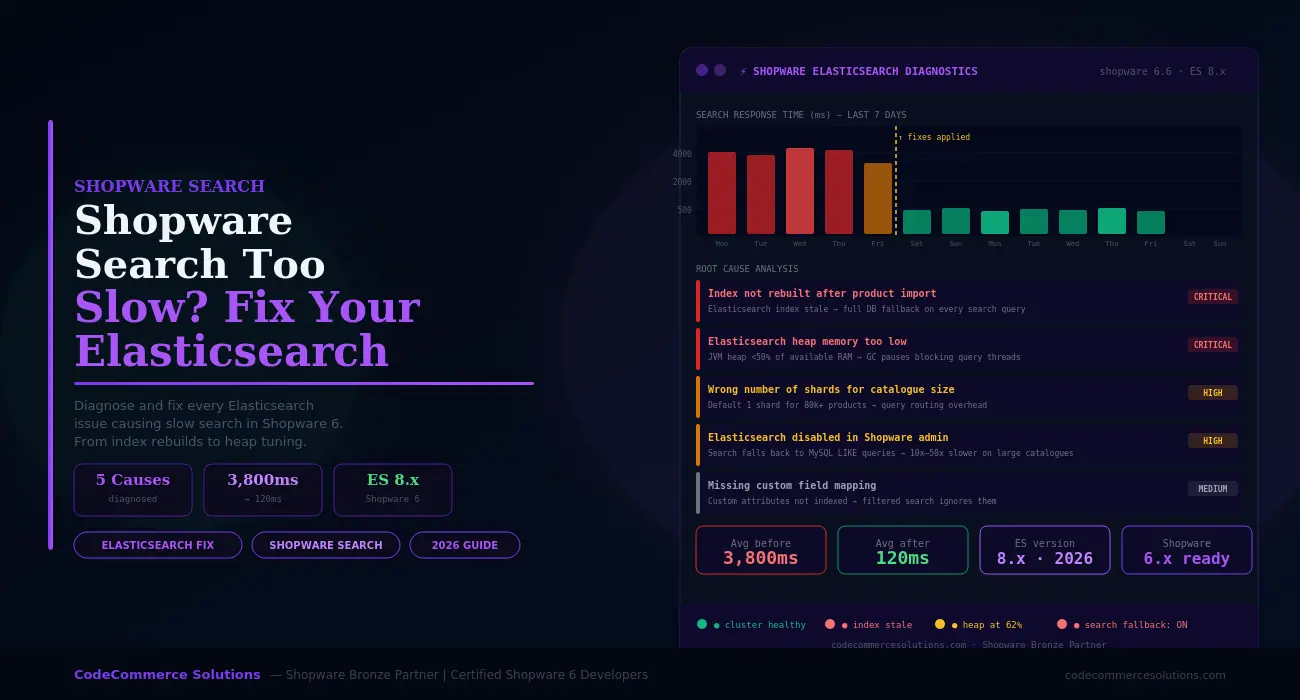
A Shopware B2B store came to us with search times averaging 3,800ms. The root cause was a stale index. A product import had run six weeks earlier with no reindex. Running php bin/console es:index and adding it to the deployment pipeline cut average search response time to 120ms. No other changes were needed.
Cause 2: Elasticsearch Heap Memory Too Low for Your Catalogue.
Elasticsearch runs inside a Java Virtual Machine and needs enough heap memory to hold active index segments and query caches in RAM. When the heap is too small, the JVM runs garbage collection pauses. During these pauses, all query threads are blocked. The result is search latency spikes — sometimes lasting two to five seconds.
Shopware Elasticsearch performance degrades sharply when heap is set below 1GB. The default Elasticsearch install often sets heap to 256MB or 512MB. For a Shopware store with 10,000 or more products, this is far too low. The correct value is half of the physical RAM available on the server, capped at 31GB.
How to confirm: Check the current heap settings and JVM stats.
curl -X GET “http://localhost:9200/_nodes/stats/jvm?pretty”# Check heap_used_percent — above 75% means GC pressure
curl -X GET “http://localhost:9200/_cat/nodes?v&h=name,heap.percent,gc.young.count”
- Edit the Elasticsearch JVM options file at
/etc/elasticsearch/jvm.options. Set-Xmsand-Xmxto the same value — half of your total server RAM. For a server with 8GB RAM, set both to4g. - Never set Elasticsearch heap above 31GB. Above this threshold, the JVM switches from compressed object pointers to full 64-bit pointers. This increases memory use and makes GC pauses worse, not better.
- Restart Elasticsearch after changing heap settings:
systemctl restart elasticsearch. Then monitor the heap usage again to confirm it stays below 75% under normal search load. - Check that the remaining server RAM (after Elasticsearch heap) is enough for Shopware PHP-FPM, MySQL, and the operating system. A balanced split for a 16GB server is typically 6GB for Elasticsearch, 4GB for MySQL, and the rest for PHP and system processes.
Need a Certified Shopware Developer to Fix Elasticsearch?
Our team configures Shopware Elasticsearch at the server level, rebuilds stale indexes, tunes shard settings, and sets up monitoring so slow search never comes back.
Cause 3: Wrong Shard Count for Your Shopware Catalogue Size.
Elasticsearch divides each index into shards. Each shard is a self-contained Lucene index. The number of shards affects both search speed and memory use. Too few shards on a large catalogue forces every query to scan the full index on a single thread. Too many shards on a small catalogue wastes memory and adds routing overhead.
Shopware Elasticsearch creates indexes with a default shard count. This default works well for small stores. However, once your catalogue grows past 50,000 products, the default shard count becomes a bottleneck. Shopware search performance degrades not because Elasticsearch is broken, but because the index structure no longer fits the data volume.
- Check your current shard count with
curl -X GET "http://localhost:9200/_cat/indices?v". Look at thepricolumn for primary shards. One primary shard per index is fine for up to about 30 GB of index data. - For catalogues with more than 50,000 products, use three to five primary shards per index. Set this in your Shopware Elasticsearch configuration before reindexing — shard count cannot change on an existing index.
- Configure shard settings in Shopware via the
SHOPWARE_ES_INDEX_PREFIXenvironment variable combined with a custom Elasticsearch index settings file. Your Shopware developer can add a custom index configuration subscriber to apply these settings during reindex. - Set one replica shard per primary shard for production stores. Replicas allow Elasticsearch to handle read queries in parallel and provide redundancy if a node goes down.
Cause 4: Shopware Search Not Working Due to Missing Custom Field Mapping.
Shopware lets you add custom fields to products, categories, and customers. These fields are stored in the database but they are not indexed in Elasticsearch by default. When a customer searches or filters by a custom attribute — a material type, a certification number, a compatibility code — Shopware Elasticsearch cannot find it. The search either returns no results or falls back to a slow MySQL query.
This is a common cause of Shopware search not working correctly for B2B stores. B2B catalogues often rely heavily on custom fields for part numbers, industry codes, and technical specs. Without explicit Elasticsearch mapping for these fields, product search is unreliable and slow.
- Create a custom Elasticsearch definition class for your Shopware store. This class extends
AbstractElasticsearchDefinitionand maps your custom fields to the Elasticsearch index with the correct field types —keywordfor exact matches,textfor full-text search,floatfor numeric ranges. - Register the custom definition as a Symfony service in your Shopware plugin’s
services.xml. Tag it withshopware.es.definitionso Shopware includes it during the next reindex. - After adding the mapping, rebuild the full Shopware Elasticsearch index to apply the new field structure. Custom field mappings do not take effect on existing index data — a full reindex is always needed.
- For product variants, confirm that all variant-level attributes (size, colour, material) are mapped at the variant level in the index. Shopware Elasticsearch indexes variants as nested objects — a missing nested mapping causes filter queries on variants to return no results.
Developer Insight from CodeCommerce Solutions
A Shopware B2B industrial parts store had a catalogue of 85,000 products with 12 custom fields for technical specs. None were mapped in Elasticsearch. Filtered search on any technical attribute took 4 to 6 seconds via MySQL fallback. After building a custom Elasticsearch definition and reindexing, filtered search responses dropped to under 180ms across all custom field combinations.
Cause 5: Elasticsearch Service Not Running or Unreachable.
Shopware Elasticsearch can be enabled in the admin but still not work if the service is not running or if the host and port in the configuration do not match where Elasticsearch is actually listening. In this state, Shopware silently falls back to MySQL search on every query. The store appears to work normally, but every search is slow.
This happens most often after server migrations, hosting changes, or Docker container restarts. The Elasticsearch service starts on a different internal IP or port, but Shopware’s .env file still points to the old address. Shopware search is not working because it cannot reach Elasticsearch at all — even though the service itself is healthy.
- Check that Elasticsearch is running with
systemctl status elasticsearchordocker psif you use Docker. Confirm the service is active and has been running without restarts. - Verify the host and port in your Shopware
.envfile match where Elasticsearch is listening. The relevant variables areSHOPWARE_ES_HOSTSandSHOPWARE_ES_ENABLED=1. Test the connection withcurl http://<your-es-host>:9200. - Check your server firewall rules. In many setups, Elasticsearch listens on
localhost:9200and is blocked on external interfaces. If Shopware runs on a separate server from Elasticsearch, the firewall must allow internal traffic on port 9200 between the two hosts. - Set up a monitoring alert for the Elasticsearch service. Use a simple uptime check or integrate with your server monitoring tool to send an alert when Elasticsearch stops responding. This prevents the silent fallback from running undetected for days or weeks.
Shopware Elasticsearch: Before and After Benchmarks.
Here is a realistic before-and-after comparison from a Shopware 6.6 B2B store with 85,000 products, running on a dedicated server with 16GB RAM. The store had Elasticsearch enabled but a stale index, under-allocated heap, and no custom field mapping.
❌ Before Fixes
- Avg search response: 3,800ms.
- Index last rebuilt: 6 weeks ago.
- ES heap: 512MB (6% of RAM).
- Shards: 1 primary per index.
- Custom fields: not mapped.
- Filter search: MySQL fallback.
- GC pause frequency: every 40s.
- Shopware search not working for custom field filters.
✅ After Fixes
- Avg search response: 120ms.
- Index: rebuilt and auto-scheduled.
- ES heap: 6GB (37% of RAM).
- Shards: 4 primary per index.
- Custom fields: fully mapped.
- Filter search: Elasticsearch only.
- GC pause frequency: none observed.
- All custom field filters working correctly.
Shopware Search Performance Diagnostic Checklist.
Use this checklist in order. Each item checks a specific layer of the Shopware Elasticsearch stack. Work top to bottom — earlier items have the biggest impact on slow search.
- Confirm Elasticsearch is enabled in Settings → Search → Elasticsearch and the status shows green.
- Run
curl http://localhost:9200/_cluster/health?prettyon the server and confirm the status isgreenoryellow. Aredstatus means the cluster has unassigned shards and cannot serve queries reliably. - Run
php bin/console es:index:infoand check when the index was last built. If the date predates your last product import or deployment, run a full reindex immediately. - Check JVM heap usage with
curl http://localhost:9200/_cat/nodes?v&h=name,heap.percent. Ifheap.percentis above 75, increase the heap allocation in/etc/elasticsearch/jvm.options. - Verify that
SHOPWARE_ES_ENABLED=1andSHOPWARE_ES_HOSTSare correctly set in your.envfile and that Shopware can reach Elasticsearch at that address. - Check the number of primary shards with
curl http://localhost:9200/_cat/indices?v. If your catalogue has more than 50,000 products and you have only one primary shard, plan a reindex with an updated shard count. - Review your Shopware plugin list for custom fields. Confirm each custom field used in search or filtering has an explicit Elasticsearch mapping in a custom definition class.
- Add the Elasticsearch reindex command to your deployment pipeline so the index rebuilds on every deploy.
- Set up a monitoring alert to notify your team if Elasticsearch stops responding. Silent fallback to MySQL is the hardest problem to catch without monitoring.
Shopware Elasticsearch Quick Reference Table.
| Symptom | Most Likely Cause | First Command to Run | Fix Type |
|---|---|---|---|
| Search slow after product import. | Stale Elasticsearch index. | php bin/console es:index. |
Config / CLI. |
| Search latency spikes every few minutes. | JVM garbage collection pauses. | curl localhost:9200/_cat/nodes?v&h=heap.percent. |
Server config. |
| Filter search returns no results. | Custom fields not mapped in index. | Check es:index:info for custom definitions. |
Dev work needed. |
| Search suddenly slow after migration. | Wrong ES host or port in .env. |
curl <ES_HOST>:9200. |
Config change. |
| Search slow on large catalogues only. | Too few shards for data volume. | curl localhost:9200/_cat/indices?v. |
Reindex with new shard count. |
| Search disabled after server restart. | Elasticsearch service not auto-starting. | systemctl status elasticsearch. |
Enable service on boot. |
Why Choose CodeCommerce Solutions for Shopware Elasticsearch.
Fixing Shopware Elasticsearch issues correctly requires working at three levels at once — the server, the Shopware configuration, and the index mapping code. Changing one layer without the others often leaves the store partially fixed or introduces new problems during the next deployment or product import.
CodeCommerce Solutions is a Shopware Bronze Partner with certified Shopware 6 developers who handle Shopware Elasticsearch configuration as part of every performance project. We work across the full stack — from JVM heap tuning on the server to writing custom Elasticsearch definition classes for complex B2B product attributes.
After every Shopware Elasticsearch fix, we add the reindex step to the deployment pipeline and set up monitoring so the problem cannot quietly return. We also document every configuration change with before-and-after search latency measurements so you have a clear record of what changed and why.
Official Documentation
For full details on how Shopware 6 integrates with Elasticsearch, see the Shopware Elasticsearch setup guide in the official developer documentation. It covers the required environment variables, indexing commands, and version compatibility requirements for Shopware 6.6 and Elasticsearch 8.x.
Fix Slow Shopware Search — Start With the Index.
In most cases, Shopware search is slow because the Elasticsearch index is stale or the service is under memory pressure. Both issues are fixable in under an hour with the right server access and the commands in this guide. Start with php bin/console es:index:info to confirm your index status, then work through the checklist above in order.
Custom field mapping and shard tuning take more time but are equally important for B2B stores and large catalogues. These require a developer familiar with Shopware’s Elasticsearch abstraction layer — getting them wrong causes subtle search failures that are hard to diagnose later.
Looking for certified Shopware 6 developers to diagnose and fix your Shopware Elasticsearch issues? CodeCommerce Solutions, a Shopware Bronze Partner, provides full Elasticsearch audits, index rebuilds, heap tuning, and custom field mapping for stores of every size.