

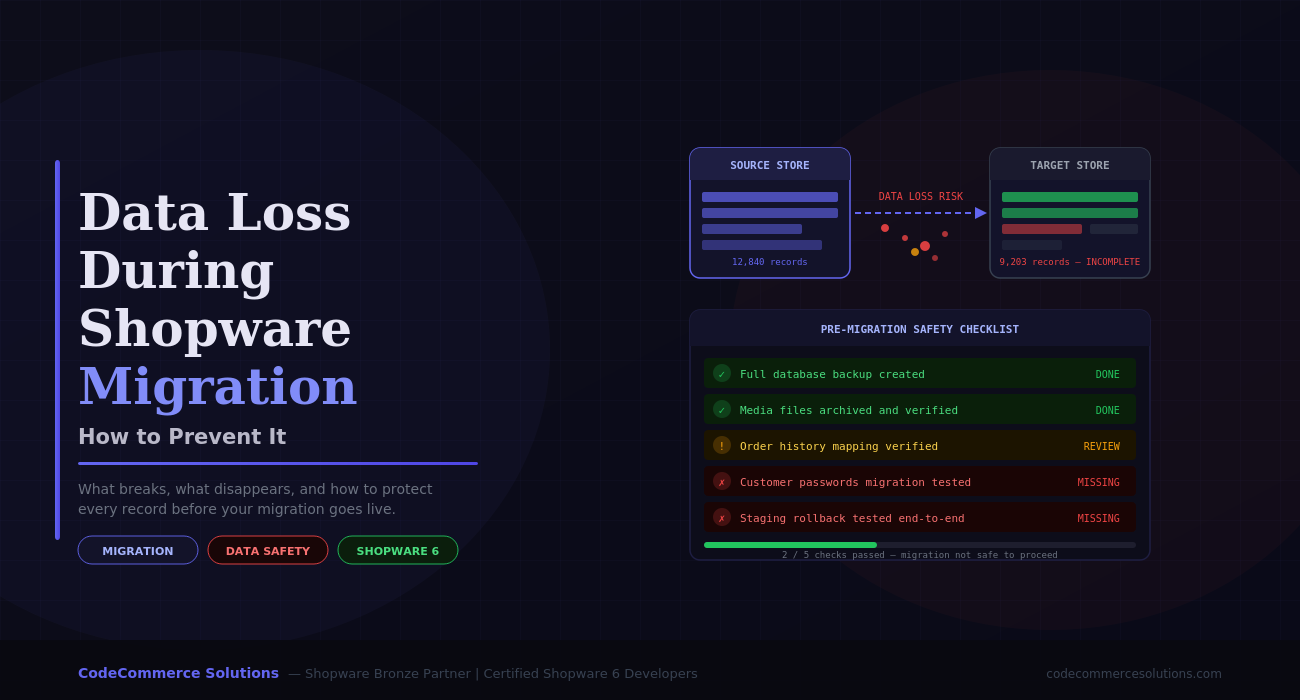
A Shopware migration is not just a technical operation. It is the moment when everything your store has built — years of customer relationships, order histories, product catalogue work, and SEO rankings — transfers from one system to another. And at that moment, more things can go wrong than most merchants are prepared for.
Shopware migration data loss is one of the most damaging outcomes in eCommerce development. Unlike a slow page load or a broken plugin, data loss is often irreversible. A customer whose order history disappears cannot get it back. An SEO URL that was never redirected cannot recover its ranking without months of effort. A product that migrated without its custom properties requires manual correction across potentially thousands of items.
“The most dangerous aspect of migration data loss isn’t the obvious failure — it’s the quiet one. The product that looks correct but has no properties. The order that transferred but has no line items. The customer who can’t log in because their password hash was silently dropped. These issues live undetected until a real customer finds them.”
— CodeCommerce Solutions, Shopware Migration Team
This guide is written specifically for eCommerce managers, CTOs, and operations leads who are planning a Shopware migration and want to understand the real risks — not a sanitised overview, but a practical, honest breakdown of what goes wrong, what to do before migration begins, and how to verify that your data arrived safely.
Why Shopware Migration Data Loss Is So Easy to Miss
The first thing to understand about Shopware migration data loss is why it happens even when teams are careful. The answer lies in Shopware 6’s architecture. Shopware 6 uses a deeply relational data model built around UUID-based entities. Products, variants, media, customers, orders, and pricing rules are all stored as interconnected entities linked by foreign keys rather than stored in a single flat structure.
When you migrate from a platform like Magento, WooCommerce, or even Shopware 5, you are not moving data into an identical structure — you are translating it into a fundamentally different one. That translation is where data gets lost. Some fields have no direct equivalent. Some relationships require transformation logic that automated migration tools either skip or handle incorrectly. And some data types — customer passwords being the most prominent example — are technically impossible to transfer directly because of how they are encrypted.
The result is a migration that appears successful because the tool reported no errors, but which has silently dropped or incorrectly mapped a meaningful percentage of your store’s records. According to Shopware’s own migration documentation, even their official migration framework recommends manual data verification as a required step — not an optional one.
A migration tool reporting “completed successfully” does not mean your data migrated correctly. It means the tool finished running. These are two entirely different outcomes. Always verify your data independently after migration completes — the tool cannot verify itself.
The 9 Data Types Most Vulnerable to Loss
Not every piece of data carries the same risk during a Shopware migration. Here is a clear breakdown of where data loss occurs most frequently, ranked by how often we see it and how damaging it is when it happens.
| Data Type | Risk | Root Cause | Business Consequence |
|---|---|---|---|
| Customer passwords | Critical | Incompatible encryption algorithms between platforms | Customers cannot log in; mass forced resets damage trust |
| SEO URLs and metadata | Critical | Shopware 6 generates different URL structures; no automatic redirect mapping | Ranking drops, broken external links, lost PPC landing pages |
| Custom product properties | High | Property groups require explicit mapping; migration tools skip them | Broken product filters; missing specs on product pages |
| Order line items | High | Order header may transfer but line item relationships break silently | Customer service failures on returns; accounting gaps |
| Customer group pricing | High | Advanced pricing rules have no universal format between platforms | B2B customers see wrong prices; discount structures collapse |
| Product media and alt texts | Medium | Files transfer but media library associations and SEO alt texts often don’t | Broken product images; image SEO value lost |
| CMS pages and content blocks | Medium | Shopware 6 uses a block-based CMS incompatible with raw HTML content | Missing landing pages; broken brand content |
| Product variants | Medium | Parent-child variant structures differ significantly across platforms | Ghost standalone products; variant selection broken on storefront |
| Customer reviews | Lower | Often excluded from migration scope entirely by default | Loss of social proof; star ratings reset to zero |
Planning a Shopware Migration?
The risks above are preventable — but only with the right expertise before migration begins. Our certified Shopware 6 developers handle migrations from Magento, WooCommerce, Shopware 5, and other platforms with full data verification at every stage.
Before You Start: Building Your Data Safety Foundation
Every successful Shopware migration data loss prevention strategy begins before the migration tooling runs. The steps below are not optional — each one addresses a specific, documented failure mode that we have seen cause real data loss in real migrations.
Step 1: Create a Verified Database Backup
The word “verified” is doing important work in that sentence. Creating a backup file is not the same as having a usable backup. Before any migration activity begins, you need a full database dump that you have restored in a clean environment and confirmed works correctly. A backup file that was never tested cannot be trusted in an emergency.
# Full dump with all objects — single-transaction prevents locking issues

mysqldump \

  --single-transaction \

  --routines \

  --triggers \

  --events \

  -u YOUR_DB_USER -p YOUR_DB_NAME \

  | gzip > source_store_backup_$(date +%Y%m%d_%H%M%S).sql.gz
# Immediately verify the backup file is not corrupt

gunzip -t source_store_backup_TIMESTAMP.sql.gz
# Store a checksum — use this to confirm integrity later

sha256sum source_store_backup_TIMESTAMP.sql.gz > backup_checksum.txt
Step 2: Export and Record Your Baseline Record Counts
Before anything migrates, you need a precise count of every major entity in your source store. These numbers become your single source of truth for post-migration verification. A successfully migrated Shopware store should match these counts within a very small tolerance — any significant discrepancy is a data loss event that requires investigation before the store goes live.
-- Save this output before ANY migration activity begins

SELECT 'products'          AS entity, COUNT(*) AS record_count FROM products

UNION ALL

SELECT 'product_variants',          COUNT(*) FROM product_variants

UNION ALL

SELECT 'customers',                  COUNT(*) FROM customer

UNION ALL

SELECT 'orders',                     COUNT(*) FROM orders

UNION ALL

SELECT 'order_line_items',           COUNT(*) FROM order_line_item

UNION ALL

SELECT 'product_properties',         COUNT(*) FROM product_properties

UNION ALL

SELECT 'media_files',                COUNT(*) FROM media

UNION ALL

SELECT 'categories',                 COUNT(*) FROM category

UNION ALL

SELECT 'cms_pages',                  COUNT(*) FROM cms_page

UNION ALL

SELECT 'seo_urls',                   COUNT(*) FROM seo_url;
Step 3: Archive All Media Files Separately
Your product images, documents, and other media are stored separately from your database. Create a complete archive of your media directory and generate a file manifest before migration begins. The manifest — a simple list of every file path — gives you a comparison baseline for post-migration media verification.
# Archive entire media directory

tar -czf media_archive_$(date +%Y%m%d).tar.gz /var/www/html/public/media/
# Generate manifest of all files with sizes for comparison

find /var/www/html/public/media/ -type f -printf "%s %p\n" \

  | sort > media_manifest_$(date +%Y%m%d).txt
# Total file count — verify this number post-migration

wc -l media_manifest_$(date +%Y%m%d).txt
Step 4: Map All SEO URLs Before Migration Runs
URL mapping is the step that most teams leave until after migration, which is exactly when it’s too late to do properly. Export every public URL from your source store before migration. After migration runs on staging, generate the new Shopware 6 URL structure. Build your redirect map from the comparison. Any URL that changes needs a 301 redirect — not a soft 302, and not “we’ll handle it later”.
Step 5: Document Every Custom Field and Property Group
List every custom field your source store uses — for products, customers, orders, and any other entities. For each one, confirm where it maps in Shopware 6’s data model. Fields that have no direct equivalent in Shopware 6 need a migration transformation plan. Fields that are simply skipped by the migration tool will be silently lost. This step alone prevents the most common category of post-migration data loss we see at CodeCommerce Solutions.
We build a field-mapping document for every Shopware migration we take on. It lists every custom field in the source, its data type, its Shopware 6 target field, and the transformation logic if any is needed. This single document prevents more data loss than any migration tool setting we’ve ever configured. It also makes post-migration verification systematic rather than guesswork.
The Three Hardest Data Loss Scenarios — and How to Handle Them
Customer Passwords: The Migration That Always Fails Without a Plan
Customer password migration is the most consistently mishandled aspect of Shopware data migration. The issue is architectural: every major eCommerce platform uses its own password hashing algorithm. Shopware 6 uses bcrypt. Magento uses its own hash format. WooCommerce uses WordPress’s phpass implementation. These formats are intentionally incompatible — if password hashes could be transferred and reused, they would represent a security vulnerability, not a feature.
The only correct approach is to plan a managed password reset flow from the start. Migrate customer accounts without passwords, communicate proactively to customers that a reset is required after migration, and design the reset experience to be as frictionless as possible. Customers who are informed in advance and given a clear process accept this without significant complaint. Customers who discover they cannot log in at checkout, with no explanation, become a customer service crisis.
Do not attempt password hash conversion workarounds — they are either insecure, unreliable, or both. Plan the reset, communicate it clearly, and treat it as a standard part of your migration go-live process.
SEO URL Changes: The Data Loss That Destroys Rankings
When an SEO URL changes without a redirect, it does not just affect your Shopware store — it affects every external link, every Google search result, every backlink that was built over your store’s lifetime. A product that ranked on page one for a specific keyword, reached through a URL that now returns a 404, effectively disappears from search until Google re-crawls, re-indexes, and re-evaluates the new URL. That process takes weeks to months.
The prevention approach requires three specific steps: extract your complete URL inventory from the source store before migration, run the migration on staging to generate the Shopware 6 URL structure, and build a complete redirect mapping document before production migration runs. Shopware 6 allows redirect rules to be imported in bulk through the admin panel or via the API. Large redirect sets — anything over 200 URLs — should always be imported programmatically rather than entered manually.
Pay specific attention to category and brand pages, which often have significant SEO equity but are among the most commonly skipped in redirect mapping because teams focus primarily on product URLs.
Silent Partial Failures at Full Data Volume
This is the scenario that catches the most experienced teams by surprise. A migration that runs cleanly on a staging dataset of 500 products, 200 customers, and 300 orders will sometimes fail in partial, silent ways when run against a full production dataset of 15,000 products, 25,000 customers, and 80,000 orders. The failures are not random — they are caused by specific, predictable issues that only surface at scale.
PHP memory limits terminate import jobs mid-batch, leaving a partially populated table with no error logged. Database foreign key constraint violations silently skip records that reference entities not yet created in the target. API timeout errors during media transfer leave files unlinked in the media library. Batch size settings that are fine for small datasets create memory pressure at production volumes.
The prevention strategy is straightforward but non-negotiable: run your migration against full production data volume on staging before running it on production. Not a 10% sample. Not a recent export. The full dataset. Any partial failure that would happen on production will also happen on staging at full volume — and it is infinitely easier to diagnose and fix it there.
Let Our Team Handle Your Shopware Migration Safely
CodeCommerce Solutions is a Shopware Bronze Partner with certified Shopware 6 developers who have migrated stores from every major platform — with systematic data verification built into every stage of the process.
Post-Migration Verification Checklist
Running a migration and launching your store are two different events. Between them sits a verification phase that should be treated as mandatory, not optional. Here is the minimum verification checklist that CodeCommerce Solutions runs before recommending any Shopware migration go-live.
Data Integrity Verification
Complete before go-live
1. Record counts verified against pre-migration baseline for all entities: Run the same count queries post-migration and compare. Investigate any discrepancy over 0.5% before proceeding.
2. 50–100 products spot-checked manually across different categories: Verify descriptions, all media, custom properties, SEO metadata, and pricing for each checked product.
3. Customer login tested with real existing accounts: Confirm that existing customers can authenticate and view their full order history.
4. Order line item counts verified — not just order totals: Check that each migrated order contains the correct number of line items, not just that the order exists.
5. Top 100 SEO URLs tested for correct redirect resolution: Use your analytics data to identify your 100 highest-traffic pages and verify every redirect.
6. Product filter functionality tested with property groups: Apply filters on category pages to confirm properties migrated correctly and are functioning as facets.
7. Full checkout flow completed with test order: Place a real test order end-to-end: add to cart, checkout, confirm pricing, tax, shipping, and confirmation email.
8. B2B customer group pricing verified for at least 3 customer groups: Log in as a B2B customer from each group and confirm the correct pricing is displayed.
9. Media file count compared against pre-migration manifest: Total file count in Shopware 6 media library should match your source manifest within a small tolerance.
10. Rollback procedure tested — not just documented: Execute your source store restore process end-to-end on a separate environment to confirm it works before production go-live.
For large catalogue migrations, we build a comparison script that queries both source and Shopware 6 databases post-migration and flags every product where the property count, media count, or description length differs by more than an acceptable threshold. This converts a manual spot-check into a systematic scan across the full catalogue — and typically surfaces 3 to 5 categories of data loss that visual inspection would never catch.
Why Choose CodeCommerce Solutions for Shopware Migration
Shopware migration data loss prevention requires more than following a checklist. It requires platform expertise deep enough to know which parts of the Shopware 6 data model require special handling, which migration tool settings cause silent failures at scale, and how to build the verification tooling that confirms your data arrived correctly rather than assuming it did.
As a Shopware Bronze Partner with a team of certified Shopware 6 developers, CodeCommerce Solutions has delivered Shopware migrations from Magento 1, Magento 2 / Adobe Commerce, WooCommerce, Shopware 5, and other custom platforms. Our migration process includes a documented field mapping exercise before any migration tool runs, staging execution against full production data volume, automated record count comparison scripts, and a structured go-live checklist that covers every item above — plus platform-specific verification steps for your source platform.
We don’t recommend go-live until every item on that checklist has been confirmed. Not because we’re cautious — because we’ve seen what happens when teams skip the verification phase, and it is always more expensive to fix than it would have been to prevent.
The Bottom Line
Shopware migration data loss is not an inevitable cost of platform migration. It is a preventable outcome that requires specific, deliberate action before, during, and after the migration process. The teams that migrate without data loss share one characteristic: they treat verification as a requirement with the same priority as the migration itself.
The nine data types covered in this guide — customer passwords, SEO URLs, custom properties, order line items, customer group pricing, media associations, CMS content, product variants, and reviews — account for the vast majority of post-migration data loss incidents we have seen and resolved. Build your pre-migration checklist around these specifically, run your full production data volume through staging before going live, and verify your record counts independently after migration completes.
If you are planning a Shopware migration and want a team that has done this before — not just technically, but with the discipline to verify every detail before recommending go-live — CodeCommerce Solutions is ready to help.
Migrate to Shopware 6 — Safely and Completely
CodeCommerce Solutions is a Shopware Bronze Partner with certified Shopware 6 developers. We plan, execute, and verify Shopware migrations from every major platform — so your data arrives complete, your SEO is protected, and your store launches without surprises.