

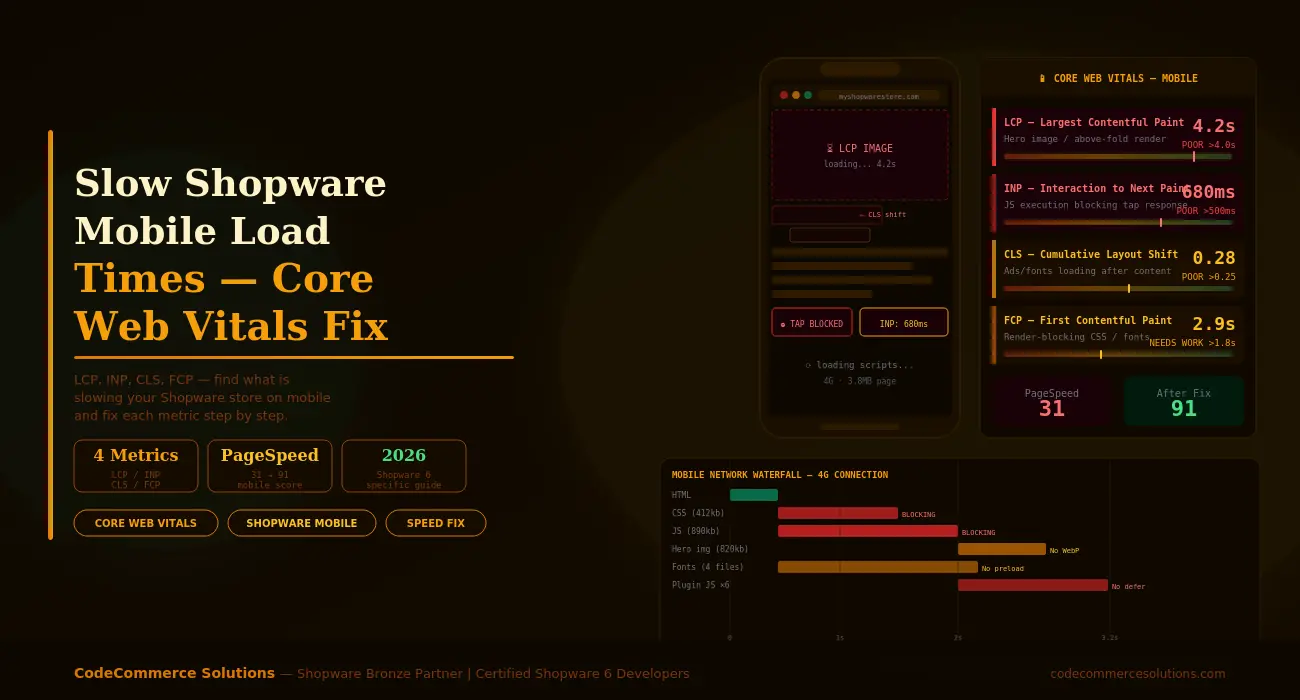
If your Shopware mobile load times are slow, you are losing on two fronts. Google uses Core Web Vitals as a direct ranking signal for mobile search. And mobile shoppers abandon stores that take more than three seconds to load. Both problems hit your revenue at the same time.
The frustrating part is that Shopware mobile load times often look fine on desktop. A fast office connection and a high-end laptop hide the real problem. But on a mid-range phone over 4G, the same store can take four to six seconds to become usable. That is when bounce rates spike and conversions drop.
This guide covers every Core Web Vital that affects Shopware mobile performance. For each one, you will find what causes the problem in Shopware specifically, how to measure it, and the exact steps to fix it.
Start Here: Measure First
Before fixing anything, run your store through Google PageSpeed Insights on the mobile tab. It scores all four Core Web Vitals and flags exactly which ones are failing. Use this as your baseline before and after each fix.
Why Shopware Mobile Load Times Fail More Than Desktop.
Shopware 6 ships with a powerful Storefront theme built on Bootstrap 5 and a Vue.js-based plugin system. This is a strong foundation. However, the default setup loads several large JavaScript and CSS bundles that are not split or deferred for mobile. On desktop, these load fast enough to go unnoticed. On mobile, they are a serious Shopware page speed problem.
Three things make mobile worse than desktop in Shopware stores. First, mobile networks have higher latency. Even a fast 4G connection adds 50 to 100ms of round-trip time per resource request.
Second, mobile CPUs are slower at parsing and running JavaScript. A 900kb JS bundle that takes 0.3 seconds to run on a laptop can take 1.5 seconds on a mid-range phone.
Third, Shopware plugins often add their own scripts and styles without any lazy loading or deferral. Each plugin that loads on page start adds to the problem.
The result is a cascade of Shopware Core Web Vitals failures — slow LCP, blocked INP, layout shifts, and a high FCP that delays everything else. Shopware Core Web Vitals issues on mobile are almost always fixable, but only once you know which layer is causing each one.
Real Impact on Rankings
Google’s Helpful Content system weighs Core Web Vitals at the page level. A Shopware mobile load time above four seconds on LCP can push product and category pages down in mobile search results — even if your content is strong.
Shopware Mobile Load Times Hurting Your Rankings?
CodeCommerce Solutions is a Shopware Bronze Partner. Our certified Shopware 6 developers audit your Core Web Vitals, find the root cause of slow mobile load times, and fix each metric properly.
Fix 1: Shopware LCP — Largest Contentful Paint.
LCP measures how long it takes for the largest visible element on the page to render. Shopware LCP performance depends heavily on how your hero and product images are served. On most Shopware product and category pages, the LCP element is the hero image or the first product image. Google’s threshold for a good Shopware LCP score is under 2.5 seconds. Anything over four seconds is flagged as poor.
Poor Shopware LCP almost always comes from one of three causes. The hero image is too large and not in a next-gen format. The image does not have a fetchpriority="high" attribute telling the browser to load it first. Or there is too much render-blocking CSS and JavaScript loading before the browser even starts downloading the image. All three need attention to fix Shopware page speed on mobile.
TARGET: <2.5s
- Convert all hero and above-the-fold product images to WebP format. WebP images are typically 25 to 35% smaller than JPEG at the same quality. Use Shopware’s built-in media thumbnail system or a plugin to automate this.
- Add
fetchpriority="high"andloading="eager"to the LCP image in your Shopware Storefront theme template. This tells the browser to prioritise this one image above everything else. - Add an explicit
widthandheightattribute to your hero image element. Without these, the browser cannot reserve space and must wait for the image to load before it knows how large to render it. - Serve the LCP image at the correct size for mobile. A 1400px-wide image served to a 390px-wide phone screen wastes bandwidth. Use Shopware’s responsive image thumbnails with
srcsetto serve the right size. - Preload the LCP image in the
<head>of your Storefront layout. Add<link rel="preload" as="image">pointing to the mobile thumbnail so the browser starts fetching it immediately.
Developer Insight from CodeCommerce Solutions
On a recent Shopware 6.6 store audit, we found the hero image loading at 1.8MB with no WebP conversion and no preload hint. After converting to WebP, adding fetchpriority="high", and setting correct srcset thumbnails, the LCP on mobile dropped from 4.8 seconds to 1.9 seconds. No caching changes were needed — just the image pipeline.
Fix 2: Shopware INP — Interaction to Next Paint.
INP replaced FID as a Core Web Vital in 2024. It measures how quickly your store responds to user taps and clicks — like adding a product to the cart, opening a filter panel, or submitting a form. A good INP score is under 200 milliseconds. Above 500 milliseconds is poor.
Shopware mobile load times affect INP indirectly. When large JavaScript bundles are still parsing and executing, the browser’s main thread is busy. Any tap during that time gets queued and waits. This is called a “long task” and it is the main driver of poor Shopware Core Web Vitals scores for INP.
Shopware’s plugin architecture is a common culprit. Many plugins register event listeners and run initialisation code on every page, even on pages where that plugin’s feature is not used. A CMS plugin running its init code on a product detail page adds main-thread work for no reason.
TARGET: <200ms
- Audit every active plugin in your Shopware store. Open Chrome DevTools Performance panel and record a page load. Look for long tasks (red bars in the main thread). Each one is a candidate for deferral or removal.
- Add
deferorasyncattributes to non-critical scripts in your Shopware Storefront theme. Thedeferattribute tells the browser to download the script in parallel but run it after HTML parsing finishes. - Reduce the total size of your Shopware JavaScript bundle. Run
npm run build --watchwith the Shopware CLI and check the output bundle size. Remove unused plugin features and dead code paths. - Use code splitting to load plugin JavaScript only on the pages that need it. Shopware’s Storefront supports dynamic imports — load the wishlist plugin JS only on pages where the wishlist button exists.
- Disable third-party tracking scripts (chat widgets, heatmap tools, retargeting pixels) from loading synchronously. Move them to a consent-gated, deferred load via Shopware’s Cookie Consent Manager.
Need a Shopware Developer to Fix Core Web Vitals?
Our certified Shopware 6 devs diagnose slow mobile load times at the code level — not just with plugins. We fix LCP, INP, CLS, and FCP and deliver a before-and-after PageSpeed report.
Fix 3: Shopware CLS — Cumulative Layout Shift.
CLS measures how much the page layout jumps around while it loads. A score under 0.1 is good. Above 0.25 is poor. Layout shifts are especially damaging to Shopware mobile load times because they confuse users and cause accidental taps on the wrong elements.
In Shopware stores, CLS usually comes from a small number of causes. Images load without reserved dimensions. A cookie banner or newsletter popup appears after the page renders and pushes content down. Web fonts load late and swap in with different line heights. Or an advertisement slot renders empty first, then fills in with content. Each of these is fixable without touching your store’s core functionality.
TARGET: <0.1
- Add explicit
widthandheightattributes to every<img>tag in your Shopware Storefront templates. This reserves the correct space before the image downloads, so the layout does not shift. - Set
aspect-ratioin CSS for product image containers in your theme. This works alongside or instead of explicit dimensions, particularly for responsive images that change size at different breakpoints. - Add
font-display: optionalorfont-display: swapto your web font declarations. Theoptionalvalue is safest for CLS — it only uses the custom font if it loads fast enough, otherwise it keeps the system font. - Preload your primary web fonts in the Shopware Storefront layout
<head>using<link rel="preload" as="font">. This reduces font swap delay on mobile significantly. - Reserve space for any cookie consent banners or promotional bars using CSS
min-height. If the element must appear after load, position it as a fixed overlay rather than an inline element that pushes content.
Fix 4: Shopware FCP — First Contentful Paint.
FCP measures how long it takes for the first piece of content to appear on screen — any text, image, or canvas element. A good FCP is under 1.8 seconds. It is closely linked to Shopware mobile load times because it determines how long the screen stays blank after a tap.
The biggest FCP killers in Shopware are render-blocking resources. These are CSS and JavaScript files that load in the <head> and force the browser to stop building the page until they finish downloading. Shopware’s default theme includes a large compiled CSS bundle. Without proper caching and compression, this single file can delay FCP by one to two seconds on mobile.
TARGET: <1.8s
- Enable Varnish Cache on your Shopware server. Shopware 6 has built-in Varnish support. A cached HTML response arrives at the browser in under 50ms instead of 300 to 800ms from PHP. This alone cuts FCP dramatically on repeat visits.
- Enable Gzip or Brotli compression on your web server for all text assets — HTML, CSS, and JavaScript. Brotli compresses 15 to 25% better than Gzip. Check your Nginx or Apache config to confirm this is active.
- Inline critical CSS directly into the
<head>of your Shopware Storefront layout. Critical CSS is the minimum styles needed to render above-the-fold content. Load the rest asynchronously withmedia="print"and a JavaScript swap. - Set long-lived cache headers for Shopware’s compiled CSS and JS files. These files include a content hash in the filename, so they are safe to cache for a year. Add
Cache-Control: max-age=31536000, immutablein your server config. - Use a CDN to serve static assets from a location closer to your mobile visitors. Shopware works with CDN setups through its
APP_URLand media URL configuration. Serving assets from a CDN edge node cuts latency for mobile users in distant regions.
The Shopware Plugin Problem and Mobile Performance.
One pattern we see repeatedly when auditing Shopware mobile load times and doing Shopware performance optimisation work is plugin bloat. A store may have 20 or 30 active Shopware plugins. Each plugin adds its own JavaScript and CSS to every page by default. Even a single plugin that adds 80kb of JavaScript — without deferral — increases the main-thread parse time and delays every Core Web Vital.
The issue is that Shopware plugins register their Storefront assets through the plugin system. By default, these assets compile into the global bundle. There is no automatic per-page loading. So a reviews plugin loads on the homepage, a configurator plugin loads on every category page, and a B2B login plugin loads for every guest. None of these assets are needed on those pages.
The fix requires a developer to audit which plugins are loading assets where, and either configure conditional loading or rewrite the plugin’s asset registration to use dynamic imports. This is one of the highest-impact changes you can make for Shopware page speed — and it cannot be done through the admin panel.
Developer Insight from CodeCommerce Solutions
On a Shopware B2C fashion store we worked on, 11 of the 24 active plugins were loading JavaScript on the homepage — including a B2B price list plugin, a returns portal plugin, and a configurator. None of these were used on the homepage. Removing these from the homepage bundle cut the total JavaScript payload from 920kb to 410kb. The mobile INP score dropped from 680ms to 140ms as a result.
Shopware Core Web Vitals: Before and After Benchmarks.
To give you a realistic picture of what good Shopware page speed looks like, here is a before-and-after comparison from a typical Shopware 6.6 store audit. The store had no prior performance work done and was running on a shared hosting server with 24 active plugins.
❌ Before — Unoptimised
- LCP: 4.8 seconds.
- INP: 680 milliseconds.
- CLS: 0.28.
- FCP: 3.2 seconds.
- PageSpeed mobile: 31.
- JS bundle: 920kb.
- Hero image: 1.8MB JPEG.
- No Varnish cache.
- No CDN.
✅ After — Optimised
- LCP: 1.7 seconds.
- INP: 140 milliseconds.
- CLS: 0.04.
- FCP: 1.1 seconds.
- PageSpeed mobile: 91.
- JS bundle: 410kb.
- Hero image: 180kb WebP.
- Varnish enabled.
- CDN for static assets.
These Shopware performance optimisation results are achievable on most stores without a full rebuild. However, several of the fixes require code-level changes to the Storefront theme and plugin configuration. They cannot be applied through Shopware’s admin panel alone.
Tools to Audit Your Shopware Mobile Performance.
| Tool | What It Measures | Best For |
|---|---|---|
| Google PageSpeed Insights | All four Core Web Vitals on mobile and desktop, with field data from real users. | Start here — gives the full picture |
| Chrome DevTools Performance Tab | Main thread long tasks, JS parse time, network waterfall. | Finding which scripts block INP |
| WebPageTest.org | Shopware mobile load times on simulated 4G with filmstrip view. | Seeing what mobile users actually see |
| Lighthouse (mobile) | LCP, CLS, FCP, total blocking time, unused JavaScript and CSS. | Code-level diagnostics |
| Google Search Console | Core Web Vitals by URL group, based on real Chrome field data. | Tracking improvement over time |
| Shopware Performance Mode | HTTP cache, Varnish readiness, cache hit rates via admin panel. | Confirming cache is working |
Shopware Performance Optimisation Checklist.
Use this checklist to track your Shopware mobile load time improvements. Work through it in order — earlier items have the biggest impact.
- Run Google PageSpeed Insights on mobile and record your baseline scores for all four metrics.
- Convert all product and hero images to WebP. Set correct
srcsetthumbnails for mobile viewports in Shopware’s media settings. - Add
fetchpriority="high"andloading="eager"to your LCP image in the Storefront theme template. - Add
widthandheightattributes to all<img>elements in your Shopware Storefront templates. - Audit all active plugins. Disable any not needed on high-traffic pages. Remove plugins not used in production.
- Add
deferto non-critical plugin scripts. Move third-party tracking to deferred, consent-gated loading. - Enable Varnish cache on your server and confirm Shopware’s HTTP cache is active in admin settings.
- Enable Gzip or Brotli compression for all text assets on your Nginx or Apache server.
- Add long-lived cache headers for compiled CSS and JS files. These filenames include content hashes.
- Preload your primary web fonts. Set
font-display: optionalto prevent layout shifts from font swaps. - Re-run PageSpeed Insights and compare. Repeat for any metric still below the good threshold.
Why Choose CodeCommerce Solutions for Shopware Performance.
Fixing Shopware mobile load times properly requires more than installing a caching plugin. It needs a developer who understands how Shopware’s Storefront compiles assets, how the plugin system registers scripts, and where the performance bottlenecks sit at the code level.
CodeCommerce Solutions is a Shopware Bronze Partner with a team of certified Shopware 6 developers who specialise in Shopware performance optimisation. We have audited and optimised stores across fashion, B2B, electronics, and home goods — and we work at every level, from server configuration to theme template changes to plugin refactoring.
We do not use generic plugin-based fixes. Instead, we measure your specific Shopware mobile load times, find the root cause of each failing metric, and make targeted code changes. Every project ends with a documented before-and-after report including PageSpeed scores and a summary of every change made.
Fix Your Shopware Mobile Load Times — Start Today.
Poor Shopware Core Web Vitals are not inevitable. Most Shopware stores can move from failing scores to good scores with a targeted set of changes — WebP images, deferred scripts, Varnish cache, and plugin auditing. None of these require a full rebuild or new theme.
However, they do require someone who knows Shopware’s architecture well enough to make changes without breaking the store. That is where CodeCommerce Solutions comes in.
Looking for certified Shopware 6 developers to improve your Shopware page speed and fix Core Web Vitals? CodeCommerce Solutions, a Shopware Bronze Partner, provides full mobile performance audits and hands-on fixes for every metric that is failing.