

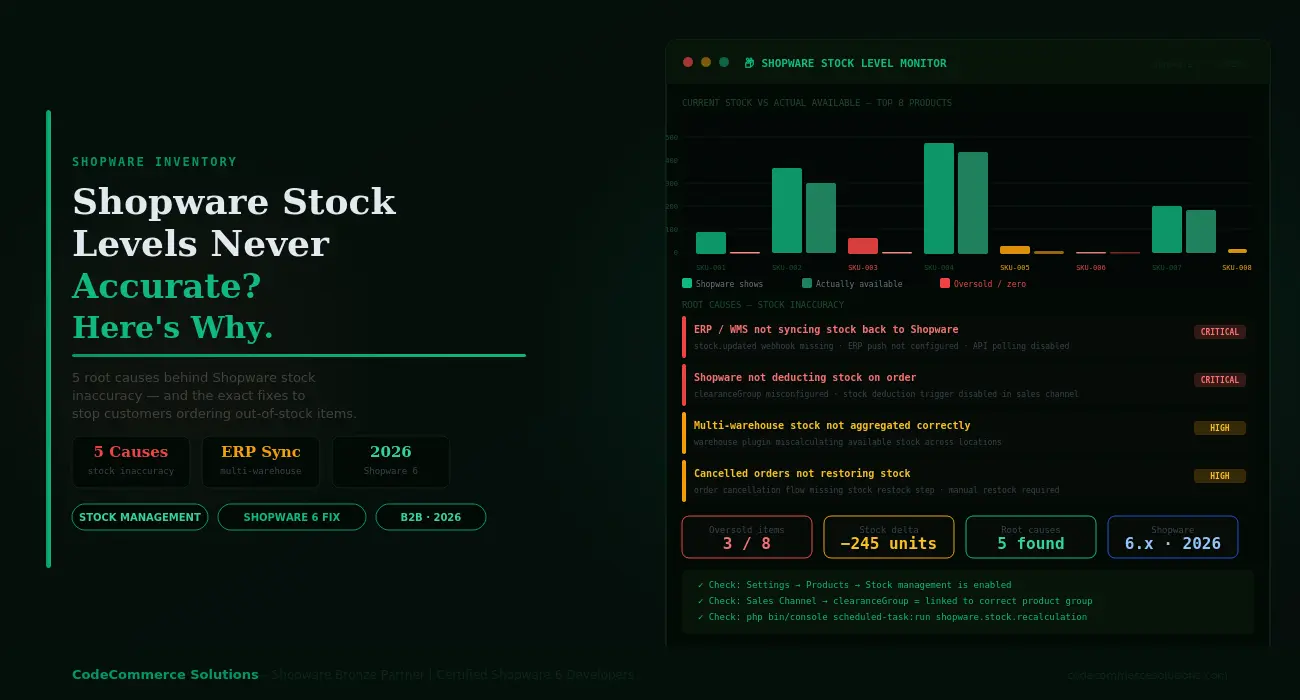
Shopware stock management breaks in two ways. Either Shopware shows more stock than you have. Or it shows stock when you have none left. Both lead to overselling.
Shopware overselling means customers order items that are not in your warehouse. You cancel the order or delay the shipment. The customer is unhappy. Your returns process gets busier. Your team spends hours fixing it by hand.
The good news is that wrong Shopware stock levels almost always come from one of five known causes. None of them require a full rebuild. Each has a clear fix.
Check This First
Go toSettings → Products → Stock managementin your Shopware admin. Confirm that stock management is turned on for your sales channel. Also check thatcloseout productis enabled on items that can go out of stock. Many stores skip this setting. Customers can then buy products with zero or negative stock.
How Shopware Stock Management Works.
Shopware holds one stock number per product. Each warehouse location gets its own entry. When a customer places an order, Shopware deducts the ordered quantity from the product stock. When the order is cancelled, Shopware restores the stock. That is the basic flow.
In practice, Shopware stock levels depend on more than this. Many stores connect Shopware to an ERP or WMS. The ERP holds the real stock numbers. Shopware must match the ERP to show correct figures.
Add multi-warehouse setups, variants, and bundles. Shopware stock management gets complex fast. Each layer adds a new place where the numbers can drift apart.
Quick Diagnostic
Run SELECT id, stock, available_stock FROM product WHERE available_stock != stock LIMIT 20; on your Shopware database. If many rows appear, Shopware stock levels are out of sync. The gap between stock and available_stock tells you how many units are reserved or missing.
Shopware Stock Levels Wrong and You Are Not Sure Why?
CodeCommerce Solutions is a Shopware Bronze Partner. Our certified developers diagnose Shopware stock management issues at the database and plugin level. We build the fix that stops Shopware overselling for good.
Shopware Plugin Development → View Shopware Development Services
Cause 1: ERP or WMS Not Syncing Stock Back to Shopware.
This is the most common cause of wrong Shopware stock levels. Your warehouse receives new stock. The ERP or WMS is updated. But Shopware still shows the old number. Orders come in based on the old (lower) figure. Customers buy items you now have plenty of. Or worse — the ERP shows zero but Shopware still shows 50.
The link between your ERP and Shopware must work in both directions. Shopware pushes orders to the ERP. The ERP must push stock updates back to Shopware. Many Shopware inventory sync setups only go one way. Orders flow out. Stock never flows back in.
- ✦Check whether your ERP plugin sends stock updates to Shopware. Look in the plugin settings for a “stock sync” or “inventory push” option. If it is off or missing, stock in Shopware never updates after goods-in events in the ERP.
- ✦Check the Shopware webhook log. Go toSettings → Integrations → Webhooks. Look for a webhook receiving stock updates from the ERP. If there is no incoming stock webhook, Shopware inventory sync is one-way only.
- ✦If the ERP cannot push stock directly, set up a scheduled sync. Use a cron job to pull stock figures from the ERP API and update Shopware via the Admin API every 15 minutes. This keeps Shopware stock levels close to real without needing a real-time push.
- ✦After fixing the sync, do a full stock reconciliation. Pull current stock from the ERP. Update every product in Shopware to match. Use the Shopware bulk edit tool or a script via the Admin API for this.
Developer Insight from CodeCommerce Solutions
A Shopware B2B client had 340 products with wrong stock numbers. Their SAP system updated stock daily but never pushed to Shopware. We built a scheduled sync job that pulled updated stock from SAP every 10 minutes via its REST API. Overselling dropped to zero within 24 hours of go-live.
Cause 2: Shopware Not Deducting Stock on Order.
Shopware deducts stock when an order is placed. But this only works if stock management is correctly set up for each product and sales channel. When the setting is off, orders go through. Stock numbers never change. You sell the same units over and over.
This often happens after a Shopware migration or plugin install. A setting gets reset. Stock management is turned off. No one notices because orders still come through. The first sign is a customer calling to say their order cannot be fulfilled.
SELECT p.product_number, p.stock, p.is_closeout
FROM product p
WHERE p.is_closeout = 0
AND p.stock < 5
LIMIT 20;
- ✦Go toSettings → Productsand check the stock settings for your sales channel. Thecloseout producttoggle must be on for any product that should block purchase when stock hits zero.
- ✦Check the product-level setting too. Open any product in the admin. Go to theGeneraltab. FindClearance sale. This must be enabled per product if you want Shopware to block orders when stock runs out.
- ✦For large catalogues, use the Shopware bulk edit tool. Select all products. Set clearance sale to active in bulk. This takes minutes and fixes every product at once.
- ✦After enabling closeout, run
php bin/console dal:refresh:index --entity=product. This forces Shopware to recalculateavailable_stockfor every product. It is the fastest Shopware stock not updating fix available.
Need a Certified Developer to Fix Shopware Stock Management?
Our certified Shopware 6 developers audit your stock settings, fix ERP sync gaps, and set up stock alerts. We stop overselling at the root — not just by blocking purchase buttons.
Cause 3: Cancelled Orders Not Restoring Stock.
When a customer cancels an order, Shopware should add the stock back. This happens through the order status flow. But the restock step must be in the flow. Many Shopware setups skip it. Stock goes down on order placement. It never comes back when the order is cancelled.
Over weeks, this creates a growing gap. A store with 50 cancellations a month loses 50 units of stock every month. Those items are sitting in the warehouse. But Shopware never adds them back.
- ✦Go toSettings → Flow Builderin your Shopware admin. Find the flow triggered by the
order.state_entered.cancelledevent. Check whether it contains aRestore stockaction. If it does not, add one. - ✦Do the same for
order.state_entered.returnedandorder_delivery.state_entered.returned. Returns should also trigger a stock restock if the item comes back to your warehouse. - ✦After fixing the Flow Builder, do a manual stock correction for any gap built up before the fix. Export cancelled orders from the last 90 days. Add the quantities back to each product via bulk edit or Admin API.
- ✦If your ERP handles returns, make sure the ERP stock update also flows back to Shopware. The Flow Builder handles Shopware-side stock. The ERP integration plugin must handle returns that arrive in the ERP first.
Developer Insight from CodeCommerce Solutions
A fashion store had 1,200 units of “missing” stock over six months. Every single unit was from cancelled orders. The Shopware Flow Builder had no restock action on the cancel event. Adding the action and running a correction script recovered all 1,200 units. Their Shopware stock levels matched the warehouse count again the same day.
Cause 4: Multi-Warehouse Stock Not Adding Up.
Shopware 6 does not have built-in multi-warehouse support. Most stores use a warehouse plugin. These plugins add location-level stock tracking. Shopware shows one total across all locations.
If the plugin is wrong, this total is wrong. A product might have 20 units in Warehouse A. It might have 0 in Warehouse B. The plugin shows 20. But Warehouse A only ships to certain regions. Customers in Warehouse B regions can still order. You cannot fulfil them.
- ✦Check your warehouse plugin settings. Confirm that each warehouse is linked to the correct sales channel and delivery region. Stock from a warehouse should only count as available if that warehouse can ship to the customer’s region.
- ✦Run a stock check across all warehouse locations for your top 20 products. Compare the plugin’s total with the sum of each warehouse location. If they do not match, the plugin has a calculation bug. Check for a newer plugin version or raise a support ticket with the plugin vendor.
- ✦If the plugin does not support region-based stock filtering, add a custom subscriber. This subscriber intercepts the stock calculation event and applies your region rules before Shopware shows the available figure to the customer.
- ✦Set minimum stock buffers per warehouse. Use the plugin’s reserve stock setting to keep a buffer of 2 to 5 units per location. This covers transfer delays and prevents the last unit being sold before it can ship.
Cause 5: Product Variants Sharing the Wrong Stock Pool.
Shopware product variants each need their own stock number. Sizes, colours, and configurations are all separate. If stock is only on the parent, every variant draws from the same pool. You might have 10 units of a shirt. But all 10 could be sold as size S. Sizes M and L then show as in stock when they are not.
This is a setup issue but it causes real Shopware overselling. It is common in stores that were migrated from another platform. The migration script sets stock on the parent. Variants inherit it. Numbers look right in the admin. But any size can be oversold.
- ✦Open any variant product in the Shopware admin. Go toVariants. Check the stock number on each individual variant. It must be set per variant — not only on the parent product.
- ✦Run this SQL to find variants with no stock entry:
SELECT product_number, stock FROM product WHERE parent_id IS NOT NULL AND stock IS NULL LIMIT 30;. Any row returned has no dedicated stock value. It inherits from the parent. - ✦Update variant stock in bulk using the Shopware Admin API. Pass the correct stock value per variant ID. Your warehouse team can export a stock count by variant SKU to get the right numbers.
- ✦After updating, enable thecloseout productsetting on each variant. Without this, a variant with zero stock still shows as purchasable on the storefront. Shopware stock management only blocks purchase when both the stock is zero and closeout is enabled.
Shopware Stock: Before and After Fixes.
❌ Before Fix
- 3 of 8 SKUs oversold weekly.
- ERP stock never reaches Shopware.
- Cancels not restoring stock.
- Variant stock set on parent only.
- Stock gap of −245 units.
- Team corrects stock by hand daily.
- Customer complaints every week.
✅ After Fix
- Zero overselling incidents.
- ERP syncs stock every 10 minutes.
- Cancel flow restores stock on its own.
- Each variant has its own stock value.
- Stock matches warehouse count.
- No manual corrections needed.
- Customer order fulfilment at 100%.
Shopware Stock Not Updating — Diagnostic Checklist.
Run through this list when Shopware stock levels are wrong. Work top to bottom. Most issues appear in the first four steps.
- Go to Settings → Products. Confirm stock management is on for each active sales channel.
- Open one affected product. Check that closeout product is enabled. Without it, Shopware lets orders through even at zero stock.
- Run
SELECT id, stock, available_stock FROM product WHERE available_stock != stock LIMIT 20;. A big gap means stock reservations are not clearing correctly. - Go to Settings → Flow Builder. Open the cancel and return flows. Confirm each one has a Restore stock action.
- Check your ERP plugin settings. Confirm stock sync is enabled in both directions — not just orders out to the ERP.
- Run
php bin/console dal:refresh:index --entity=productto fix Shopware stock not updating. This recalculates available stock across all products. - Check variant products. Run the SQL query for variants with null stock values. Update them with real per-variant stock counts.
- If using a warehouse plugin, compare the plugin total with the sum of per-location stock. Report any gap to the plugin vendor.
Shopware Inventory Sync: Common Errors Reference.
| Symptom | Root Cause | Fix |
|---|---|---|
| Orders placed on out-of-stock items. | Closeout product not enabled. | Enable per product and per sales channel. |
| ERP stock never shows in Shopware. | ERP sync is one-way only. | Set up stock push or a scheduled pull job. |
| Stock slowly drifting down over time. | Cancel flow not restoring stock. | Add Restore stock action to Flow Builder. |
| Variant sizes wrong or zero. | Stock set on parent, not variant. | Update stock per variant via Admin API. |
| Multi-warehouse totals not matching. | Plugin misconfigured or buggy. | Check plugin version and region settings. |
| available_stock ≠ stock in database. | Reservations not clearing. | Run dal:refresh:index --entity=product. |
| Stock correct after manual fix, drifts again. | ERP sync overwriting Shopware data. | Align sync direction. ERP is the source of truth. |
Why Choose CodeCommerce Solutions.
Shopware stock management issues rarely come from one place. Most stores have two or three causes at once. Each one looks small on its own. Together, they cause daily Shopware overselling. Fix each one and the numbers stay clean.
CodeCommerce Solutions is a Shopware Bronze Partner. Our certified Shopware 6 developers fix stock issues at every level. We audit your ERP sync, Flow Builder flows, variant setup, and warehouse plugin together. Every fix gets tested with a real stock count before we close the work.
Official Documentation
For full details on Shopware stock management and Flow Builder stock actions, see the Shopware stock management guide in the official developer docs.
Fix Your Shopware Stock Management Today.
Most Shopware stock accuracy problems are fixable in a day. Start with the closeout product setting. Then check your ERP sync direction. Then review the cancel flow in Flow Builder. Work through the checklist above and most stores see overselling drop to zero within 24 hours.
Run the SQL diagnostic first. The gap between stock and available_stock shows the scale of the problem. A large gap means many orders have not cleared stock. A small gap means one or two causes are active.
Need a certified Shopware developer to fix your Shopware stock management and stop overselling for good? CodeCommerce Solutions, a Shopware Bronze Partner, handles the full fix — ERP sync, Flow Builder, variants, and warehouse plugin setup.