

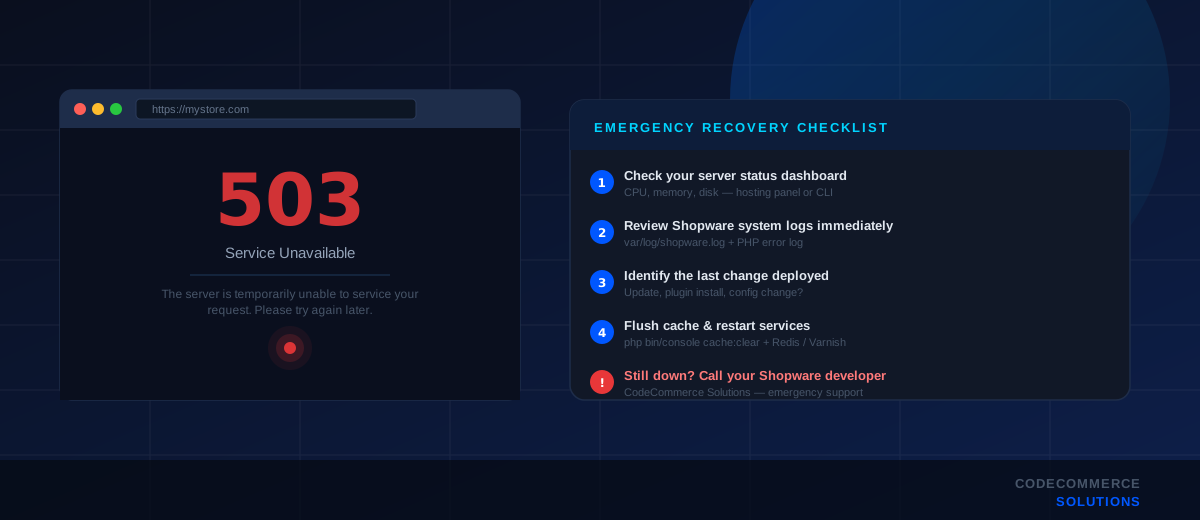
Your Shopware store is down. Customers can’t place orders. Revenue is bleeding by the minute. Every second it stays offline costs you money, customer trust, and organic rankings. This is not the moment for vague advice — it is the moment for a precise, ordered action plan.
This guide walks you through exactly what to do the moment you discover your Shopware store is unreachable. From the first diagnosis steps to restoring service, we have ordered every action by priority so you are never wasting time on the wrong thing while your store stays dark.
Revenue Impact Is Real
A mid-sized eCommerce store losing 30 minutes of peak-hour traffic can mean hundreds to thousands of euros in lost orders — plus SEO penalties if Google crawls a 503 response during downtime.
Before You Panic — Confirm the Store Is Actually Down
The first thing most merchants do is reload the page five times and immediately call their developer. Slow down for 60 seconds. Confirm the issue is real and understand what kind of downtime you are dealing with.
Quick Confirmation Checks
- Use a third-party tool like downforeveryoneorjustme.com or isitdownrightnow.com to confirm the outage is not local to your connection.
- Check from a mobile device on 4G/5G — not your office Wi-Fi — to rule out DNS or local network issues.
- Note the error code. A
503 Service Unavailable,502 Bad Gateway,500 Internal Server Error, or a blank white screen all point to very different root causes. - Check your admin panel. If the storefront is down but
/adminloads, you are dealing with a frontend or caching layer problem, not a full server crash.
Understanding the type of failure in the first two minutes will save you from spending 20 minutes debugging the wrong system.
Need Help Right Now?Don’t Debug a Downed Store Alone
CodeCommerce Solutions provides emergency Shopware support for stores experiencing critical outages. Our certified Shopware 6 developers can triage, diagnose, and restore your store — fast.
What the Error Code Is Actually Telling You
Before diving into logs, cross-reference your HTTP error against this table. It narrows the diagnosis significantly:
| Error Code | What It Means | Where to Look First |
|---|---|---|
| 503 Service Unavailable | Web server is up, but PHP / app server is overloaded or crashed | PHP-FPM status, server memory usage |
| 502 Bad Gateway | Reverse proxy (Nginx/Varnish) can’t reach upstream | PHP-FPM or app server process dead |
| 500 Internal Server Error | Application-level crash — Shopware exception or misconfiguration | Shopware log, PHP error log |
| White screen / blank page | PHP fatal error with errors suppressed | PHP error log, Shopware log |
| DNS resolution failure | Domain has no valid DNS record pointing to server | DNS registrar, hosting panel DNS zone |
| SSL Certificate error | Certificate expired or misconfigured | Let’s Encrypt renewal log, hosting panel |
Step-by-Step: How to Restore Your Shopware Store
Work through these steps in order. Do not skip ahead. Each step takes two to five minutes if you have server access.
Log into your hosting control panel (cPanel, Plesk, Hetzner Cloud, AWS EC2, etc.) and check CPU usage, RAM usage, and disk space. A full disk (100%) will crash Shopware immediately. High CPU spike paired with a 503 usually means a traffic surge or a runaway process. SSH in and run top or htop to see what is consuming resources.
These are the two core processes Shopware depends on. SSH into your server and run:
systemctl status php8.2-fpm
systemctl status mysql
# or for MariaDB:
systemctl status mariadb
If either service is stopped or in a failed state, restart it:
systemctl restart php8.2-fpm
systemctl restart mysql
After restarting, check if the store comes back immediately. A surprising number of outages resolve at this step.
If the store is still down, open the Shopware log file. It is located at:
tail -n 100 var/log/shopware.log
# Also check PHP errors:
tail -n 100 /var/log/php8.2-fpm.log
Look for CRITICAL or ERROR level entries. Common causes you will find here include database connection failures, missing environment variables, broken plugin states after an update, and memory limit exhaustion.
Watch For This
If the log shows An exception occurred in the driver: SQLSTATE[HY000] [2002], your database is not reachable. Check if MySQL is running and if your .env file has the correct database credentials.
A corrupted cache is a common trigger for white screens and 500 errors after a plugin update or deployment. Clear it via CLI:
php bin/console cache:clear
php bin/console cache:warmup
If you cannot access the CLI (e.g. the server is partially functional), you can manually delete the cache directory:
rm -rf var/cache/*
Then reload the store. In many cases, clearing the cache resolves post-update outages instantly.
Think back: was there a plugin installation, a Shopware core update, a theme change, a server configuration edit, or a deployment in the last 24–48 hours? Downtime almost always follows a change. Identify what changed. If you use Git or a CI/CD pipeline, check the last commit or deployment timestamp.
If a broken plugin is causing the crash, you cannot access the admin panel to deactivate it. Use the CLI instead:
# List all active plugins
php bin/console plugin:list

# Deactivate a specific plugin
php bin/console plugin:deactivate PluginName
If you suspect a plugin but are unsure which one, you can temporarily deactivate all third-party plugins to restore the store, then reactivate them one at a time to find the culprit.
.env File and APP_ENV SettingOpen .env in your Shopware root and verify that APP_ENV=prod and APP_DEBUG=0 in production. If APP_DEBUG=1 was accidentally left enabled during a deployment, it can cause security-related crashes. Also confirm DATABASE_URL and APP_URL are correct and match your domain.
If you use a reverse proxy or caching layer, restart those services too:
systemctl restart nginx
# or Apache:
systemctl restart apache2
# If using Varnish:
systemctl restart varnish
An expired SSL certificate does not produce a 500 error — it produces a browser warning or a complete refusal to connect. Check your certificate expiry date. If you use Let’s Encrypt, run certbot renew and restart Nginx. Most SSL issues can be resolved in under 10 minutes.
If you have gone through steps 1–9 and the store is still down, the issue may be at the infrastructure level — a failed hardware node, a network routing problem, or a DDoS attack targeting your server. Contact your hosting provider’s support immediately and provide them with the specific error code and any log entries you have found.
Shopware Developer Available NowStill Can’t Get Your Store Back Online?
If you have worked through these steps and your Shopware store is still down, it is time to bring in a certified developer. CodeCommerce Solutions — Shopware Bronze Partner — provides fast-response emergency Shopware support. We diagnose, fix, and document the root cause so it does not happen again.
Specific Downtime Scenarios and What to Do
Not all outages are the same. Here are the three most common Shopware-specific downtime scenarios with targeted resolution paths.
Store Down After a Shopware Update
This is the most common cause of outages for merchants running Shopware 6. A core update can introduce breaking changes, conflict with third-party plugins, or require a database migration that was not completed correctly.
- Check
var/log/shopware.logfor migration errors. - Run
php bin/console database:migrate --allto complete any pending migrations. - Check if any plugins have flagged compatibility issues — look in the Admin under Extensions if accessible.
- If the update is the confirmed cause and you cannot resolve it quickly, restore from a pre-update backup immediately.
Best Practice
Always test Shopware updates on a staging environment before deploying to production. A broken update in staging costs zero revenue. A broken update in production costs you customers, orders, and possibly rankings.
Store Down Due to High Traffic
Black Friday, product launches, and flash sales can spike traffic beyond your server’s capacity. Signs: very slow admin load before the full outage, 503 errors appearing for customers, server CPU hitting 100%.
- Immediately activate a maintenance page or put Cloudflare in “Under Attack” mode to throttle incoming traffic.
- Scale your server vertically (upgrade RAM/CPU) through your hosting panel if available on-demand.
- Restart PHP-FPM to free up stalled worker processes.
- Check Redis and ensure Shopware’s HTTP cache is properly configured — a misconfigured cache means every visitor hits PHP instead of a cached response.
Store Down After Plugin Installation
Installing an incompatible plugin — especially one that hooks into the Storefront or Admin API — can crash the store immediately. The store goes down, and the admin panel often becomes inaccessible too.
- Use the CLI to deactivate the newly installed plugin:
php bin/console plugin:deactivate PluginName - Clear the cache after deactivation.
- Check the plugin’s compatibility requirements against your Shopware version before reactivating.
Expert Tips to Prevent Future Downtime
Recovering from downtime is reactive. Preventing it is where serious eCommerce operations focus their energy. These are the practices that separate stores that go down once and stay down for hours from stores that recover in minutes or avoid the outage entirely.
- Set up uptime monitoring. Tools like UptimeRobot, Better Uptime, or Freshping will alert you within 1–2 minutes of your store going down, often before any customer notices. Free tiers are sufficient for most stores.
- Automate daily backups. Ensure your server has automated daily backups of both the database and files. Verify that backups are actually restorable — a backup you have never tested is not a backup.
- Never update Shopware core on live without a staging test. This single practice prevents the majority of update-related outages.
- Keep a deployment log. Even a simple shared document listing what was deployed and when can cut diagnosis time from 30 minutes to 3 minutes during an outage.
- Configure PHP-FPM process limits correctly. Underconfigured PHP-FPM pools are a common cause of 502 and 503 errors under normal traffic. Review
pm.max_childrenwith your hosting provider. - Enable Shopware’s HTTP cache and configure Varnish. Proper caching dramatically reduces the PHP load per visitor and makes your store far more resilient to traffic spikes.
- Prepare a maintenance page in advance. Have a maintenance HTML page ready to deploy. When the store is down with no ETA, a maintenance page preserves customer trust better than a raw 503 error.
How long does it take to restore a downed Shopware store? With server access and a systematic approach, most outages caused by failed services, corrupted cache, or plugin conflicts can be resolved in 15–45 minutes. Infrastructure-level issues or database corruption take longer and typically require direct intervention from your Shopware developer or hosting provider.
Why eCommerce Businesses Trust CodeCommerce Solutions for Shopware Support
When your store is down, you need someone who knows Shopware at a deep technical level — not someone following a generic checklist. CodeCommerce Solutions is a Shopware Bronze Partner with a team of certified Shopware 6 developers who have worked on complex enterprise eCommerce environments across multiple industries.
- Shopware Bronze Partner with verified expertise across Shopware 6 development and migration projects.
- Certified Shopware 6 developers who understand the framework architecture, plugin system, and deployment stack.
- Experience with high-traffic stores, multi-store setups, B2B commerce, and custom plugin development.
- Structured emergency support process: triage, diagnosis, fix, root-cause documentation.
- Ongoing maintenance retainers available for stores that cannot afford unpredictable downtime.
Whether you are dealing with an active outage right now or you want to put proactive safeguards in place to prevent the next one, we can help.
Conclusion
A downed Shopware store is always a crisis, but it is a solvable one. The key is to move through the diagnosis in the right order: confirm the outage, identify the error type, check server resources, review logs, and address the root cause systematically.
Most outages resolve at one of three points: a stopped PHP-FPM or MySQL service, a corrupted cache after an update, or a broken plugin. If you work through those three areas first, you will recover the majority of Shopware outages within 30 minutes.
For more complex scenarios — or if you simply do not have the developer capacity to manage this in-house — having a certified Shopware partner on call is the fastest path to getting back online.
Shopware Bronze PartnerGet Expert Shopware Support From Certified Developers
Looking for certified Shopware developers to handle emergency support, ongoing maintenance, or custom development? CodeCommerce Solutions is a Shopware Bronze Partner with the technical expertise to keep your store running — and build it to scale.