

Shopware VAT configuration is one of those areas where a wrong setting does not produce an immediate error. The store runs. Customers check out. And somewhere in the background, you are charging the wrong tax rate to buyers in Austria, showing VAT-inclusive prices to German B2B buyers, or applying 19% to Swiss orders that should carry 0%.
Most of these problems stay invisible until an accountant finds them, a customer disputes an invoice, or a tax authority audits your records. This guide covers how Shopware tax rules actually work, how to configure them correctly for EU and cross-border merchants, and where the most common mistakes happen.
This guide explains how to configure Shopware tax settings technically. VAT rules are complex, country-specific, and change regularly. Always confirm your tax obligations with a qualified tax advisor before going live with cross-border sales.
How Shopware Tax Rules Actually Work
Shopware 6 calculates tax using two components: tax rates and tax rules. Most merchants configure the rates and skip the rules — and that is where cross-border orders go wrong.
A tax rate in Shopware is a named percentage. You create a rate called “Standard 19%” with value 19 and assign it to products. Every order from every country uses that rate unless you create a tax rule that overrides it for specific conditions.
A Shopware tax rule is a country-specific override. It says: for a buyer in Austria, use 20% instead of 19%. For a B2B buyer in Germany with a valid VAT ID, use 0% and apply reverse charge. The tax rule system is what makes Shopware capable of handling EU multi-country sales correctly. Without rules, you have a flat domestic rate applied to every order regardless of where it ships.
The rule evaluation order matters. Shopware evaluates rules from the most specific to the least specific. A rule for “B2B customer in Germany” overrides a rule for “any customer in Germany.” If two rules match with equal specificity, the rule with the higher priority number wins.
📰 Developer Insight — CodeCommerce Solutions
The most common Shopware VAT misconfiguration we find during audits is a store with a correct domestic tax rate and zero tax rules. Everything works for domestic buyers. Every international order silently applies the domestic rate. A French buyer pays 19% instead of 20%. A Swiss buyer pays 19% instead of 0%. Neither buyer complains — but both invoices are wrong. Shopware does not warn you when rules are missing. You have to know to check.
Step 1: Configure Your Base Tax Rates
Every Shopware tax configuration starts with the base rates your store will use.
Go to Settings > Tax in the Shopware Admin. For a German store, the defaults are 19% standard and 7% reduced. You also need a 0% rate for B2B intra-community and export transactions.
- Standard 19% — German domestic standard rate. Used as the base before any country rules apply.
- Reduced 7% — German domestic reduced rate for books, food, and cultural goods.
- 0% (Intra-community / Export) — Required for B2B cross-border EU sales and non-EU exports.
You do not need a separate rate for every country’s standard VAT percentage. Tax rules handle per-country calculation by overriding the percentage at the point of rule application. Keep your rate list to three entries: standard, reduced, and 0% exempt.
📰 Developer Insight — CodeCommerce Solutions
Shopware allows tax rules to specify a fixed percentage override for a country, independent of the base rate on the product. This means you can assign “Standard 19%” to all products and write a rule that says “for France, charge 20% instead.” You do not need a separate “Standard 20% France” rate. A clean rate list with three entries is far easier to audit and maintain than one with a separate entry per country.
Step 2: Set Up EU Country Tax Rules
For any Shopware store selling to EU buyers outside its home country, country-specific Shopware VAT rules are not optional.
Since the EU OSS regulation came into force in July 2021, B2C merchants selling cross-border within the EU must charge the buyer’s country VAT rate — not the seller’s country rate — once annual cross-border B2C sales exceed €10,000. Below that threshold you can use your domestic rate. Above it, destination-country rates are required.
To create a Shopware tax rule, go to Settings > Tax, click on the rate you want to add rules to, then select Tax rules and create one rule per country:
- Select the country this rule applies to — for example, France.
- Set the tax type. For B2C EU sales, use “Standard.” For B2B intra-community sales with a valid VAT ID, use the type that maps to 0% reverse charge.
- Enter the tax rate percentage for that country — 20% for France.
- Set the customer type if the rule only applies to B2C or B2B buyers.
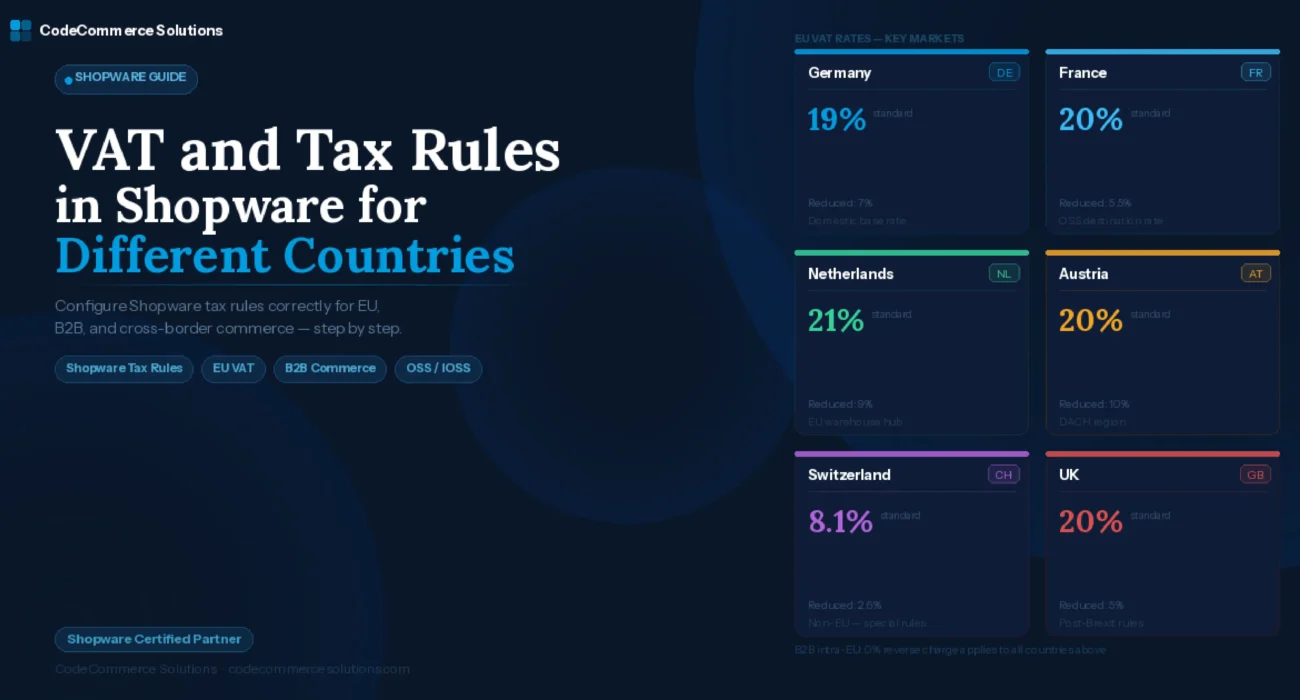
The key EU and European markets for DACH merchants, with their correct rates:
| Country | Standard VAT | Reduced VAT | B2B (VAT ID verified) |
|---|---|---|---|
| Germany (DE) | 19% | 7% | 0% reverse charge |
| Austria (AT) | 20% | 10% | 0% reverse charge |
| France (FR) | 20% | 5.5% | 0% reverse charge |
| Netherlands (NL) | 21% | 9% | 0% reverse charge |
| Belgium (BE) | 21% | 6% | 0% reverse charge |
| Poland (PL) | 23% | 8% | 0% reverse charge |
| Spain (ES) | 21% | 10% | 0% reverse charge |
| Italy (IT) | 22% | 10% | 0% reverse charge |
| Switzerland (CH) | 8.1% | 2.6% | Non-EU — different rules |
| United Kingdom (GB) | 20% | 5% | Post-Brexit — different rules |
- Switzerland is not an EU member. Swiss VAT registration may be required once you exceed CHF 100,000 in annual Swiss turnover. The Shopware tax rule for Switzerland must use 8.1% — not 19%.
- UK sales post-Brexit follow their own rules. UK VAT at 20% applies for B2C. If annual UK sales exceed £85,000, UK VAT registration is required regardless of EU OSS status.
- The EU €10,000 threshold applies to the total of all cross-border EU B2C sales combined — not per country. Once exceeded, destination-country rates apply to all EU countries going forward.
Shopware VAT Rules Not Configured for Your Markets?
CodeCommerce Solutions is a certified Shopware partner. Our developers audit your current tax rule setup, identify every missing country rule, and configure them correctly — with tested verification across all your sales countries before anything goes live.
Step 3: Configure B2B Reverse Charge Correctly
Intra-EU B2B sales require 0% VAT with the reverse charge mechanism applied — not the standard destination-country rate.
When a German business sells to a registered business in France, and both parties hold valid EU VAT identification numbers, the sale is VAT-exempt under the intra-community supply rule. The French buyer accounts for VAT domestically under reverse charge. No VAT is collected by the German seller.
In Shopware, this requires three things to work together. The customer’s group must be set to net pricing. The tax rule for that country must return 0%. And Shopware must confirm the buyer holds a valid VAT ID. Shopware 6 supports VAT ID validation natively. To configure it:
- Go to Settings > Shop > Customer groups. Ensure your B2B customer group has net pricing enabled.
- Go to Settings > General > Basic information. Enable the VAT ID field in the registration form.
- In your tax rules, create a country rule for each EU country with the intra-community supply type — this applies 0% when the customer holds a verified VAT ID.
- Test by placing an order as a B2B customer in France with a valid French VAT ID. The invoice must show 0% VAT and reference the reverse charge mechanism.
📰 Developer Insight — CodeCommerce Solutions
The most frequent B2B Shopware VAT misconfiguration we fix: the store has the B2B customer group set to net pricing correctly, but the tax rules for foreign EU countries are still set to the destination country’s standard rate. A French B2B buyer sees 20% VAT instead of 0%. The fix requires a separate intra-community tax rule per EU country that applies 0% when the customer is in a net-pricing group. The customer group type and the tax rule type must both be configured — neither setting alone is sufficient.
Step 4: Understand OSS and IOSS for EU Cross-Border Sales
The EU One Stop Shop (OSS) and Import One Stop Shop (IOSS) changed how EU cross-border VAT is declared. Your Shopware configuration must reflect the correct destination-country rates regardless of which reporting method you use.
OSS allows EU merchants to register for VAT in one country and declare all cross-border B2C VAT through a single quarterly return. If you are OSS-registered, you collect destination-country rates at the point of sale and remit through your OSS declaration. In Shopware, this means your country tax rules must charge the correct destination rate for each EU country — which is exactly what the tax rule system is designed to do.
IOSS applies to goods imported from outside the EU with a consignment value under €150. It allows VAT collection at the point of sale so parcels clear customs without additional VAT at the border. If your store ships goods from outside the EU under €150, a dedicated Shopware plugin or custom development may be required for IOSS-specific reporting.
- OSS-registered: configure destination-country rate rules for all EU buyer countries. Your accountant handles the quarterly OSS declaration from Shopware’s order data export.
- Not OSS-registered but selling cross-border EU B2C above €10,000: register for OSS or register for VAT in each destination country individually.
- IOSS applicable: check whether your current Shopware setup handles low-value import tax display correctly before going live with affected product categories.
Step 5: Configure Gross and Net Price Display per Customer Group
Shopware shows prices in gross or net depending on the customer group. Getting this wrong produces incorrect invoices even when the tax rates themselves are configured correctly.
Every customer in Shopware belongs to a customer group with a gross/net display setting. B2C buyers expect gross prices. B2B buyers expect net prices. If a B2B customer group is set to gross display, the customer sees a price that already includes VAT. When Shopware then applies 0% reverse charge at checkout, the displayed gross price was inflated — and the invoice total differs from what was shown on the product page.
- Go to Settings > Shop > Customer groups.
- Default B2C group: set display to gross.
- B2B group: set display to net.
- Confirm that product prices entered in the Admin match the intended display mode for each group.
Both the customer group display setting and the tax rule must be configured correctly together — one without the other produces wrong results. Our Shopware store development engagements always include a full tax configuration review before go-live.
Step 6: Handle Digital Goods Separately
Digital goods sold to EU consumers follow different VAT rules to physical goods — and Shopware does not make this distinction automatically.
Under EU rules, digital goods — software downloads, e-books, online courses, digital licences — are taxed at the buyer’s country rate for all B2C transactions, regardless of seller country. There is no €10,000 threshold for digital goods. Every cross-border B2C sale of a digital product uses the destination-country rate from the very first sale.
In Shopware, this requires assigning a dedicated tax rate to digital products and configuring that rate’s rules to always use destination-country percentages. If your store sells both physical and digital products, the two categories need separate tax rate assignments.
- Create a dedicated tax rate for digital products — for example “Digital Standard.”
- Configure destination-country rules on this rate for all EU countries from the start — no threshold exemption applies.
- Assign this rate to all digital product categories in your Shopware catalog.
- Keep physical and digital tax rates completely separate to avoid rule conflicts.
VAT Configuration Getting Complex for Your Shopware Store?
Our Shopware Bronze Partner team audits your full tax setup — rates, rules, customer groups, and gross/net display — and fixes every misconfiguration with verified testing across B2C and B2B customer types for all your relevant countries.
Step 7: When to Use a Tax Automation Plugin
Native Shopware tax rules handle standard EU scenarios well. Stores selling globally benefit from automated tax software.
Tools like Avalara AvaTax and TaxJar integrate with Shopware via plugins and replace native tax rule evaluation with real-time lookups against a continuously updated tax database. When a buyer in a new country visits your store, the plugin returns the correct rate automatically — without manual rule creation.
For stores focused on EU and DACH markets, native Shopware tax rules configured correctly are sufficient. For stores with significant non-EU volume or digital goods sold globally, a tax automation Shopware plugin removes the ongoing maintenance burden and reduces compliance risk considerably.
Common Shopware VAT Problems and Their Fixes
| Symptom | Root Cause | Fix |
|---|---|---|
| All orders show 19% regardless of country | No country tax rules configured | Create one tax rule per relevant EU country under Settings > Tax |
| B2B buyers see prices with VAT included | B2B customer group set to gross display | Set B2B customer group to net pricing |
| French B2B buyer charged 20% instead of 0% | Tax rule for France missing intra-community type | Add 0% intra-community rule for France linked to B2B customer group |
| Swiss orders charged 19% | No Switzerland tax rule — falling back to domestic | Create a Switzerland rule with 8.1% standard rate |
| UK orders charged 19% | No UK tax rule post-Brexit | Create a UK rule with 20% (or 0% depending on registration status) |
| Invoice total differs from product page price | B2B group set to gross, then 0% reverse charge applied | Switch B2B customer group to net display mode |
| Digital goods charged at domestic rate to EU buyers | No destination-country rules on digital product rate | Create a separate tax rate for digital products with full country rules |
How to Test Your Shopware VAT Configuration
Tax rules are invisible until an order is placed. Test them deliberately before going live and before expanding to any new market.
- Create a test customer in each country you sell to. Place a test order and check the tax line on the generated invoice. Confirm it matches the expected rate.
- Create a test B2B customer with a valid EU VAT ID in a foreign EU country. Place an order. The invoice must show 0% VAT with a reverse charge note.
- Create a test customer in Switzerland. Place an order. Confirm 8.1% VAT appears — not 19%.
- If you sell digital goods, place a test order from a French address. Confirm 20% VAT applies regardless of order total.
- Check the Shopware order admin after each test. Look at the tax breakdown on the order detail page. Confirm correct rates are recorded in the order data — not just displayed on the PDF invoice.
📰 Developer Insight — CodeCommerce Solutions
We run a tax test matrix before signing off every Shopware store launch. The matrix covers eight scenarios: domestic B2C, domestic B2B, foreign EU B2C, foreign EU B2B with valid VAT ID, Switzerland, UK, digital goods to EU buyer, and digital goods to non-EU buyer. Each gets a test order and an invoice review. A store that passes all eight has its Shopware VAT configuration correctly set up. A store that has never been tested this way almost certainly has at least two wrong rates applying silently in production right now.
Why Choose CodeCommerce Solutions
Shopware tax rules are not difficult to configure once the system is understood. But the combination of domestic rates, EU country overrides, B2B reverse charge, gross/net display, digital goods rules, and OSS requirements creates enough surface area for meaningful errors — errors that often stay invisible for months.
CodeCommerce Solutions is a certified Shopware partner. Our team of Shopware 6 developers has configured Shopware VAT setups for merchants across Germany, Austria, the Netherlands, and the broader EU. We work from a structured tax test matrix. Every configuration audit ends with verified test invoices confirming the correct rates for every customer type and country in scope.
Whether you need a tax audit on an existing store, a clean setup for a new market, or a custom Shopware integration with an automated tax service, we have the depth to deliver it correctly and verifiably.
Final Thoughts
The core of Shopware VAT configuration is straightforward: set base rates, create one tax rule per country you sell into, configure customer groups for correct gross/net display, and add intra-community rules for B2B transactions. Then test every combination before going live.
Where complexity increases is in the edge cases: digital goods with no threshold exemption, Switzerland and UK as non-EU markets, IOSS for low-value imports, and multi-country OSS reporting. These require either careful native Shopware configuration or a tax automation plugin — depending on your sales volume and market mix.
For a technical overview of how Shopware handles tax rates and rules, see the Shopware 6 tax settings documentation. It covers tax rate creation, rule configuration, and customer group tax behaviour in detail.
Get Your Shopware VAT Configuration Right.
CodeCommerce Solutions is a certified Shopware partner with a team of Shopware 6 developers. We audit your tax rules, fix every misconfiguration, and verify the results with a full country test matrix before anything goes to production.